The Complete Guide to Electronic Document Signing
Electronic document signing is the practice of approving a document — a contract, a form, a letter — by placing a signature on it digitally instead of with a pen. Done right, it collapses a chore that used to involve a printer, a scanner and a stamp into about a minute in a browser. Done carelessly, it can leave you with a file that is hard to trust or, in rare cases, not valid for its purpose.
This is the pillar guide: one long, plain-spoken reference that covers what electronic document signing actually is, how it works from upload to download, the three ways signatures get created, which file formats you can sign, where the law stands, how to keep the process secure, how it works on a phone, and how to pick a tool without paying for features you will never use.
Wherever specifics help, we use Docsigns — our free, no-signup, browser-based signing tool — as the concrete example, and we are explicit about what it does and does not do. Everything else applies no matter which tool you choose.
What electronic document signing actually means
An electronic signature is, in most legal frameworks, defined broadly: a sound, symbol or process attached to a record by someone who intends to sign it. Your name typed in a handwriting font, a squiggle drawn with your finger, a photographed ink signature placed on a PDF — all of these count, provided the intent to sign is there.
Notice what that definition does *not* require: no special hardware, no certificate, no paid account. The intent and the mark are the essence. Everything else — encryption, identity certificates, audit trails — belongs to specific, higher-assurance variants that some documents need and most do not.
It helps to separate three things people routinely blur together:
- Electronic signature: the broad legal category — any digital mark made with intent to sign. This is what you create when you sign a PDF online with Docsigns or any similar tool.
- Digital signature: a specific cryptographic technique in which software computes a fingerprint of the document and binds it to a verified identity certificate, so any later change is mathematically detectable. Related but not identical to the everyday term.
- Wet signature: the old-fashioned ink original — still required by a handful of document types in some jurisdictions (wills and certain notarized deeds are common examples).
The distinction between the first two trips up more people than anything else in this field. If you only read one companion piece, make it electronic signature vs digital signature: key differences.
How electronic document signing works end-to-end
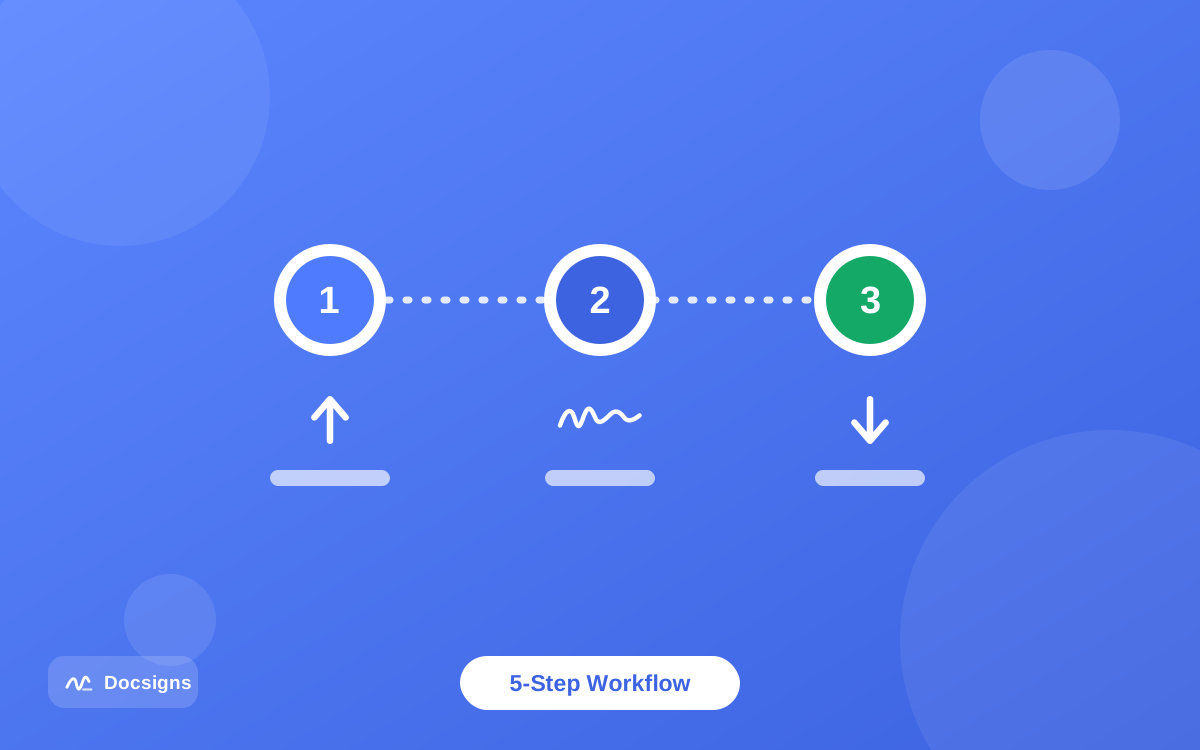
Strip away branding and every self-signing workflow follows the same five stages. Understanding them makes any tool instantly familiar.
The five stages of electronic document signing
- Open the document. You select a file — typically PDF, often Word — from your device. Good tools render it page by page so what you see is exactly what will be signed.
- Create your signature. Draw it, type it in a handwriting font, or upload an image of your ink signature. Better tools let you save it to a reusable library so step two disappears from every future signing.
- Place and adjust. You drag the signature (and usually a date) onto the page, then resize, rotate and position it — on any page of a multi-page document.
- Generate the signed file. The tool merges your items into the document at the exact coordinates you chose. Docsigns additionally flattens the output — pages become images — so the signed content resists casual text edits.
- Download and share. You save the signed PDF (Docsigns keeps the original file name) and send it — by email, messaging app, or a share link.
The whole loop, first visit included, takes two or three minutes. On a repeat visit with a saved signature it takes under one. Compare that with the print-sign-scan ritual it replaces — and note that the scanned version usually looked worse and weighed ten times as much.
The three ways to create an electronic signature
Every mainstream tool offers some subset of three creation methods. Docsigns offers all three, and each has a best-fit situation.
Draw it
You sign with your mouse, trackpad or — far more naturally — your finger or stylus on a touchscreen. Drawn signatures look the most like your real one and are the default choice on phones and tablets. On a desktop with a mouse, expect your first two attempts to look like a seismograph reading; the third is usually fine.
Type it
You type your name and choose a handwriting-style font — Docsigns ships six (Classic, Casual, Fine, Elegant, Relaxed, Marker). Typed signatures are perfectly legible, take five seconds, and are legally just as valid as drawn ones under the broad definitions above. They are the pragmatic pick for high-volume form signing.
Upload an image
You photograph or scan your ink signature once, clean it up, and upload the PNG or JPG. This gives you your genuine handwriting in every document — the best of both worlds — and it is worth doing properly once. The full technique, including background removal, is in how to upload and use a signature image in PDFs. Whichever method you pick, save the result to your signature library so it is one click next time; the craft of making a signature you will keep is covered in how to create a digital signature for documents.
File formats: what you can sign electronically
PDF dominates electronic document signing for a structural reason: a PDF page has fixed geometry, so a signature placed at a spot stays at that spot on every screen and printer. Other formats get signed by way of PDF.
| Format | Can you sign it? | How it works in practice |
|---|---|---|
| Yes — the native format | Rendered and signed directly; in Docsigns this happens entirely in your browser and the file never leaves your device | |
| DOC / DOCX (Word) | Yes — via conversion | Docsigns converts the Word file to PDF with a secure converter, then you sign the PDF locally; details in the Word signing guide |
| PPT / PPTX (PowerPoint) | Not directly | Export the deck to PDF from PowerPoint, Keynote or Google Slides first — the workflow is in signing presentations before sharing |
| Images (JPG/PNG) | Not directly in most signing tools | Insert the image into a document and export to PDF, or print-to-PDF, then sign |
| Paper | Indirectly | Scan or photograph to PDF, then sign electronically — no printer needed at any stage |
The pattern is easy to remember: everything becomes a PDF, then the PDF gets signed. Once you internalize that, no file type is a dead end.
Is electronic document signing legally valid?
In most of the world, for most documents: yes. Three frameworks do the heavy lifting. In the United States, the federal ESIGN Act (2000) provides that a signature cannot be denied legal effect solely because it is electronic, and UETA extends the same principle at state level. In the European Union, the eIDAS regulation recognizes electronic signatures across all member states and defines higher tiers (advanced and qualified) for documents that need certificate-backed assurance.
The practical takeaways for everyday signing:
- Ordinary business documents — contracts, invoices, NDAs, consent forms, offer letters — are comfortably covered by standard electronic signatures.
- A few document classes still demand wet ink or qualified signatures in various jurisdictions: wills, certain property deeds, some court and family-law filings.
- Intent and consent matter more than technology: the signer must intend to sign, and in consumer contexts must have agreed to do business electronically.
- Keeping a dated, unaltered copy of the signed document is the single best thing you can do for enforceability.
This is general information, not legal advice — requirements vary by jurisdiction and document type. For the full picture, including how contracts specifically are handled, read are electronic signatures legally binding and the practical companion how to sign a contract electronically.
Security in electronic document signing
Two separate security questions hide inside "is e-signing safe?" — and they have different answers.
Question one: what happens to my document while I sign it? Many online tools upload your file to their servers to process it. That is not automatically sinister, but it widens the surface: your contract now exists on infrastructure you do not control, subject to that company's retention and breach record. Docsigns takes the narrower path — PDFs are rendered and signed entirely client-side in your browser and are never uploaded or stored on a server. Word files touch a secure converter only for the DOCX-to-PDF step, after which signing is local too.
Question two: what happens to my document after I sign it? A signed PDF travels through inboxes and chat threads. Flattened output (pages as images) blunts casual editing; your own retained original and a recorded checksum prove what the file looked like on signing day; encryption protects confidential content in transit. The layered approach is spelled out in how to protect signed PDF documents from editing, and the broader habits — verifying the tool, checking HTTPS, avoiding sketchy "free" converters — live in how to sign documents online securely.
Signing documents on mobile devices
The paperwork rarely waits for a desk. A lease addendum arrives while you are traveling; a client wants the quote approved before lunch. Electronic document signing on a phone is now genuinely first-class rather than a squint-and-pinch compromise.
Two routes exist. The browser route: open the signing tool in Safari or Chrome on your phone — Docsigns works in any modern mobile browser at any screen size — and draw your signature with your finger, which is more natural than a mouse ever was. The app route: Docsigns has an iOS and macOS app on the App Store ("Docsigns – eSign PDF, Word"), with a saved signature library, and an Android app on Google Play.
Device-specific walkthroughs live in how to sign documents on mobile devices, with dedicated guides for iPhone and Android.
Choosing an electronic document signing tool
The market splits into two honest categories, and knowing which you need saves real money.
Workflow platforms (DocuSign, Adobe Acrobat Sign and peers) are built for *sending documents to other people to sign*: multi-party routing, reminders, audit trails, certificates of completion, API integrations. If you run HR onboarding or close dozens of counterparty contracts a month, that is what the subscription buys.
Self-signing tools solve the other, far more common problem: *a document is in front of you and it needs your signature.* No routing, no recipients — just sign and send it back. Paying platform prices for this is like renting a truck to deliver an envelope. Docsigns sits squarely in this category on purpose: free, no signup, no watermark, no file limits games — because self-signing simply does not cost enough to justify charging for.
- Need multi-party routing, reminders and audit trails? Choose a workflow platform — compare candidates in best free e-signature software.
- Just signing documents yourself? A free tool covers you completely — the field is surveyed in best free PDF signature tools in 2026.
- Privacy-sensitive documents? Prefer tools that process files locally in the browser rather than uploading them.
- Check the annoyance tax: watermarks, per-file limits and forced accounts are how "free" tiers push you to pay.
Step-by-step: electronic document signing with Docsigns
Here is the full workflow, concretely, with the tool we build:
- Go to docsigns.app in any modern browser — Chrome, Safari, Firefox or Edge, desktop or phone. No account creation.
- Open your file: PDF, DOC or DOCX. PDFs stay in your browser; Word files are converted to PDF by the secure converter, then handled locally.
- Create a signature: draw with mouse or finger, type your name in one of six handwriting fonts, or upload a PNG/JPG of your ink signature. Save it to your library for next time.
- Drag the signature onto the page. Resize it, rotate it, move it — on any page, with zoom for precise placement.
- Add a date in the format the document calls for: "June 11, 2026", "11/06/2026", "2026-06-11" or "11.06.2026".
- Download the signed PDF — original file name preserved, pages flattened, positions exactly as placed.
- Share it directly via a private link to WhatsApp, Gmail or LinkedIn, or attach it wherever the paperwork lives.
If a step deserves more depth — dates, multi-page placement, Word conversion — the individual guides linked throughout this post go into detail, including adding a date and signature to PDF documents.
Key terms in electronic document signing: a short glossary
Electronic signature (e-signature)
Any digital mark — drawn, typed or uploaded — attached to a document with the intent to sign it. The broad legal category under ESIGN, UETA and eIDAS.
Digital signature
A cryptographic method that binds a document fingerprint to a verified identity certificate, making any later change detectable. A technology, not a synonym for e-signature.
Flattening
Converting a signed document's pages into images inside the PDF so text and signature stop being separately editable objects. Docsigns flattens all signed output.
Signature library
A saved, reusable copy of your signature inside the tool, so repeat signing is one click instead of re-drawing.
Audit trail
A log of who signed what and when, produced by multi-party workflow platforms. Useful for counterparty processes; not something self-signing tools like Docsigns provide or need.
Qualified electronic signature (QES)
The highest eIDAS tier: a certificate-based signature issued through a qualified trust service provider, legally equivalent to handwriting across the EU. Required only for specific document classes.
Make electronic document signing your default habit
Once you have signed a few documents in the browser, the old ritual — find a printer, sign, find a scanner, email a crooked grey scan — feels absurd. Electronic document signing is faster, produces a cleaner file, works from any device you own, and for self-signing it costs exactly nothing.
You now have the whole map: what it is, how it works, the three signature methods, the format rules, the legal ground, the security layers and the tool landscape. The only thing left is the minute it takes to try it.
Grab any PDF waiting in your inbox and sign your document now — free, no signup, and the file never leaves your browser.
Frequently asked questions
What is electronic document signing?
It is approving a document by placing a signature on it digitally — drawn, typed or uploaded — instead of signing on paper. Under frameworks like the ESIGN Act, UETA and eIDAS, such signatures are broadly recognized for everyday documents.
Is an electronic signature as valid as a handwritten one?
For most everyday documents in most jurisdictions, yes — laws like ESIGN and eIDAS say a signature cannot be rejected solely for being electronic. A few document types (wills, some deeds) still require wet ink or qualified signatures. This is general information, not legal advice.
What is the difference between an electronic signature and a digital signature?
Electronic signature is the broad legal category: any digital mark made with intent to sign. Digital signature is a specific cryptographic technique using identity certificates that makes tampering detectable. Everyday self-signing uses electronic signatures; regulated high-stakes documents sometimes require the cryptographic kind.
What file formats can I sign electronically?
PDF natively, and Word files (DOC/DOCX) via conversion — Docsigns supports all three. PowerPoint and image files should be exported or printed to PDF first, then signed. Paper gets scanned to PDF.
Do I need to install software to sign documents electronically?
No. Docsigns runs in any modern browser on desktop and mobile with no signup. There is also an iOS and macOS app on the App Store and an Android app on Google Play if you prefer a native app.
Is it safe to sign documents online?
It depends on the tool. With Docsigns, PDFs are rendered and signed entirely in your browser and never uploaded to a server, and signed output is flattened to resist casual edits. With upload-based tools, check the provider's privacy and retention practices first.
How much does electronic document signing cost?
Self-signing should cost nothing: Docsigns is free with no signup, watermark or hidden fees. Paid platforms earn their subscriptions on multi-party features — sending documents to others, reminders, audit trails — not on the act of signing itself.
Can I reuse the same signature on every document?
Yes. Create it once — draw, type or upload — and save it to the signature library. On every future document it is one click to place, and you can still resize and rotate it per document.
Can I sign a document electronically on my phone?
Yes. Open the tool in your phone's browser and draw with your finger, or use the Docsigns iOS app. Multi-page documents, zoom and date placement all work at phone screen sizes.