How to Sign Word Documents Online
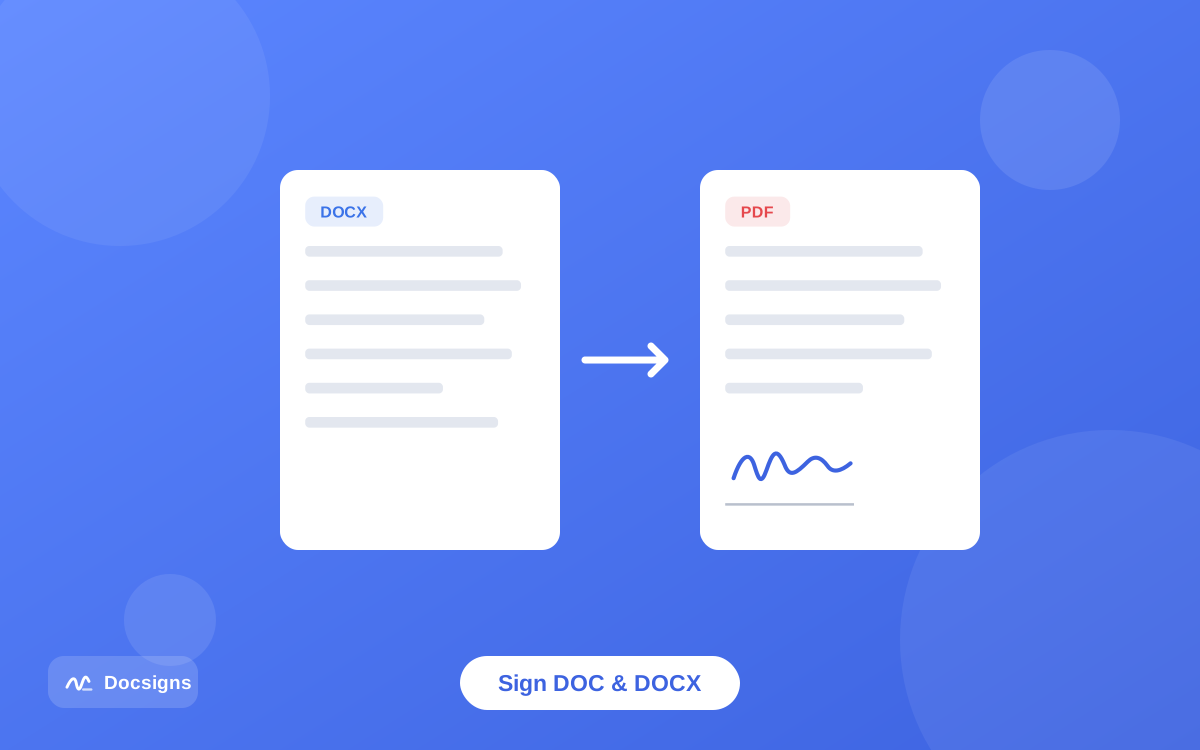
Contracts, offer letters, and agreements very often arrive as .doc or .docx files — and then the awkward question comes up: how do you get your signature onto a Word file when you are not at a computer with Microsoft Word installed? The answer is to sign Word documents online, in the browser, with no Office license and no printer involved.
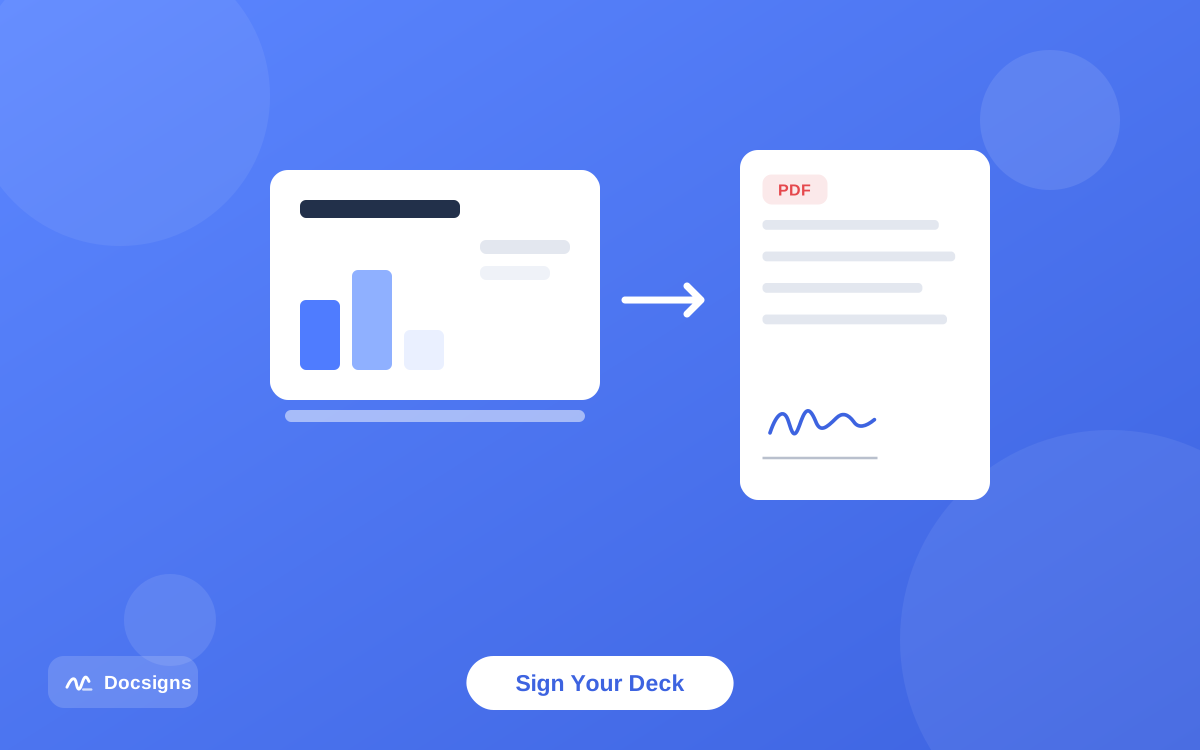
This guide shows the full workflow with Docsigns: you upload the DOC or DOCX, it is automatically converted to a PDF, you sign that PDF locally in your browser, and you download a signed PDF. We will also explain why the signed output is a PDF (and why that is exactly what the person on the other end wants), how the flow compares with Word's built-in signature line, and what to check so your formatting survives the trip.
Everything is free — no signup, no watermark — and it works in any modern browser on desktop or mobile.
Can you sign Word documents online without Microsoft Word?
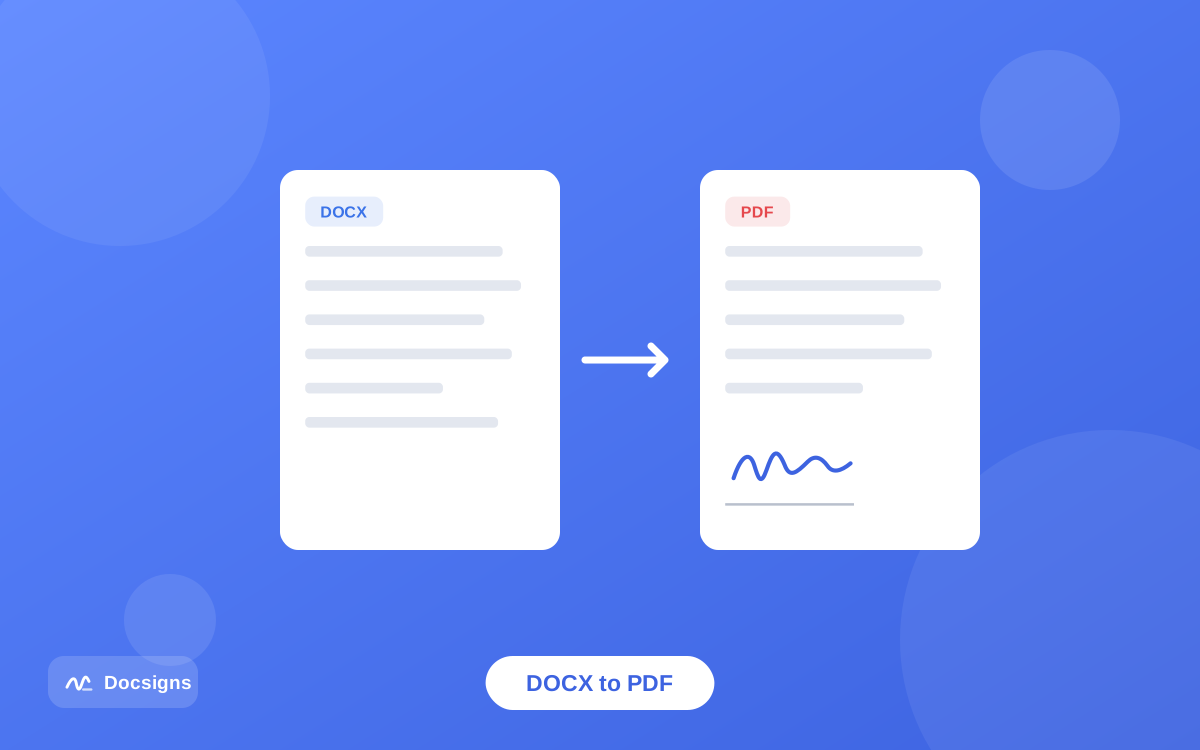
Yes — and you do not need a Microsoft account, a desktop Office installation, or any plugin. Docsigns accepts .doc and .docx uploads directly. The file is converted to PDF by a secure converter, then rendered in your browser where you place your signature. Once the document is a PDF, all signing happens locally on your device.
That covers the situations where Word itself is no help: you are on a phone or a tablet, on a work machine without Office, on Linux, or you simply received a DOCX from a client and want it signed and returned in the next five minutes. If the file you received is already a PDF, the flow is even shorter — see our guide on how to sign a PDF online for free.
One privacy note worth knowing: because DOC and DOCX are binary Office formats, they pass through a secure converter to become PDFs. From that point on, everything — rendering, signing, download — happens locally in your browser. Files you upload as PDFs never leave the browser at all. Either way, Docsigns does not store your documents on a server, and there is an iOS and macOS app on the App Store and an Android app on Google Play if you prefer signing outside the browser.
Why the signed output is a PDF — and why that is a good thing
When you sign a Word document with Docsigns, the file you download is a PDF, not a DOCX. That is a deliberate design choice, not a limitation, and it is worth understanding why.
- A signed document should stop changing. Word files are built for editing — anyone with Word can reflow, rewrite, or delete text with no trace. A signed agreement needs the opposite: a fixed record of exactly what was agreed. PDF is the format designed for that.
- Layout stops depending on the reader's software. The same DOCX can paginate differently in Word 2019, Word for Mac, and Google Docs, which means your signature could drift relative to the text. A PDF looks identical everywhere, so your signature stays exactly where you placed it.
- The output is flattened. Docsigns produces a PDF whose pages are flattened images, which makes casual text-editing of the signed content impractical — a natural tamper-deterrent for everyday agreements. Our guide on protecting signed PDF documents from editing goes deeper on this.
- Recipients expect it. Ask any client, landlord, or HR department: they want the signed copy back as a PDF they can open anywhere and archive as-is, not a Word file that invites accidental edits.
Keep your original DOCX as the editable master. The PDF is the executed record; the Word file is where any future amendments start.
How to sign Word documents online, step by step
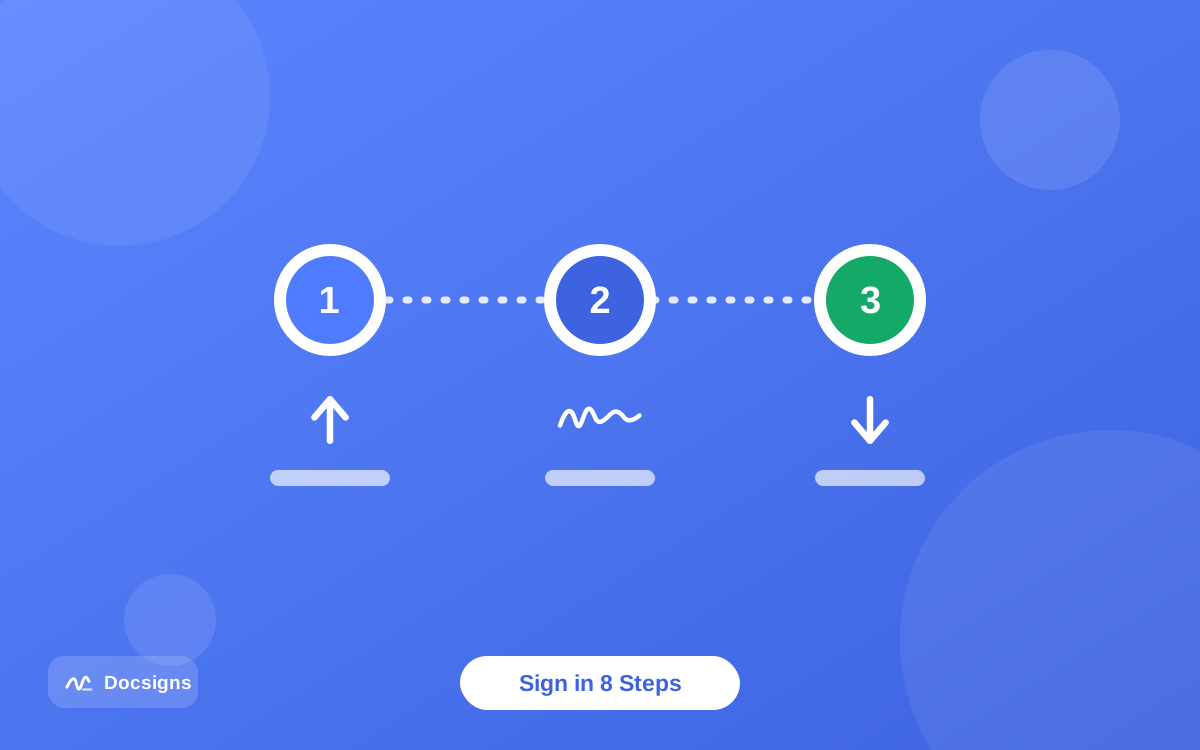
- Open Docsigns in any modern browser — Chrome, Safari, Firefox, or Edge, on desktop or mobile.
- Upload your .doc or .docx file. It is converted to PDF by a secure converter and rendered in the editor. Multi-page documents are fully supported.
- Skim the converted document page by page (use the zoom control) to confirm the layout carried over cleanly — thirty seconds now avoids surprises later.
- Create your signature: draw it with a mouse or finger, type your name in one of six handwriting fonts (Classic, Casual, Fine, Elegant, Relaxed, Marker), or upload a PNG or JPG image of your handwritten signature.
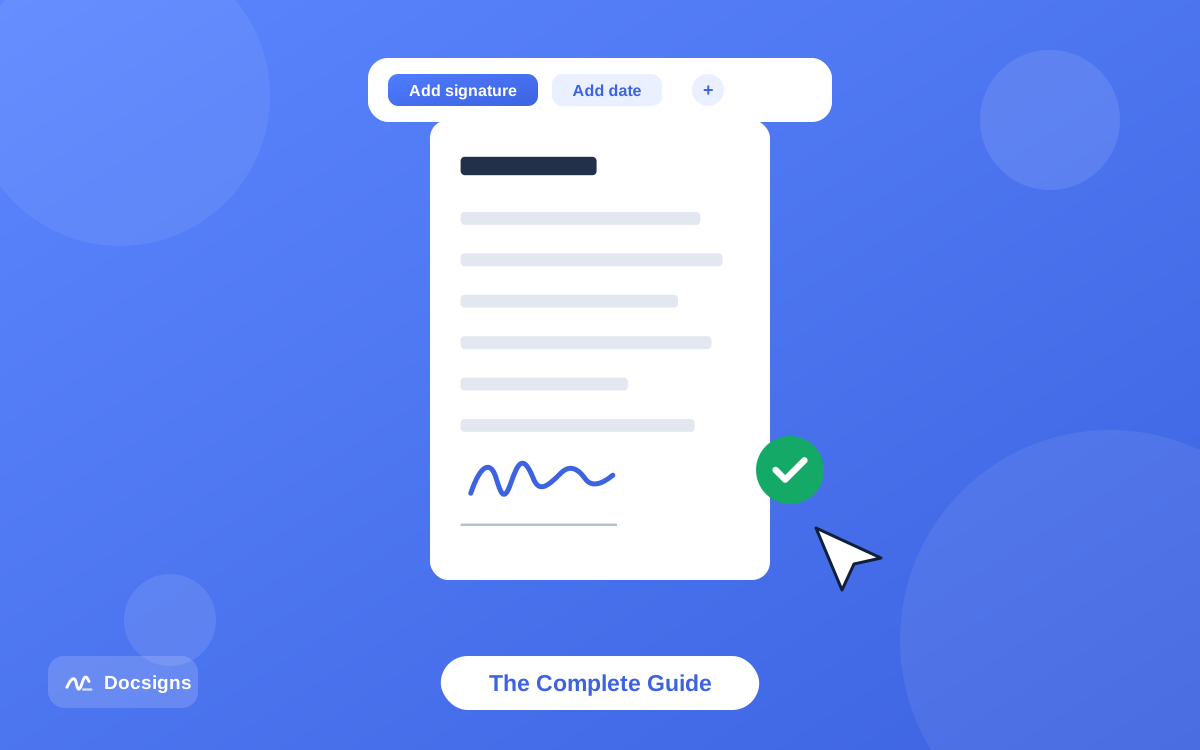
- Drag the signature onto the signature line, then resize and rotate it until it sits naturally on the line.
- Add the date in the format the document already uses — for example June 11, 2026, 11/06/2026, or 2026-06-11.
- Download the signed PDF. It keeps the original file name, and every item stays at the exact position you placed it.
- Return it by email, or share a private link straight to WhatsApp, Gmail, or LinkedIn.
If you plan to sign regularly, save your signature to the reusable signature library after the first document. And if you prefer using an image of your real pen-and-paper signature, our guide on uploading and using a signature image in PDFs shows how to capture a clean one.
The same steps work on a phone or tablet in any mobile browser — useful when a contract lands while you are away from your desk. Drawing with a finger takes a little practice, so many people prefer the typed-signature fonts or a saved signature image on small screens. Zoom in before placing anything; precision is much easier at 150% than at fit-to-width.
Docsigns vs Word's built-in signature line
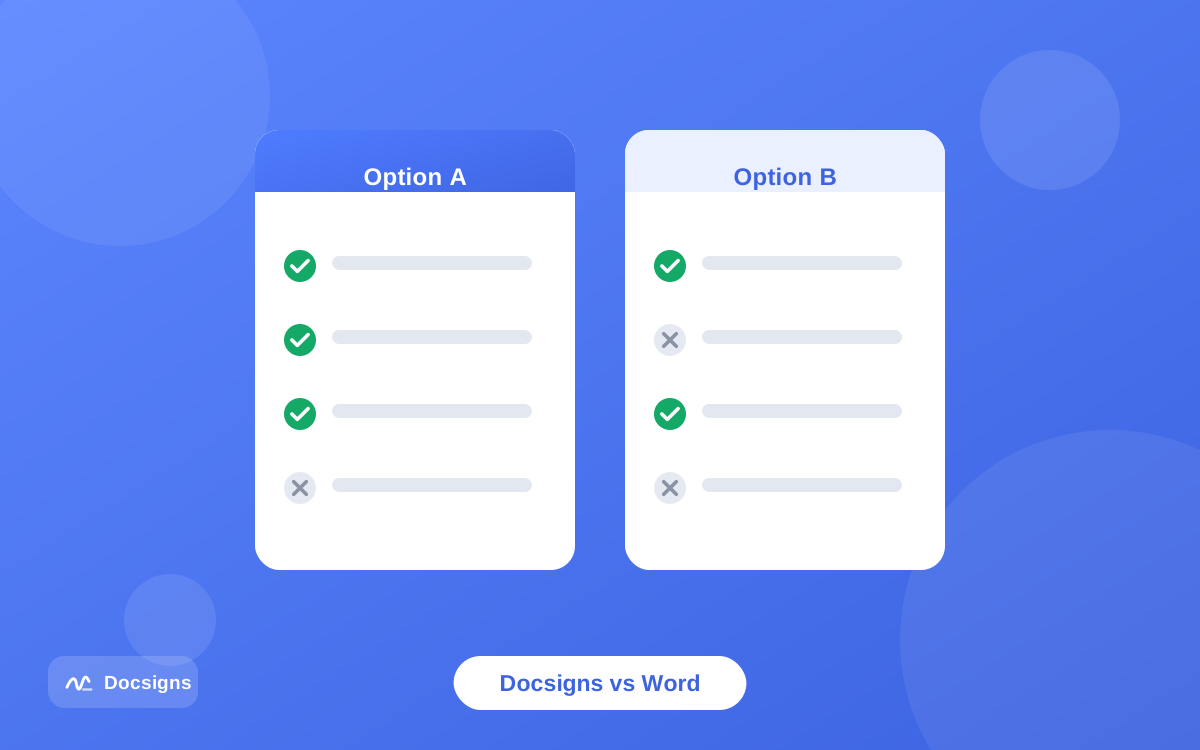
Microsoft Word does have signing features of its own, and for completeness you should know what they involve. Word lets you insert a signature line that a signer completes, and it supports certificate-based digital signatures on Office files. Both are genuinely useful in the right setting — and noticeably heavier for everyday use.
| Aspect | Docsigns (online) | Word signature line / digital signature |
|---|---|---|
| Software needed | Any modern browser | Desktop Microsoft Word (features are limited or absent in Word on the web and mobile) |
| Setup | None — no account, free | Office license; a signing certificate from a certificate authority (or a self-signed one) for the digital signature line |
| Signature style | Draw, type in 6 fonts, or upload an image | Type a name, upload an image, or sign with a certificate |
| Output | Flattened PDF, original file name kept | DOCX; certificate signatures break if the file is edited afterwards |
| Works on phones | Yes, any mobile browser | Not for certificate-based signing |
| Best for | Fast everyday signing and returning | Organizations with managed certificates and internal Office workflows |
The certificate route produces a cryptographic digital signature — a different animal from the visible electronic signature most agreements use day to day. If the distinction is fuzzy, our guide on electronic versus digital signatures untangles it. For most freelancers and small businesses, a browser-based electronic signature is the practical choice; for the legal backdrop, see are electronic signatures legally binding.
When to stay inside Word instead
If your organization mandates certificate-based digital signatures on Office files, or a counterparty specifically requires a signed DOCX with an intact certificate, use desktop Word with a proper certificate for that document. Those are policy requirements, not quality judgments — for everything else, the browser flow is faster.
A middle case comes up too: someone sends you a Word file containing a pre-drawn signature line graphic and just expects a visible signature on it. That needs no certificates and no desktop Word — upload the file, place your signature on the printed line, and return the PDF. The visual signature line in the document is a layout element, not a technical requirement.
Formatting preservation: what survives conversion
The DOCX-to-PDF conversion preserves standard business-document formatting very well: text, headings, tables, lists, images, headers and footers, and page breaks come through as expected. A few honest notes so you know what to check:
- Fonts. Common fonts (Calibri, Arial, Times New Roman, and similar) convert cleanly. A rare custom font that is not embedded in the file may be substituted, which can shift line wraps slightly.
- Complex layouts. Text boxes, floating shapes, and heavy WordArt are the elements most likely to move a few points. Standard contracts almost never use these.
- Tracked changes and comments. Accept or reject all revisions and delete comments in the source file before uploading — you want to sign the final text, not a markup view.
- Pagination. Conversion fixes the pagination permanently. If a signature block was hanging one line onto its own page, fix that in Word first.
- The review pass. Always skim every page in the editor before you sign. If something looks off, adjust the DOCX and re-upload — it takes a minute.
Tips to sign Word documents online without surprises
Three habits cover nearly everything. First, finalize the document in Word — resolve tracked changes, fill every blank, lock the wording — because you are signing a record, not a draft. Second, review the converted preview page by page before placing your signature. Third, keep both files afterwards: the signed PDF as the executed record and the original DOCX as the editable master. If the document is a contract, run through the pre-signing checklist in our guide on how to sign a contract electronically before your name goes on it.
Common mistakes to avoid
- Signing a draft with tracked changes still in it. The conversion renders the final text, but you should never sign a file whose wording was still moving. Finalize first.
- Skipping the post-conversion skim. Ten pages take thirty seconds to check. Do it before signing, not after sending.
- Expecting a DOCX back. The signed output is a PDF by design — that fixed, flattened copy is what makes the signature trustworthy.
- Printing and scanning instead. The print-sign-scan loop produces a worse result (skewed pages, gray backgrounds) and takes ten times longer than signing without printing.
- Losing the original file. Keep the DOCX master alongside the signed PDF so future amendments start from clean source.
Sign your next Word document online in two minutes
The workflow is short and honest: upload the DOC or DOCX, let it convert to PDF, check the layout, place a drawn, typed, or uploaded signature, add the date, and download a flattened, signed PDF that keeps its original file name. No Office license, no printer, no signup — and PDFs are signed entirely in your browser.
Next time a .docx lands in your inbox waiting for your name, you know how to sign Word documents online instead of hunting for a machine with Word installed. Sign your document now — it is free, private, and works wherever your browser does.
Frequently asked questions
Can I sign a Word document without Microsoft Word?
Yes. Upload the .doc or .docx to Docsigns in any modern browser: it is converted to PDF by a secure converter, you sign it locally in the browser, and you download the signed PDF. No Office license, account, or plugin is needed, and it is free.
Why is my signed Word document downloaded as a PDF?
Because a signed document should be a fixed record. Word files stay editable and can paginate differently on every machine, while a PDF looks identical everywhere. Docsigns also flattens the output pages, which makes casual editing of the signed content impractical.
Does the conversion keep my Word formatting?
Standard formatting — text, tables, lists, images, headers, footers, and page breaks — converts cleanly. Rare custom fonts or floating text boxes can shift slightly, so skim the converted preview page by page before you place your signature.
Are both .doc and .docx supported?
Yes. Docsigns signs PDF, DOC, and DOCX files. Both Word formats are converted to PDF before signing, and the downloaded file keeps the original file name.
How is this different from Word's signature line feature?
Word's signature line and certificate-based digital signatures require desktop Microsoft Word, and the digital version needs a signing certificate. Docsigns works in any browser with no setup and outputs a flattened signed PDF — the practical route for everyday agreements.
Is signing a Word document online legally valid?
In most countries an electronic signature applied with intent to sign is legally recognized for most business documents, under frameworks like the US ESIGN Act, UETA, and the EU eIDAS regulation. Exceptions exist (such as wills), and this is general information, not legal advice.
Can I sign a Word document on my phone?
Yes. The whole flow works in a mobile browser on any screen size, and there is a Docsigns app for iPhone, iPad, and Mac on the App Store. On Android, there is a Docsigns app on Google Play, or use Docsigns in the mobile browser.
Should I remove tracked changes before signing?
Yes. Accept or reject all revisions and delete comments in Word first, so the file you sign contains only the final agreed text. Then upload, review the converted preview, and sign.