How to Sign a PDF Online for Free
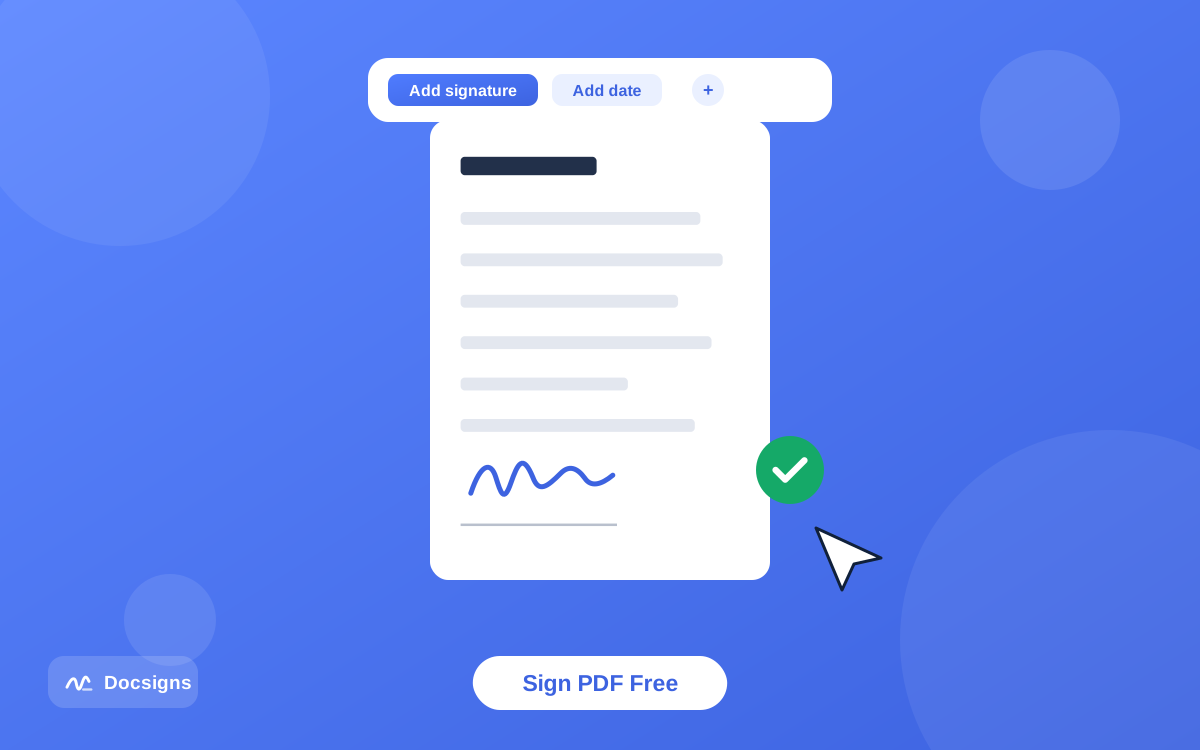
Someone emails you a lease, a job offer, or a permission slip, and they need it back signed today. You do not need a printer, a scanner, or paid software to handle it. You can sign a PDF online for free in about a minute, straight from the browser you already have open.
This guide is the complete walkthrough: uploading your file, creating a signature by drawing, typing, or uploading an image, placing it exactly where it belongs, adding the date, and downloading or sharing the finished document. It also covers the two things most walkthroughs skip — what happens to your file on the server side, and the mistakes that force people to redo the whole thing.
The steps below use Docsigns, a free signing tool with no signup and no watermark, but the workflow applies to any well-built browser-based signer. If you know what to look for, you can judge every tool in this category in about thirty seconds.
Why sign a PDF online instead of installing software?
The old way to sign a PDF meant downloading a desktop app, hunting through menus for the signature feature, and hoping the trial had not expired. A browser-based signer removes that friction entirely.
- Nothing to install. The tool runs in Chrome, Safari, Firefox, or Edge on any operating system — including the locked-down work laptop where you cannot install anything.
- No account walls. A genuinely free tool lets you sign without registering or handing over your email address first.
- Works on every device. The same URL works on your desktop, your tablet, and your phone, so paperwork gets done wherever it finds you.
- Always up to date. Web tools update in place. There is no version upgrade that suddenly asks for a credit card.
- Faster than print-sign-scan. Signing in the browser takes about a minute, versus the ten-plus minutes of the printer routine — see how to sign documents without printing for the full comparison.
If Adobe Acrobat is the specific software you want to avoid, we cover that scenario step by step in how to add a signature to a PDF without Adobe Acrobat.
What you need before you start
The list is short. You need the document you want to sign, a modern browser, and about sixty seconds. That is genuinely all.
- Your document — a PDF works directly. DOC and DOCX files work too: they are converted to PDF by a secure converter, then signed locally in your browser.
- Any modern browser — Chrome, Safari, Firefox, or Edge, on desktop or mobile.
- Optionally, a photo of your handwritten signature — only if you prefer the upload method over drawing or typing.
No printer, no scanner, no app download, no account. If a tool asks you to create an account before you can even see the editor, that is a signal to look elsewhere.
How to sign a PDF online for free in four steps
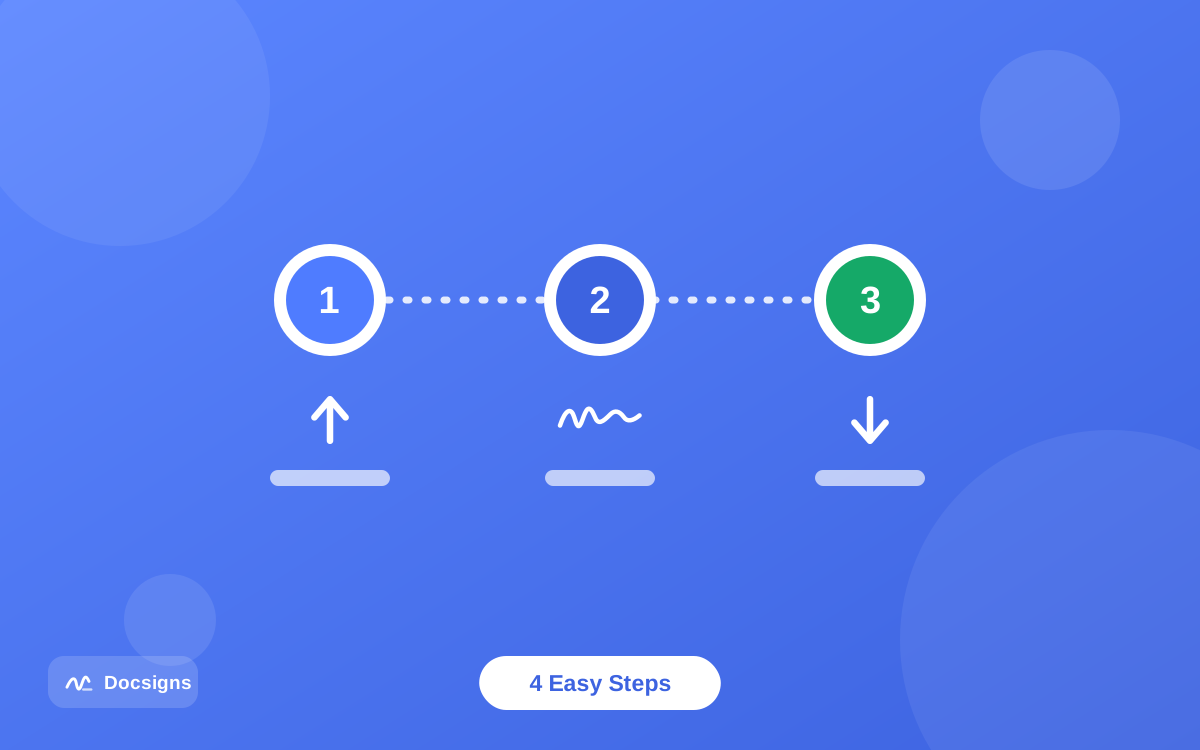
Here is the whole process at a glance, followed by the details of each step.
- Upload your PDF (or Word document) to the signing editor.
- Create your signature by drawing, typing, or uploading an image.
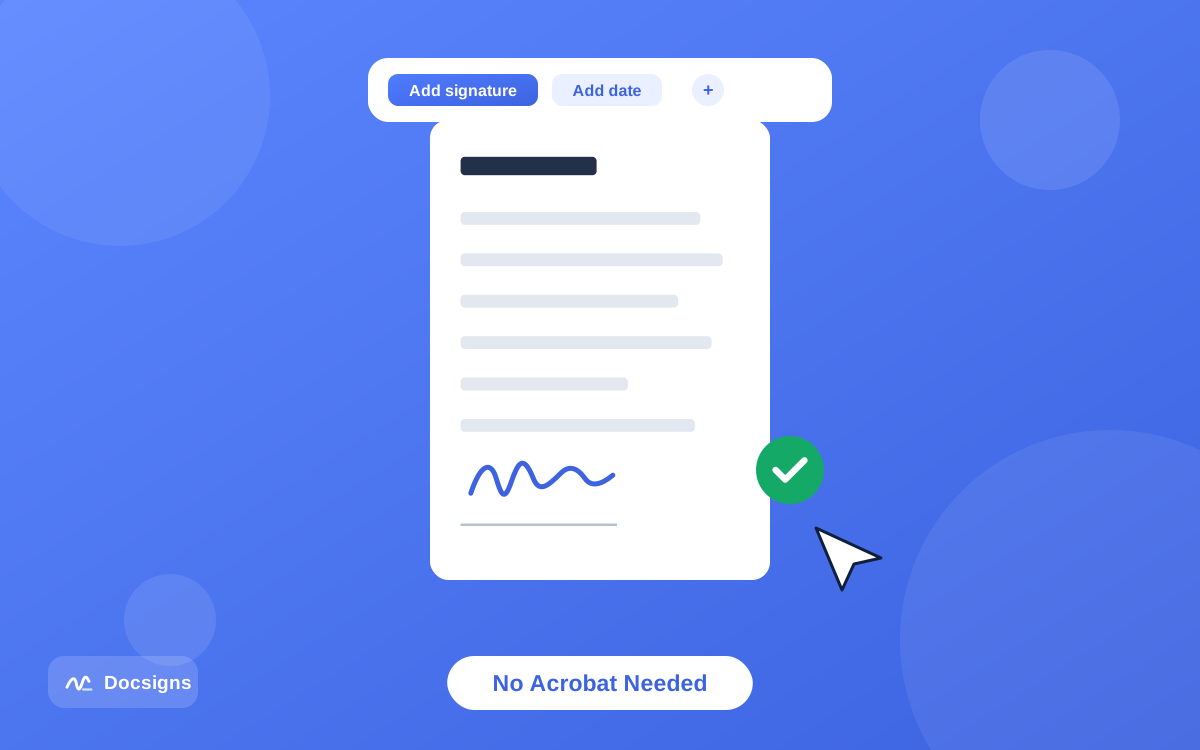
- Drag the signature into position, resize it to fit, and add the date.
- Download the signed PDF or share it via a private link.
Step 1: Upload your document
Open Docsigns and drop your file onto the upload area, or click to browse for it. PDFs open instantly because they are rendered right in your browser — nothing is sent to a server. DOC and DOCX files take a moment longer while a secure converter turns them into a PDF; after that, everything happens locally too.
Multi-page documents load in full, so you can scroll to page 7 of a contract just as easily as page 1. A zoom control helps you land the signature precisely on dense forms.
Step 2: Create your signature
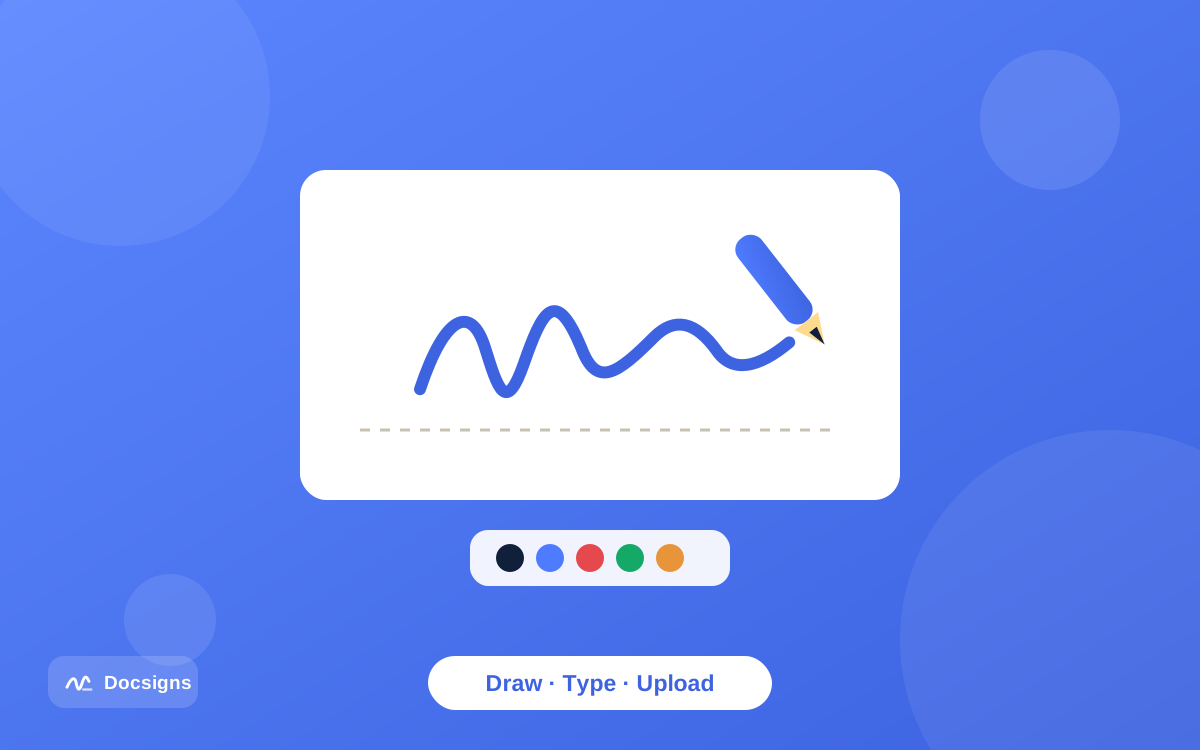
You have three options: draw your signature with a mouse or finger, type your name and pick one of six handwriting fonts, or upload a PNG or JPG image of your real signature. Each method has its strengths — the next section compares them in detail, and how to create a digital signature for documents goes deeper on making one that looks genuinely professional.
Once created, your signature can be saved to a reusable library. The next document you sign, it is one click away.
Step 3: Place your signature and add the date
Click to place the signature on the page, then drag it onto the signature line. You can resize it by the corner handles and even rotate it if the form has an angled field. It works on any page of a multi-page file.
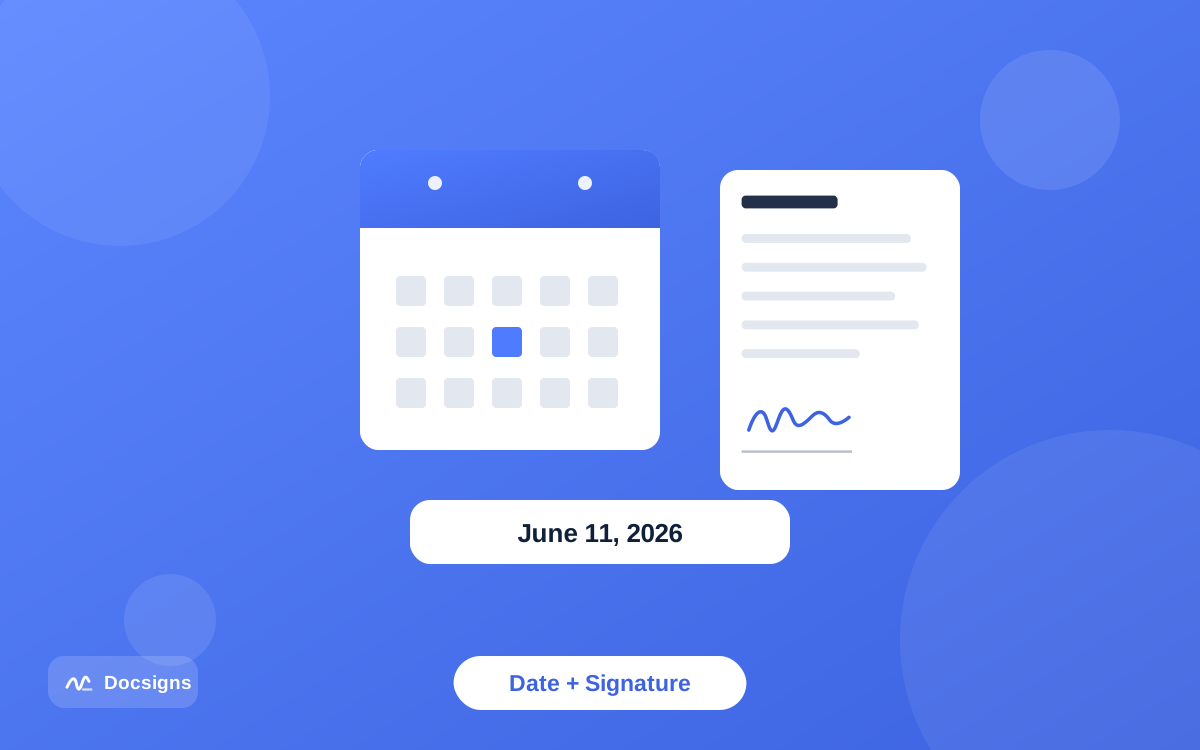
Most forms also want a date next to the signature. Add one in the format the document expects — "June 28, 2026", "28/06/2026", "2026-06-28", or "28.06.2026" all work. There is a full walkthrough in how to add a date and signature to PDF documents.
Step 4: Download or share the signed PDF
Click download and you get the signed PDF back with its original file name — no "document_final_v2_signed(1).pdf" mess, and no watermark stamped across your contract. Everything sits at the exact position you placed it.
The output pages are flattened images, which makes casual text-editing of the signed content impractical. If the other party is waiting, you can also share the file directly via a private link to WhatsApp, Gmail, or LinkedIn instead of downloading first.
| Step | What you do | Typical time |
|---|---|---|
| 1. Upload | Drop your PDF, DOC, or DOCX into the editor | 5 seconds |
| 2. Create signature | Draw, type, or upload a signature image | 20–30 seconds |
| 3. Place and date | Drag, resize, rotate; add a date field | 15 seconds |
| 4. Download or share | Save the signed PDF or send a private link | 5 seconds |
Three ways to create your signature
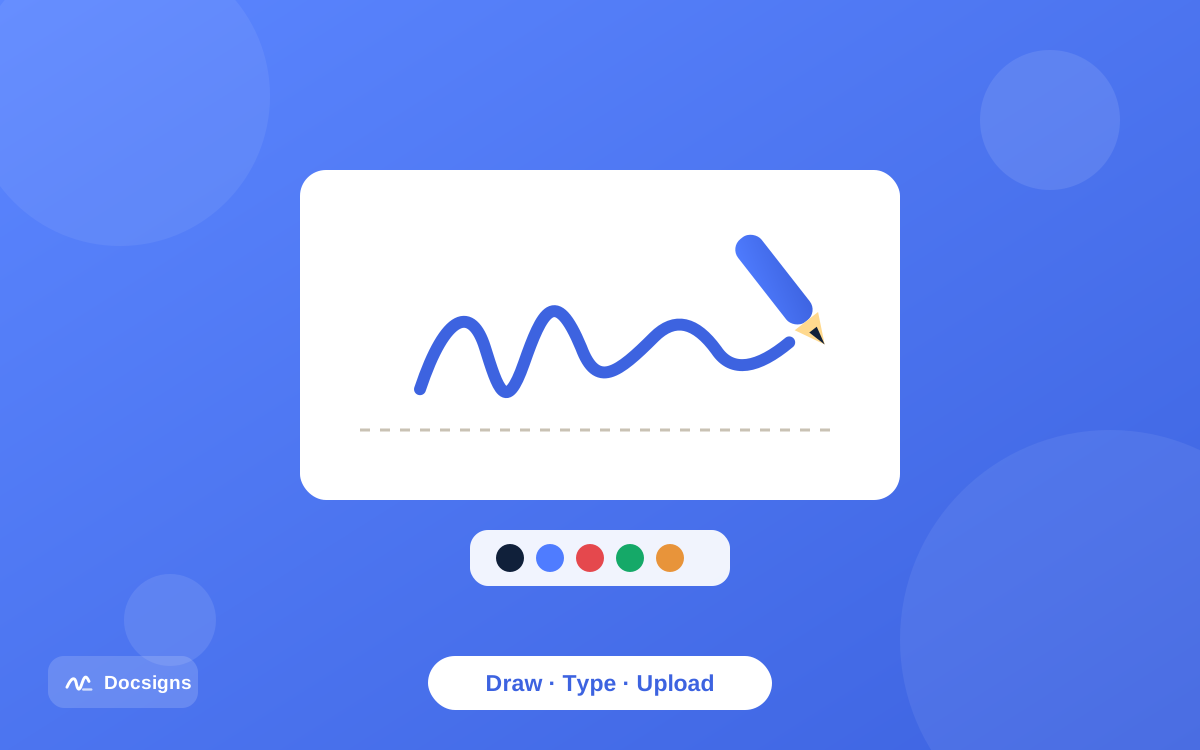
Draw it with a mouse or finger
Drawing gives you the most personal result. On a laptop trackpad it takes a couple of attempts; on a phone or tablet, signing with your finger feels close to pen and paper. Draw slowly, use the full width of the canvas, and clear and retry until it looks right — nobody sees the failed attempts.
Type it and pick a handwriting font
Typing is the fastest route to a clean, consistent signature. Enter your name and choose from six handwriting styles — Classic, Casual, Fine, Elegant, Relaxed, and Marker — ranging from formal cursive to a bold felt-tip look. This method is ideal when your trackpad drawing looks like a seismograph reading.
Upload an image of your real signature
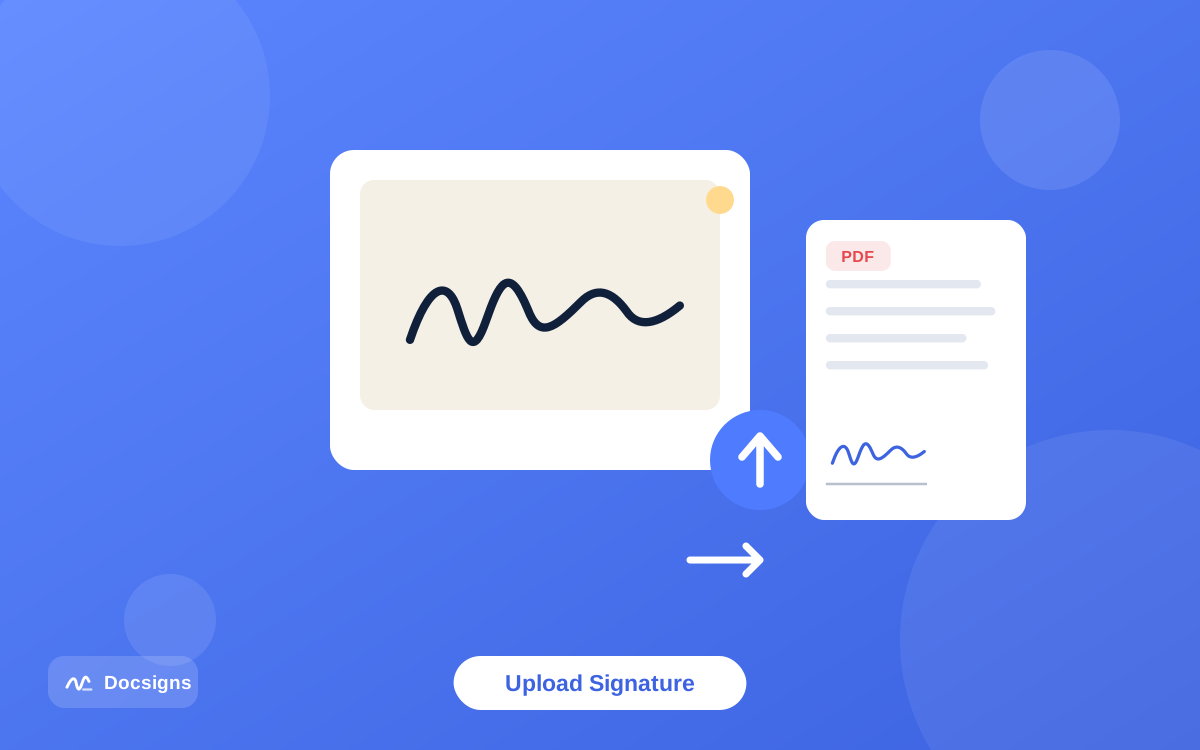
If you want your actual pen-on-paper signature in the document, sign a blank white sheet, photograph it in good light, and upload the PNG or JPG. The full technique — including how to get a clean result without editing software — is covered in how to upload and use a signature image in PDFs.
The privacy advantage: why local processing matters
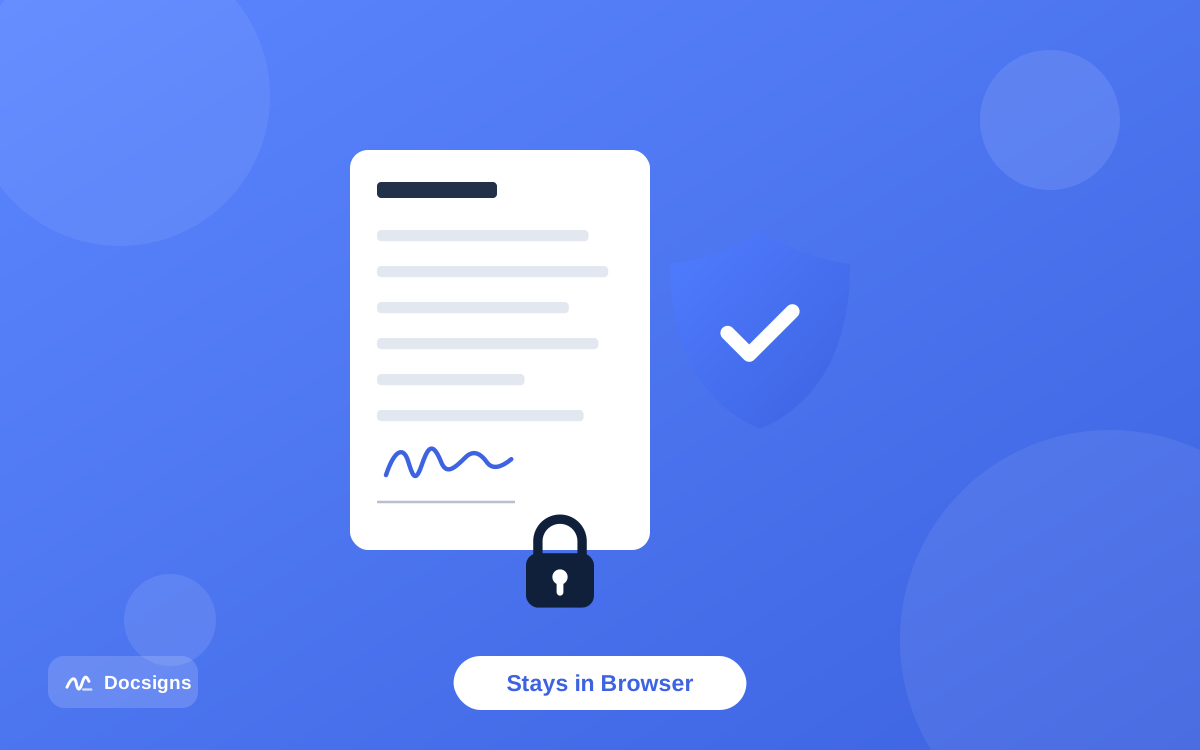
Here is the question almost nobody asks before uploading a contract to a random website: where does the file actually go? With many free tools, the answer is "to our servers", and the retention policy is buried in a privacy page you will never read.
Docsigns takes the opposite approach. PDFs never leave your browser — they are rendered and signed entirely client-side, and are never uploaded to or stored on a server. The signing happens on your own device, the same way a calculator app does math locally. For Word files, only the format conversion touches a secure converter; the signing itself still happens in your browser.
That distinction matters most for the documents people sign most: contracts with salary figures, medical consent forms, financial statements. Before you use any tool, check whether it processes files locally or uploads them — how to sign documents online securely walks through the exact checklist.
Signing a PDF from your phone
The document that needs signing rarely arrives while you are at your desk. The good news: the same browser workflow runs on any phone, and the touch screen is actually an upgrade — drawing a signature with your finger is far more natural than dragging a mouse.
Open the file from your email, upload it to the editor in your mobile browser, sign, and share it back — all without leaving the couch, the train, or the parking lot. On iPhone and Mac there is also a native app, Docsigns – eSign PDF, Word, on the App Store, and on Android there is Docsigns - Sign PDF & eSign on Google Play.
For device-specific tips — handling email attachments, avoiding accidental zoom while drawing, sharing back through messaging apps — see how to sign documents on mobile devices.
Common mistakes to avoid
Assuming every "sign a PDF online for free" tool is actually free
The most common trap in this category: you do all the work, click download, and only then meet the paywall, the watermark, or the "create an account to continue" screen. Test the exit before you invest the effort — a genuinely free tool lets you download a clean, unwatermarked file with no signup.
A few more mistakes that cause redone paperwork:
- Signing before reading. The speed of online signing makes it tempting to sign page 12 without reading pages 1–11. Scroll the whole document first.
- A signature that is too large or too small. Resize it to sit naturally on the signature line, roughly the size you would sign with a pen. Use the zoom control to check.
- Forgetting the date. Many forms are considered incomplete without one. Add it in the format the document already uses.
- Missing a second signature field. Contracts often want initials on every page or a signature in two places. Scan every page before downloading.
- Uploading confidential files to tools that store them. Prefer a signer that processes PDFs locally in your browser, and check the privacy policy when in doubt.
Is a PDF signed online legally valid?
In general, yes — for most everyday documents. In the United States, the ESIGN Act and UETA give electronic signatures the same legal standing as ink for most transactions, and the eIDAS regulation plays a similar role across the EU. What matters legally is your intent to sign, not whether the mark was made with a pen or a trackpad.
There are exceptions — wills, certain court filings, and some notarized documents still have special requirements in many places, and a few situations call for certificate-based cryptographic signatures rather than a drawn one. The difference between those two categories is explained in electronic signature vs digital signature: key differences, and the legal side is covered in depth in are electronic signatures legally binding. This is general information, not legal advice — requirements vary by jurisdiction and document type, so check the rules that apply to your situation.
Start signing PDFs online for free today
That is the entire skill: upload, create a signature by drawing, typing, or uploading an image, place and date it, download or share. Once you sign a PDF online for free the first time, the print-sign-scan routine starts to look like using a fax machine.
The tool matters, though. Pick one that is free without asterisks, adds no watermark, requires no account, and keeps your PDF in your browser instead of on someone's server.
Docsigns checks every one of those boxes. Grab the document sitting in your inbox and sign your document now — you will be done before the kettle boils.
Frequently asked questions
Can I really sign a PDF online for free, with no catch?
Yes. Docsigns lets you upload a PDF, create a signature, place it, and download the signed file with no signup, no watermark, and no hidden fees. Test any tool by checking that the download is free and clean before you invest time in it.
Is it safe to sign a PDF in the browser?
It depends on the tool. With Docsigns, PDFs never leave your browser — they are rendered and signed entirely on your device and are never uploaded or stored on a server. Before using any signer, check whether it processes files locally or uploads them.
Do I need to create an account or install anything?
No. The signer runs in any modern browser — Chrome, Safari, Firefox, or Edge — on desktop and mobile, with no download and no registration.
Can I sign a PDF online from my phone?
Yes. The same workflow runs in any mobile browser, and drawing a signature with your finger is easier than with a mouse. iPhone and Mac users can also use the Docsigns app from the App Store, and Android users can install it from Google Play.
What file types can I sign besides PDF?
DOC and DOCX files are supported too. They are converted to PDF by a secure converter and then signed locally in your browser, and the download keeps the original file name.
Is a PDF signed online legally binding?
For most everyday documents, yes. Laws like the ESIGN Act and UETA in the US and eIDAS in the EU recognize electronic signatures. Some documents, such as wills or certain notarized forms, have special requirements — this is general information, not legal advice.
Can someone edit the PDF after I sign it?
The signed download from Docsigns has flattened pages — each page becomes an image — which makes casual text-editing of the signed content impractical. It is not the same as cryptographic tamper-proofing, but it stops easy edits.
How do I add the date next to my signature?
Add a date element in the editor and drag it next to the signature. Multiple formats are supported, such as "June 28, 2026", "28/06/2026", "2026-06-28", and "28.06.2026", so you can match what the form expects.