How to Create a Digital Signature for Documents
Before you can sign anything electronically, you need a signature to sign with. The good news: you can create a digital signature in under a minute, for free, without design skills or special hardware — just a browser and one of three simple methods.
This guide covers all three in depth: drawing your signature with a mouse or finger, typing your name and choosing a handwriting font, and uploading a photo of your real pen-on-paper signature. You will also learn how to pick the right method for your situation, how to make the result look clean and professional, and how to save it so you never have to make it twice.
Everything below works in Docsigns — a free signing tool with no signup and no watermark — but the principles apply to any decent e-signature editor.
What "create a digital signature" actually means
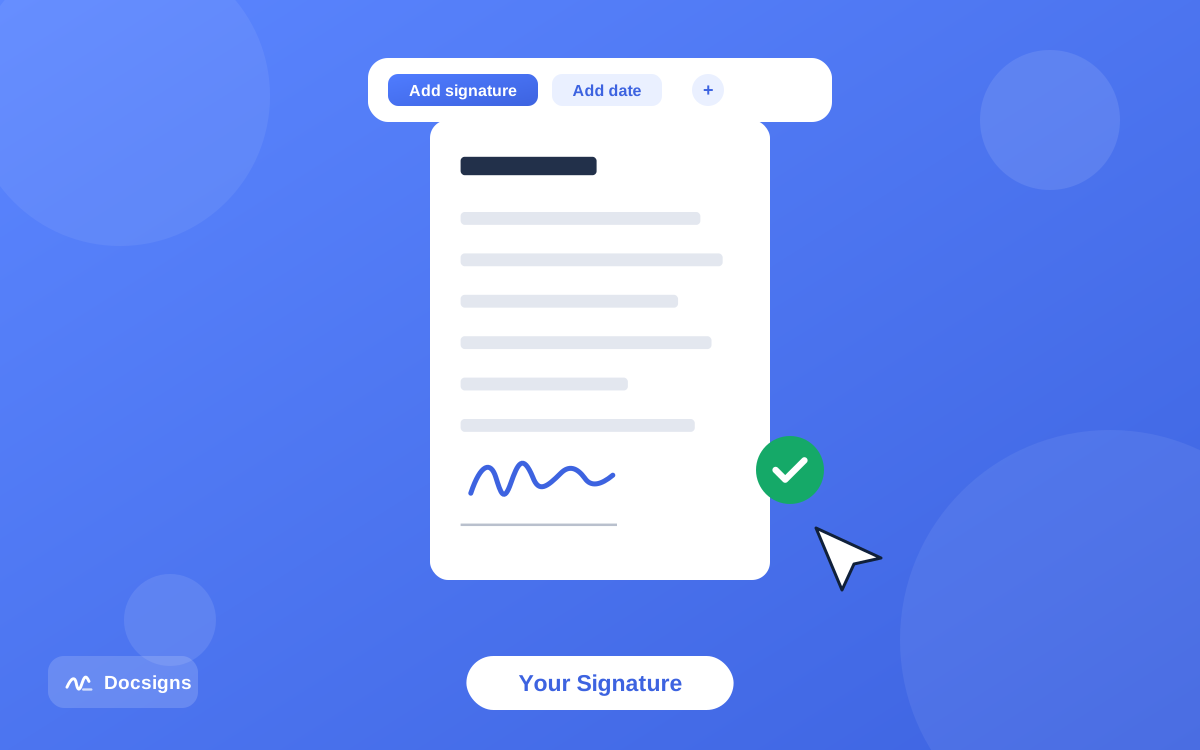
A quick clarification, because the term carries two meanings. In everyday use — and in this guide — to create a digital signature means to make the visual signature you place on a document: the handwritten-style mark that represents you. That is what most people searching this phrase want, and it is what the three methods below produce.
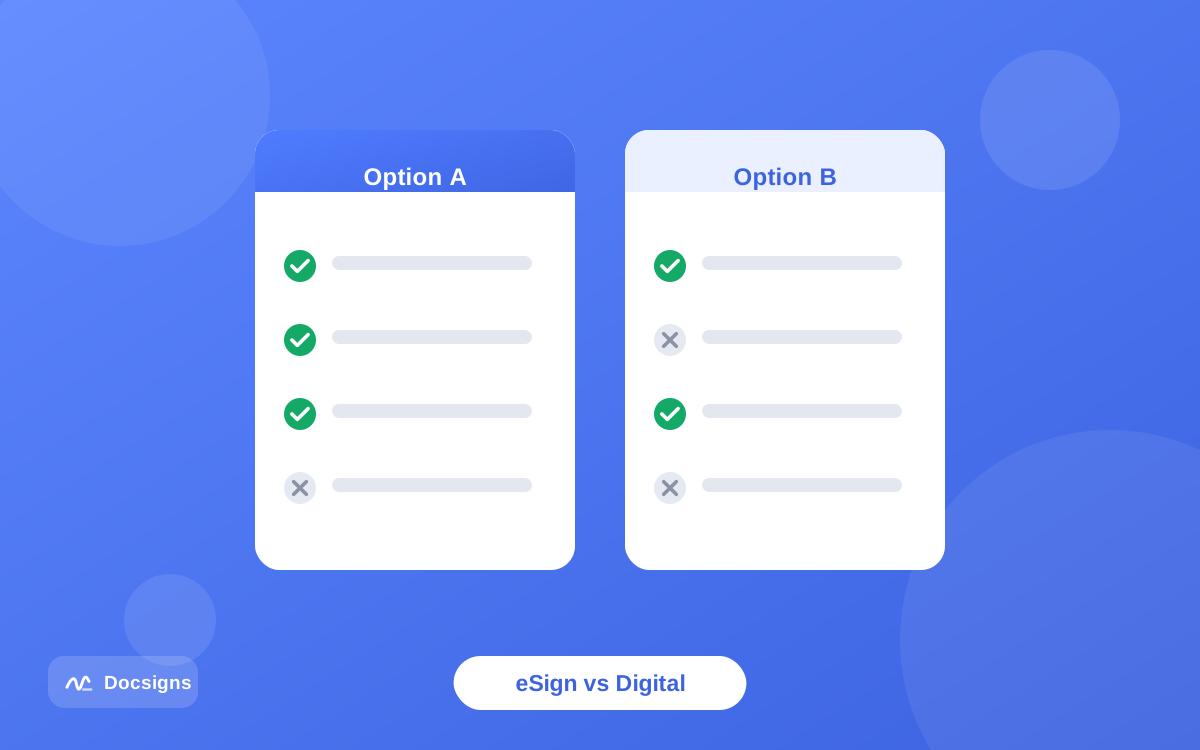
In the strict technical sense, a "digital signature" is something different: a cryptographic technique using certificates and key pairs that mathematically proves who signed a file and that it has not changed since. You do not create that kind by drawing; it requires certificate-based PKI software. If you are not sure which one you need, read electronic signature vs digital signature: key differences — for the vast majority of everyday paperwork, the visual kind covered here is exactly right.
Three ways to create a digital signature
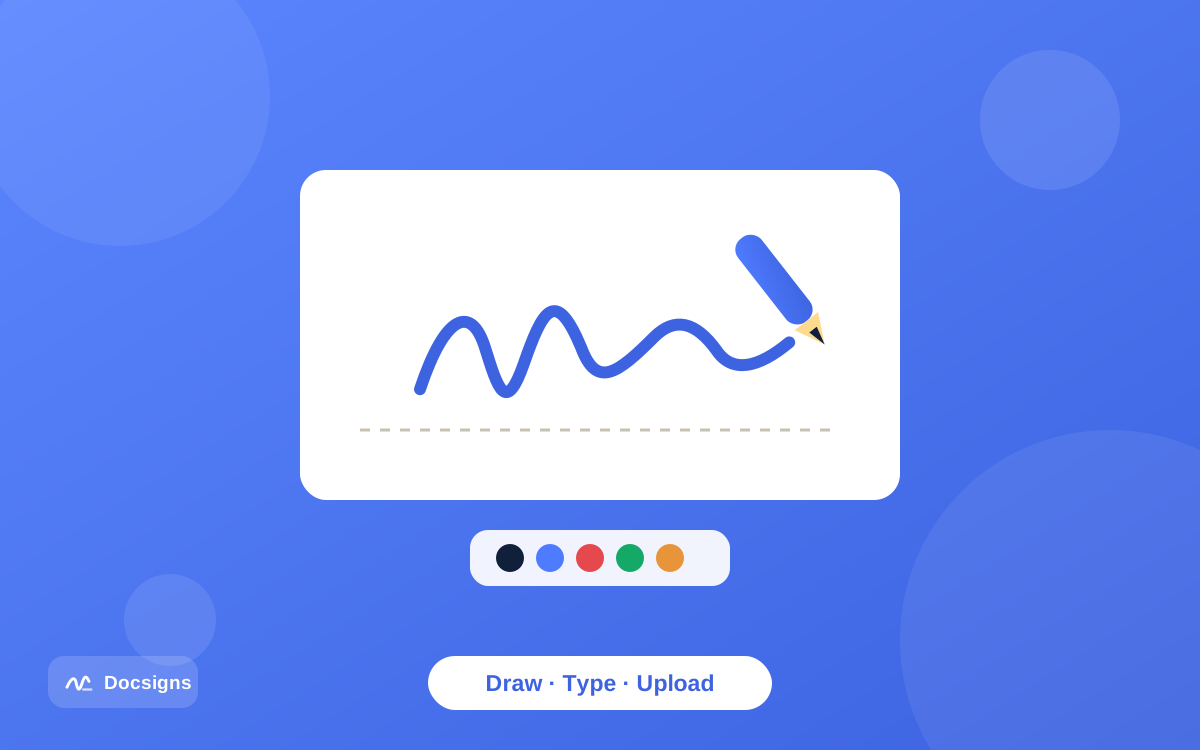
Every good signing tool offers the same three creation methods. Each produces a signature you can place, resize, and reuse — the difference is how it looks and how long it takes to make.
Try more than one. The whole exercise costs a couple of minutes, and seeing your drawn attempt next to a typed version makes the choice obvious in a way no description can.
Method 1: Draw your signature
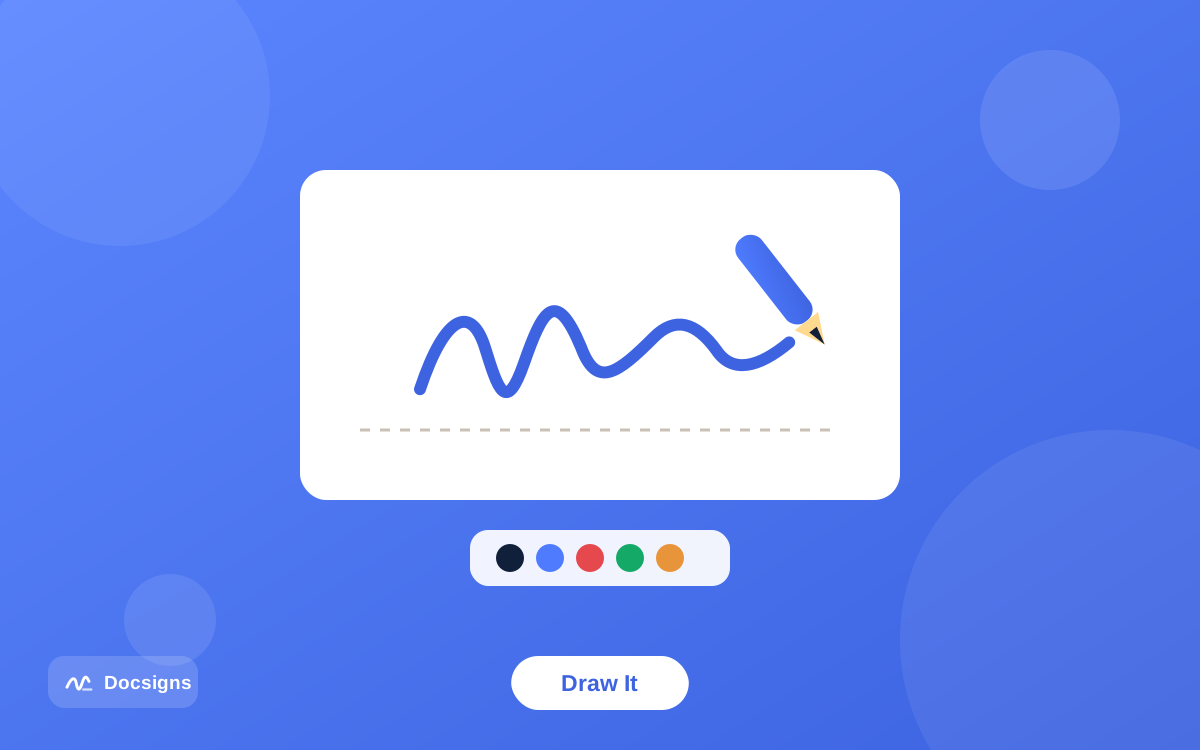
Open the signature panel, pick the draw option, and sign inside the canvas using your mouse, trackpad, or finger. This produces the most personal result — it is your actual hand movement, just captured digitally.
The honest caveat: drawing with a mouse takes practice. Your first attempt will probably look shaky, and that is normal. Clear the canvas and try again; most people get a signature they like by the third attempt. On a phone or tablet the story is different — signing with your finger feels close to pen on paper, which is why many people create their signature on their phone even when the document is on their laptop.
Draw slowly and deliberately rather than at pen speed. Use the full width of the canvas — you can shrink the signature later, and a large drawing scales down far more cleanly than a small one scales up.
Method 2: Type your name and choose a font
Type your name and the tool renders it in a handwriting-style font. This is the fastest method by a wide margin — about ten seconds — and it always produces a clean, consistent result. No shaky lines, no retries.
Docsigns offers six handwriting styles: Classic, Casual, Fine, Elegant, Relaxed, and Marker. The next section breaks down which style suits which kind of document. Typed signatures carry the same legal weight as drawn ones for everyday purposes — what matters is your intent to sign, not the artistry of the strokes.
Method 3: Upload an image of your handwritten signature
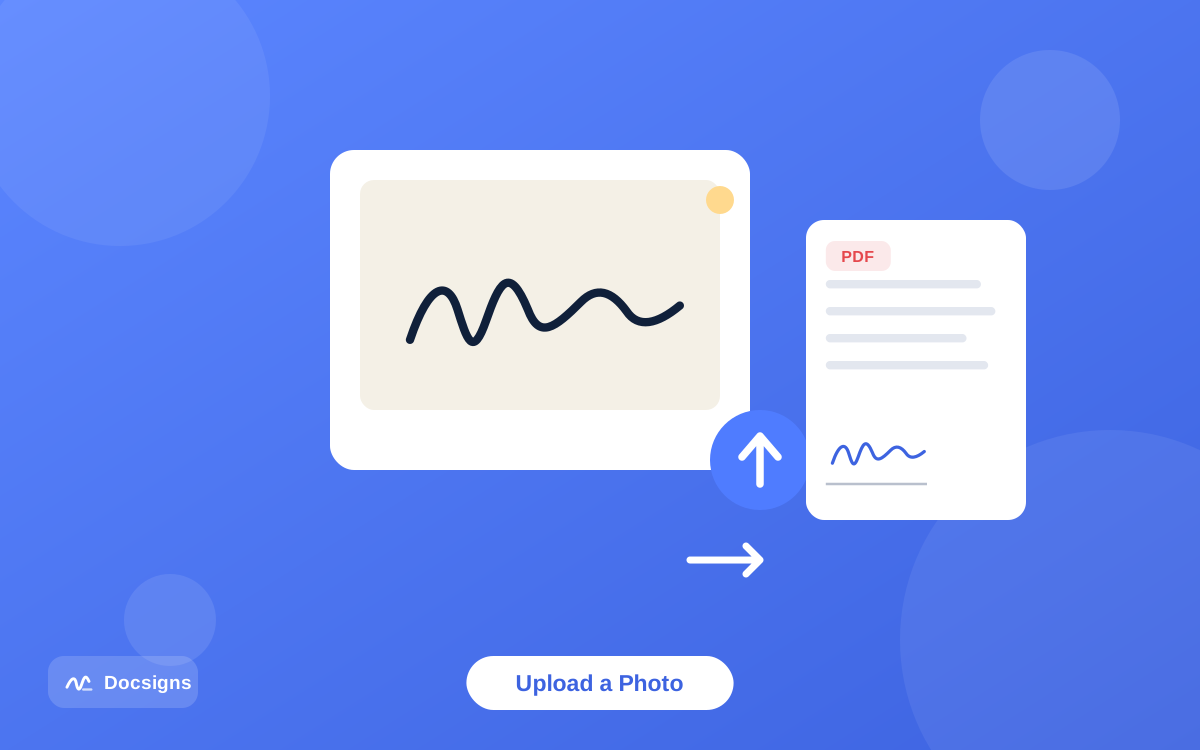
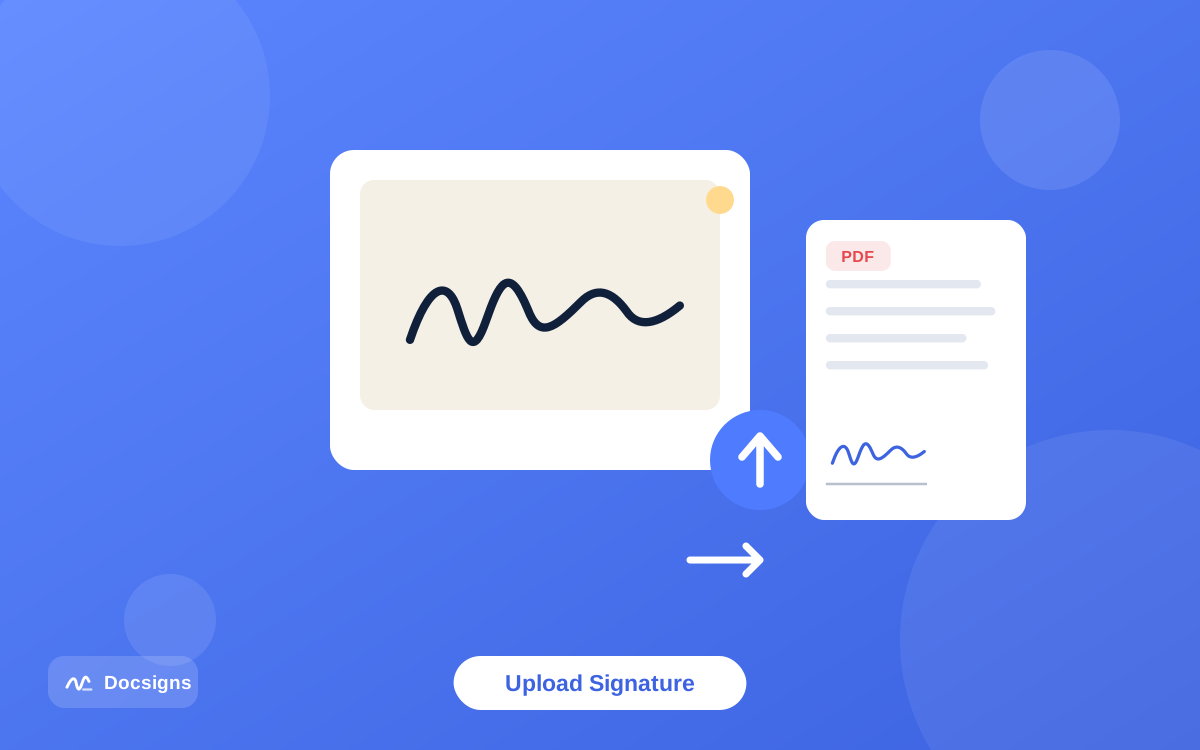
If nothing but your real signature will do, put it on paper first. Sign a blank white sheet with a dark pen, photograph it straight-on in good light, and upload the PNG or JPG. Your genuine signature is now usable on every document you sign from here on.
A few details make a big difference: use unlined white paper, a fresh black or blue pen, and daylight rather than a yellow lamp. Crop close to the signature before uploading. The complete technique — including common photo mistakes — is in how to upload and use a signature image in PDFs.
Which method should you use to create a digital signature?
There is no wrong answer, but there is usually a best fit. Match the method to your device and the formality of the document.
| Method | Time | Looks like | Best when |
|---|---|---|---|
| Draw | 1–2 minutes | Your real handwriting, slightly rougher on a mouse | You are on a touch screen, or want a personal mark |
| Type | 10 seconds | Clean, consistent handwriting font | You need a fast, professional result on any device |
| Upload | 3–5 minutes once | Exactly your pen-on-paper signature | The document should carry your authentic signature |
A practical pattern many people settle on: type a signature for routine paperwork, and keep an uploaded image of the real thing for contracts and formal letters. Both can live side by side in your signature library.
Choosing a handwriting font style
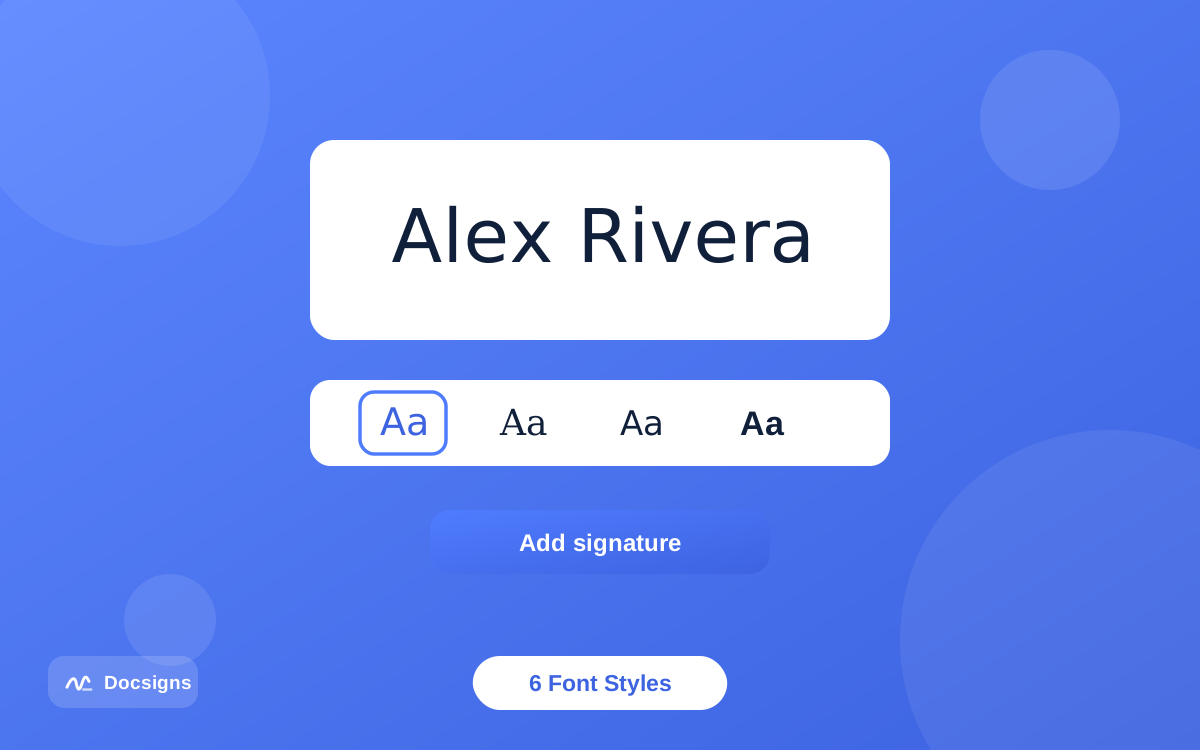
If you go the typed route, the font choice sets the tone. Here is how the six Docsigns styles read in practice:
- Classic — traditional cursive; the safe default for business contracts and formal letters.
- Casual — relaxed, friendly handwriting; suits internal documents and everyday forms.
- Fine — thin, precise strokes; reads as understated and meticulous.
- Elegant — flowing script with flourish; a fit for invitations, certificates, and letterheads.
- Relaxed — loose and natural, like quick real-world handwriting.
- Marker — bold felt-tip strokes; highly legible, confident, and modern.
Pick one and stay with it. A signature that looks the same on every document reads as more credible than one that changes style from file to file — the same reason your pen signature stays consistent.
Tips for a clean, professional signature
Whichever method you choose, a handful of habits separate a signature that looks placed from one that looks pasted:
- Size it like a pen signature. On the page, your signature should sit naturally on the signature line — roughly the height of two or three lines of text. Oversized signatures dominate the page; tiny ones look hesitant.
- Keep the proportions. Resize from the corner handles so the signature does not stretch or squash.
- Align it to the line. Place the base of the signature on the signature line, not floating above or sinking below it. Use the zoom control for precision on dense forms.
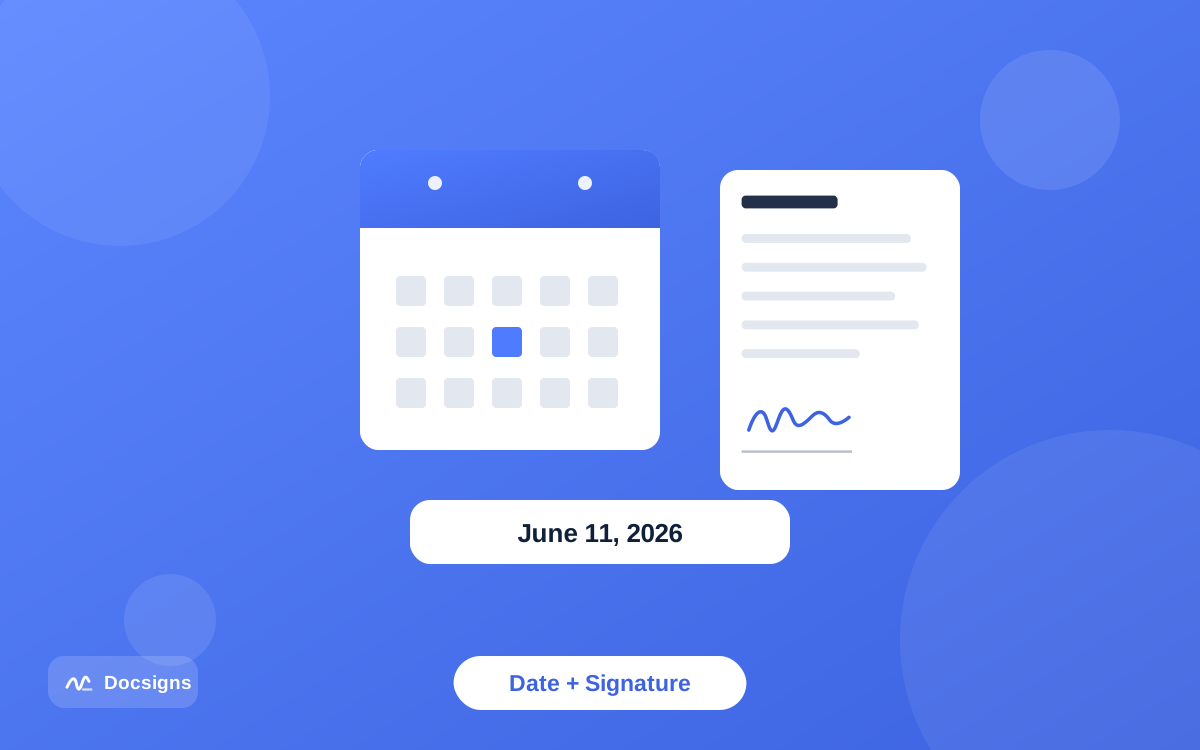
- Match the document's date format. If the form says "MM/DD/YYYY", add your date as "06/25/2026", not "June 25, 2026". Formats like "2026-06-25" and "25.06.2026" are available too.
- Check every page. Contracts often require initials or a second signature further in — scroll the whole document before downloading.
- Test-read at 100% zoom. Before you finish, view the page at actual size. If the name is not legible, go one size up or switch to a cleaner font.
Save your signature and reuse it
The real payoff comes after the first document. A reusable signature library means you create a digital signature once and apply it with one click on every future file — no redrawing, no hunting for the photo you took last month.
- Create your signature using any of the three methods above.
- Save it to your signature library in the editor.
- On the next document, open the library and click your saved signature.
- Drag it into place, resize if needed, and download — done in seconds.
This works across document types, too: the same saved signature goes onto PDFs and Word files alike. See how to sign Word documents online for how DOC and DOCX handling works, and how to sign a PDF online for free for the full signing walkthrough end to end.
A device tip worth knowing: your best drawing surface is probably in your pocket. If your mouse-drawn attempts keep coming out shaky, open the editor on your phone, draw the signature with your finger, and use that version. Touch screens capture hand movement far more faithfully than a trackpad ever will — more phone-specific advice lives in how to sign documents on mobile devices.
And a privacy note that applies to everything above: with Docsigns, PDFs are rendered and signed entirely in your browser — they are never uploaded to or stored on a server. Your signature and your documents stay on your device.
Common mistakes when creating a signature
These are the issues that come up most often — all avoidable in seconds:
- Drawing at full pen speed with a mouse. Slow down by half; the line quality improves dramatically.
- Uploading a photo of a signature on lined or colored paper. The lines and tint come along for the ride. Use blank white paper.
- Stretching the signature to fill a wide field. A distorted signature looks worse than a small one. Resize proportionally and leave whitespace.
- Recreating the signature for every document. Save it once to the library instead — consistency also makes your documents look more credible.
- Using an ornate font for legal paperwork. For contracts, favor Classic or Fine over decorative flourish; legibility reads as professionalism.
- Confusing the visual signature with certificate-based signing. If a counterparty demands a certificate-backed cryptographic signature, a drawn or typed mark will not satisfy that requirement — see the section above on the two meanings.
A note on legal standing
A signature you create by drawing, typing, or uploading is an electronic signature, and electronic signatures are legally recognized for most everyday transactions — in the US under the ESIGN Act and UETA, and in the EU under eIDAS. Courts care about your intent to sign, not which of the three methods produced the mark.
Some document types — wills, certain notarized or court documents — carry extra requirements in many jurisdictions, and some counterparties specifically require certificate-based digital signatures. This is general information rather than legal advice; are electronic signatures legally binding covers the topic in depth, and requirements vary by jurisdiction and document type.
Create a digital signature in the next sixty seconds
You now know all three methods: draw it for a personal touch, type it for speed and consistency, or upload the real thing for authenticity. Whichever you pick, create a digital signature once, save it to your library, and every document after that takes seconds instead of minutes.
There is no cost and no signup involved — open Docsigns and create your signature now, then put it straight to work on the document waiting in your inbox.
Frequently asked questions
How do I create a digital signature for free?
Open a free signing tool like Docsigns, then either draw your signature with a mouse or finger, type your name and pick one of six handwriting fonts, or upload a PNG/JPG photo of your handwritten signature. No signup or payment is needed.
Which is better: drawing or typing my signature?
Typing is faster and always looks clean; drawing is more personal but takes practice with a mouse. On touch screens, drawing works well. Many people type a signature for routine paperwork and keep an uploaded image of their real signature for formal documents.
Is a typed signature as valid as a drawn one?
For most everyday documents, yes. Laws like the ESIGN Act, UETA, and eIDAS focus on your intent to sign, not how the mark was made. Some specific documents have extra requirements, so this is general information rather than legal advice.
How do I turn my handwritten signature into a digital one?
Sign a blank white sheet with a dark pen, photograph it straight-on in good light, crop close, and upload the PNG or JPG to the signing tool. You can then place, resize, and reuse it on any document.
Can I save my signature and use it again?
Yes. Docsigns has a reusable signature library: create your signature once, save it, and apply it with one click on every future document.
What fonts can I use for a typed signature?
Docsigns offers six handwriting styles: Classic, Casual, Fine, Elegant, Relaxed, and Marker. Classic and Fine suit formal contracts; Casual and Relaxed fit everyday paperwork; Elegant works for certificates; Marker is bold and highly legible.
Is this the same as a cryptographic digital signature?
No. The visual signature you draw, type, or upload is an electronic signature. A cryptographic digital signature uses certificates and key pairs to mathematically verify a document, and requires dedicated PKI software. For most everyday paperwork, the visual kind is what you need.