How to Add a Date and Signature to PDF Documents
Almost every agreement has two blanks at the bottom: one for your name and one for the date. The signature says "I agree"; the date says when the agreement took effect — and on contracts, leases and consent forms, that second detail can matter as much as the first. This guide shows you exactly how to add a date and signature to PDF documents, in the right format, in the right place, without printing anything.
You will learn the step-by-step process for both items, which date format to use for which document (they are not interchangeable), how to place and size everything so it looks deliberate rather than pasted on, and the one dating mistake — backdating — that can turn a routine form into a real problem.
The steps below use Docsigns, our free in-browser signer, but the principles apply to any decent PDF tool.
Before you start: what you need
All you need is the PDF and a browser — desktop or phone, any screen size. Before opening a tool, skim the document once and note every place that needs input. Many agreements want a signature and date on the last page plus initials or dates on earlier pages, and finding that out after you have exported is annoying.
Also check whether the document specifies a date format. Government and immigration forms often print a hint next to the blank, like "(mm/dd/yyyy)". If a format is printed on the form, that format wins — no matter what you use everywhere else.
Keep the unsigned original, too. Copy the blank PDF somewhere safe before you add anything — if you misplace a signature or pick the wrong date format, starting over from the clean file is faster than trying to undo a flattened export. It also leaves you a fresh copy for the next time a recurring form comes around.
How to add a date and signature to PDF files: step by step
The whole process takes two or three minutes. With Docsigns, the PDF is rendered and signed entirely in your browser — it is never uploaded to a server, which matters if the document carries personal or financial details (here is why local processing is the secure choice).
- Open your PDF at Docsigns — drag the file in or pick it from your device. PDF, DOC and DOCX all work; Word files are converted to PDF first.
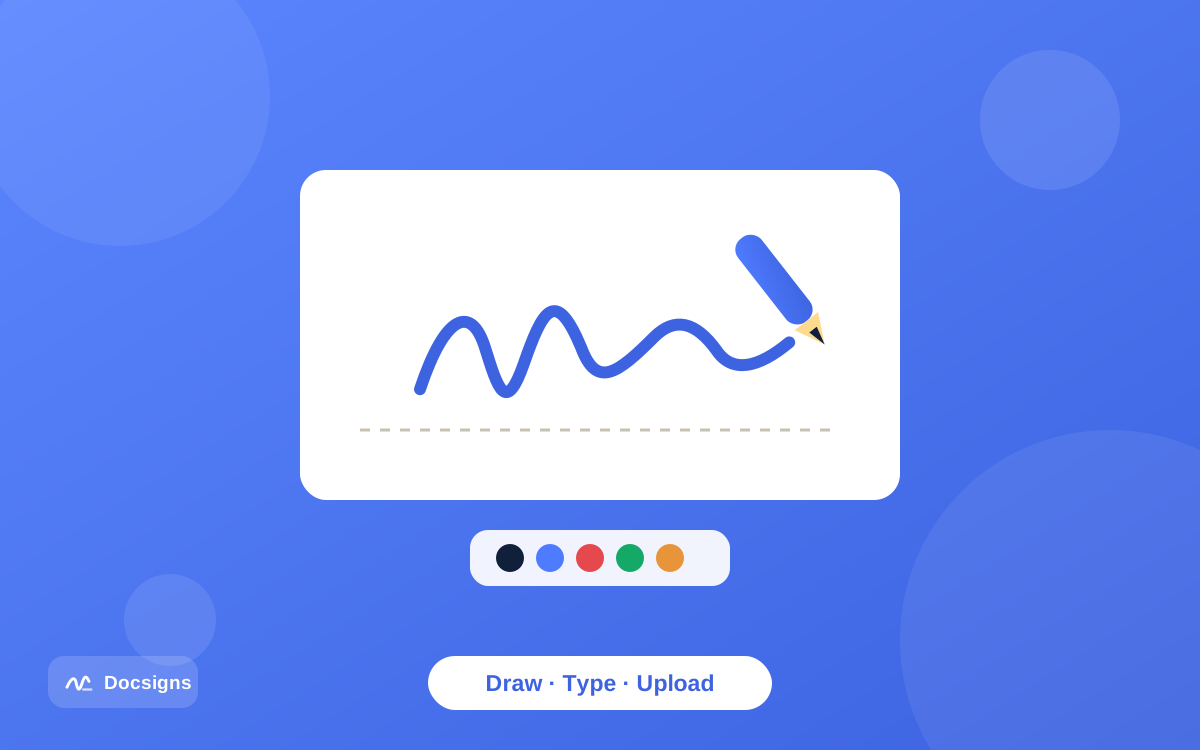
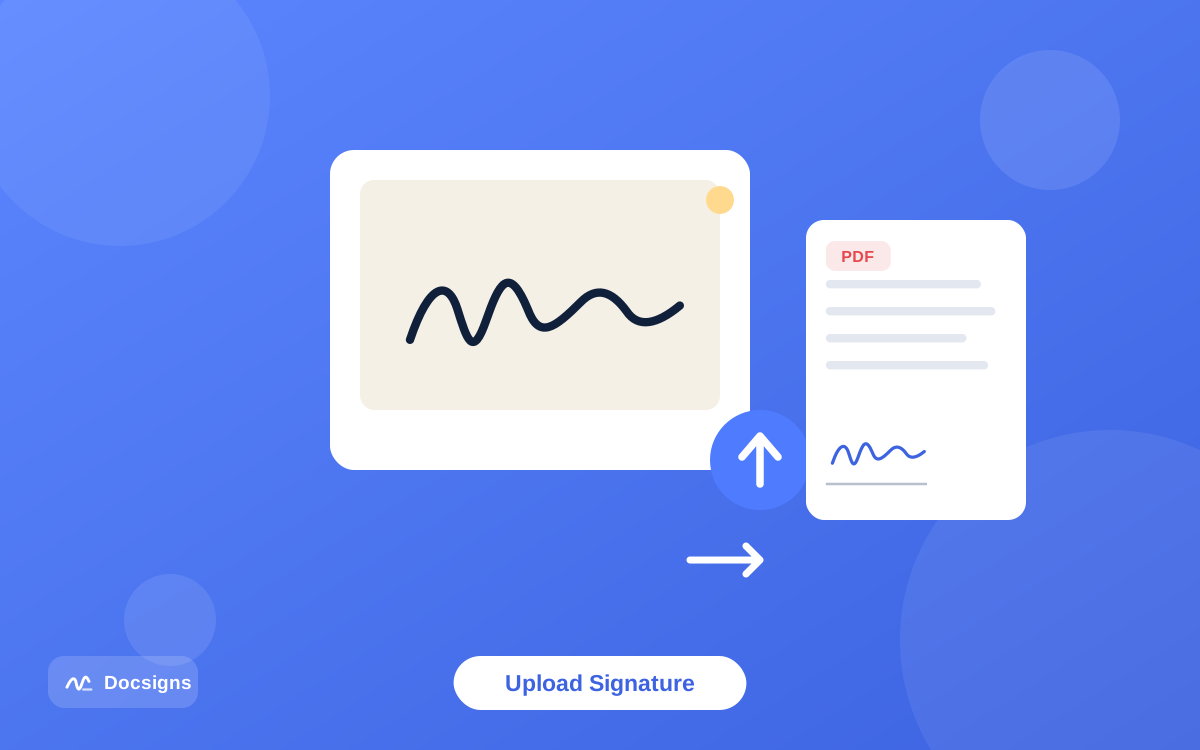
- Create your signature. Draw it with a mouse or finger, type your name and pick one of six handwriting fonts, or upload a photo of your ink signature. Our guide to creating a digital signature compares the three methods.
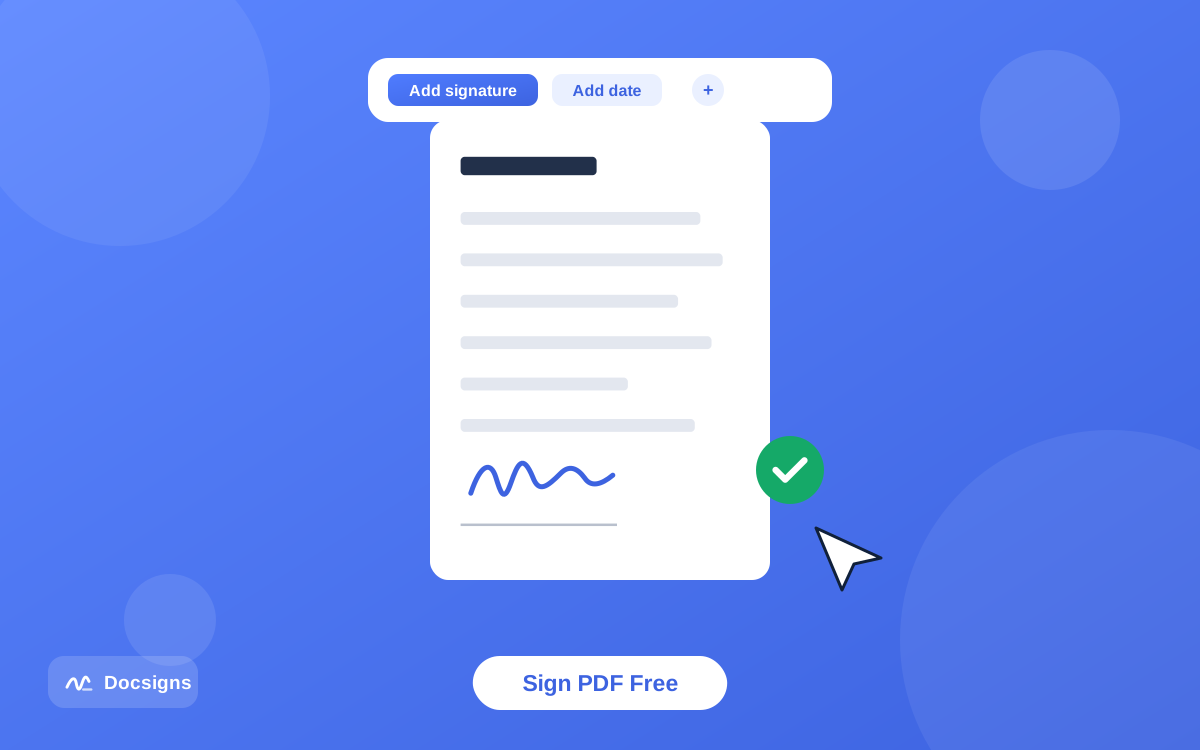
- Place the signature on the signature line. Drag it into position, then resize it with the corner handles until it sits naturally on the line — covering the line slightly, not floating above it.
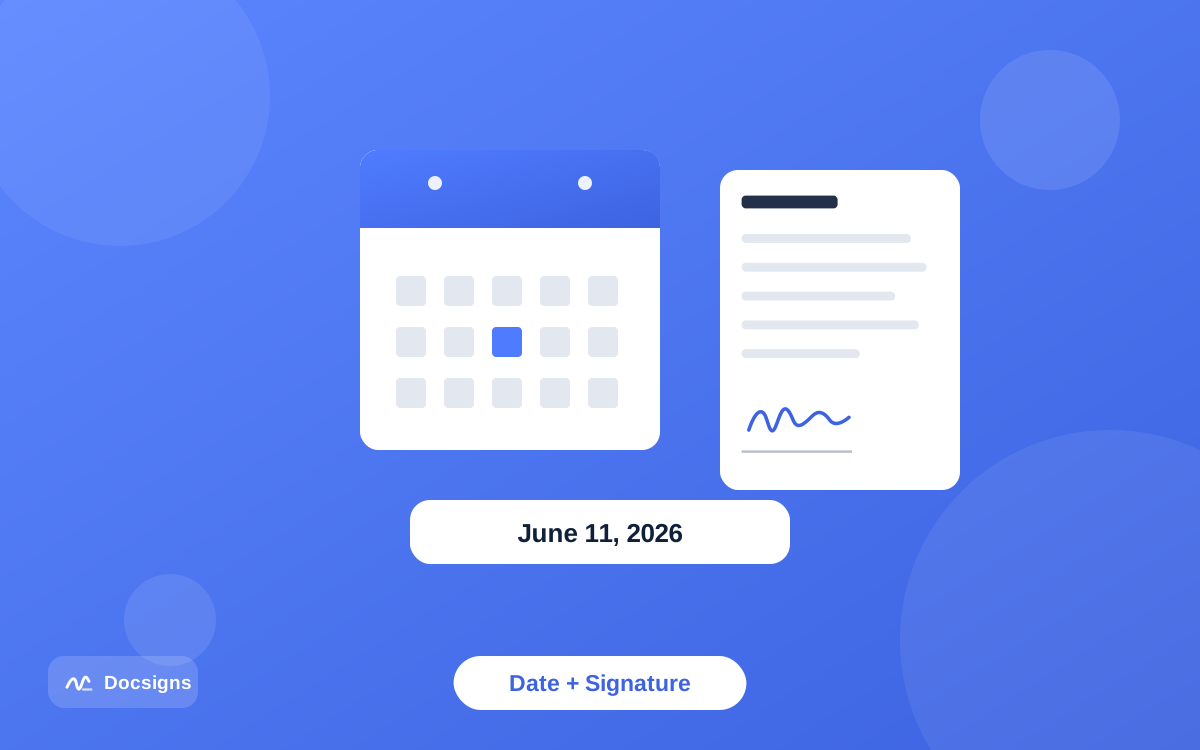
- Add the date. Insert a date item and choose the format the document expects (formats table below). Docsigns supports multiple formats, e.g. "June 11, 2026", "11/06/2026", "2026-06-11" and "11.06.2026".
- Position the date next to or under the "Date" label, sized to match the surrounding text — roughly the height of the printed text nearby, not the height of your signature.
- Repeat on every page that needs it. Use the page thumbnails to jump through multi-page documents and the zoom control for tight spaces.
- Review at 100% zoom, then download. The signed PDF keeps the original file name, and every item stays exactly where you placed it.
That is the complete flow. If the document is a contract with another party, read our walkthrough on signing a contract electronically for the extra checks worth doing before you send it back.
Which date format should you use?
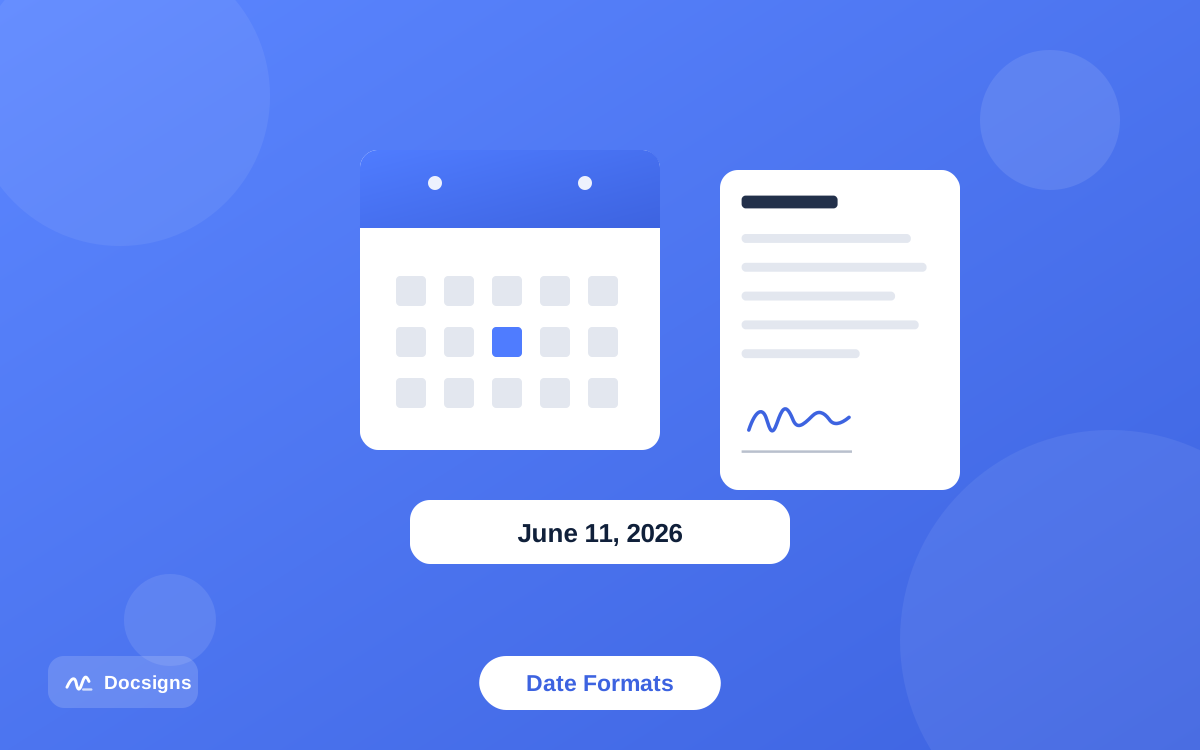
Date formats are a genuine source of errors on documents that cross borders. "11/06/2026" is November 6 to an American reader and June 11 to almost everyone else. Choose deliberately:
| Format | Example | When it is expected |
|---|---|---|
| Written month | June 11, 2026 | US legal documents, contracts and letters — unambiguous and the safest default when unsure |
| DD/MM/YYYY | 11/06/2026 | UK, EU, Australia and most of the world; use only when everyone reading is outside the US |
| ISO 8601 (YYYY-MM-DD) | 2026-06-11 | International business, technical and archival documents — the global standard, sorts cleanly |
| DD.MM.YYYY | 11.06.2026 | Germany, Austria, Switzerland, much of Central and Eastern Europe |
Two rules resolve nearly every case. First, if the form prints a format hint, follow it exactly. Second, if the document will be read on both sides of the Atlantic, write the month out ("June 11, 2026") or use the ISO 8601 standard — both are impossible to misread.
Whatever you pick, keep it consistent. A contract dated "June 11, 2026" on page one and "11.06.2026" on page four looks careless, and careless-looking documents invite questions.
Signing on behalf of a company? Many agreements expect three items at each signature block: the signature itself, a printed name and title, and the date. If the form provides those blanks, fill all three — an unlabeled scrawl from "someone at the company" is exactly the kind of gap that gets a document bounced back for re-signing.
Placement, resizing and rotation: making it look right
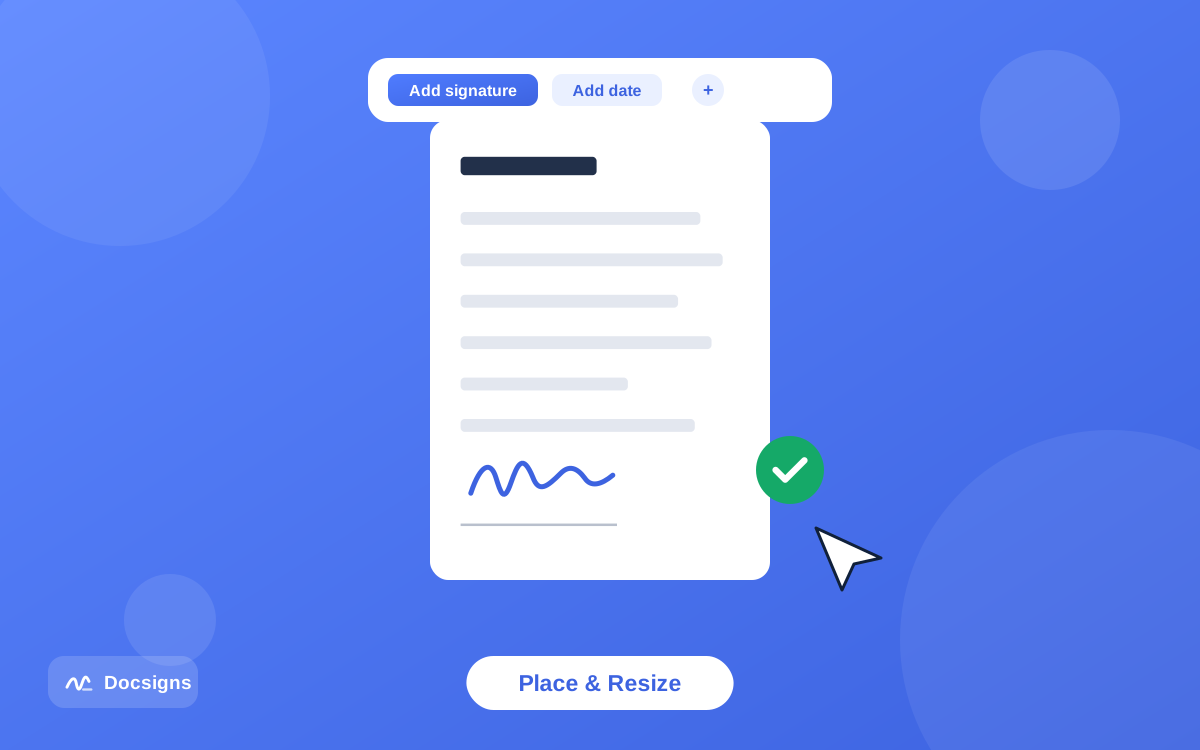
A digitally added signature can look either like a natural part of the document or like a sticker dropped on top. The difference is a few small placement habits:
- Sit the signature on the line. The bottom of your signature should touch or slightly overlap the signature line, the way ink naturally would. Floating half a centimeter above the line is the most common giveaway of a rushed job.
- Match the date size to the body text. A date rendered at signature size looks shouty; aim for the same height as the printed text around the blank.
- Use rotation sparingly. A degree or two of tilt on a drawn signature can look natural; a rotated date never does. Keep dates perfectly horizontal.
- Zoom in to place, zoom out to judge. Position items at 150–200% zoom for precision, then check at full-page view to see what the recipient sees.
- Don't cover printed text. If the blank is cramped, shrink your signature rather than overlapping the paragraph above — every printed word should stay legible.
- Check every page before exporting. Initials boxes and per-page date lines hide in the corners of multi-page agreements.
- Mind sideways scans. Some scanned PDFs are stored rotated; fix your view of the page rather than rotating your signature to compensate, or the export comes out tilted.
Doing it from your phone
Everything above works on a phone screen. Docsigns runs in any modern mobile browser, so you can add both items while the document is still sitting in your inbox: pinch to zoom in on the blank, drag the signature onto the line, place the date beside it and download. Drawn signatures come out smoother if you rotate the phone to landscape first — the full technique is in our guide to signing documents on mobile devices.
Common mistakes when you add a date and signature to PDF forms
The errors that force a re-do are almost always the same four: signing in the wrong blank (witness and signer lines love to sit side by side), using an ambiguous numeric date on an international document, letting the signature cover the printed name beneath the line, and forgetting a second signature block buried on the final page. A thirty-second full-document scroll before downloading catches all of them.
Why the date on an agreement actually matters
The date next to a signature is not decoration. On most agreements it establishes when obligations begin: when a notice period starts counting, when payment terms trigger, when a warranty clock starts, or which version of terms applies. Disputes about "when did this take effect?" are settled first by what is written next to the signatures.
Some contracts distinguish between the effective date (written in the opening clause) and the signature date (next to each signature). If the document defines an effective date, your signature date simply records when you signed — the two do not need to match, and you should not "fix" one to match the other.
A concrete example: a lease with a 60-day notice clause signed "June 11, 2026" makes the earliest lawful notice date trivially checkable. If the date line is blank, the parties are left arguing from email timestamps and memory. The thirty seconds it takes to add the date buys a clean answer to the most common question a document ever gets asked: when did this start?
The backdating warning
Write the date you actually sign — full stop. Backdating a signature (writing an earlier date to make an agreement appear signed sooner) can constitute fraud or misrepresentation, and it can invalidate the document or worse, depending on context and jurisdiction. If a document genuinely needs to take effect earlier than today, the correct mechanism is an effective-date clause agreed by all parties, not a false signature date.
The same goes for post-dating to dodge a deadline. If the dates on a document do not reflect reality, stop and ask the counterparty or a professional how to handle it properly.
And if you spot an honest mistake after exporting — the year slipped, or the format is wrong for the audience — do not try to patch the signed file. Go back to the unsigned original, correct the item and export again. It takes two minutes and produces a clean document instead of one with visible corrections.
A note on legal validity: electronic signatures on everyday documents are broadly recognized under frameworks such as the US ESIGN Act, UETA and the EU's eIDAS regulation — our guide on whether electronic signatures are legally binding covers the details. None of this post is legal advice; requirements vary by jurisdiction and document type, so consult a professional for anything high-stakes.
Add a date and signature to PDF documents in under three minutes
Here is the whole guide in one breath: open the PDF, create a signature (draw, type or upload), sit it on the signature line, add the date in the format the document expects, keep formats consistent across pages, never backdate, and scroll the full document before downloading.
Once you have done it twice, you can add a date and signature to PDF documents faster than you could find a working pen. And because Docsigns processes PDFs entirely in your browser — nothing uploaded, nothing stored, no signup — the private stuff stays private.
Ready to try it on a real document? Sign and date your PDF now — it is free, and your file never leaves your device.
Frequently asked questions
How do I add a date and signature to a PDF for free?
Open the PDF in a free tool like Docsigns, create a signature by drawing, typing or uploading an image, drag it onto the signature line, then insert a date item in the format the document expects and download. No signup or watermark, and the PDF is processed entirely in your browser.
What date format should I use when signing a PDF?
Follow any format printed on the form. Otherwise, write the month out ("June 11, 2026") for US documents, or use ISO 8601 ("2026-06-11") for international ones — both are unambiguous. Purely numeric formats like 11/06/2026 read differently in the US and Europe.
Does the date next to my signature have to be the day I actually signed?
Yes. The signature date records when you signed, and writing an earlier or later date can amount to misrepresentation or fraud. If the agreement needs to take effect on a different day, that belongs in an effective-date clause, not in a false signature date.
Can the effective date of a contract differ from the signature date?
Yes, and it is common. The effective date in the opening clause controls when obligations begin; the date beside each signature simply records when that party signed. They do not need to match — never alter one to force agreement.
How big should the date be on a signed PDF?
About the same height as the printed text near the blank — clearly legible but visually quieter than your signature. Keep it perfectly horizontal, even if your signature has a slight natural tilt.
Can I add a date and signature to a multi-page PDF?
Yes. Tools like Docsigns support multi-page documents: use the page navigation to jump between pages, place a signature or date on any page, and zoom in for tight spots. Scroll every page before exporting — initials boxes hide in corners.
Will the signature and date stay in place after I download the PDF?
In a proper signing tool, yes. Docsigns exports the signed file with every item at the exact position you placed it, keeps the original file name, and flattens the pages so the signed content resists casual editing.