How to Sign Documents on Mobile Devices
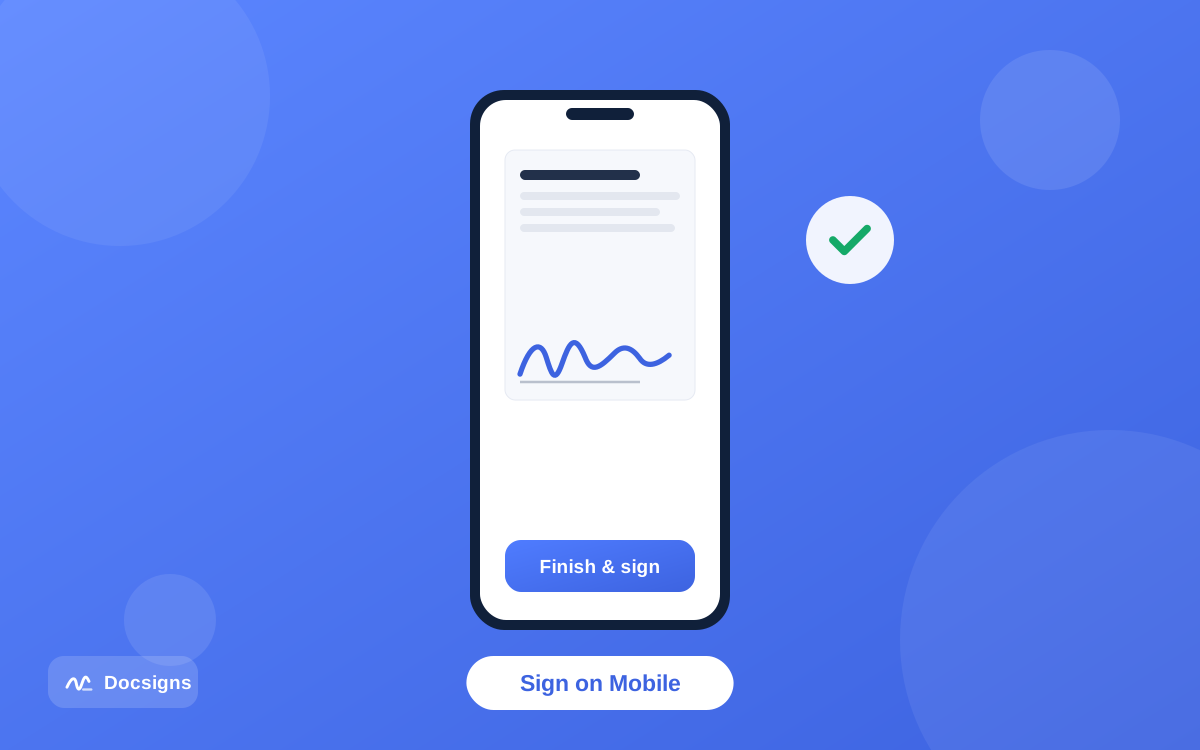
The lease arrives while you are on a train. The client contract lands during lunch. The school permission slip shows up at 9 p.m. when the laptop is off. Documents do not wait for you to be at a desk — which is why knowing how to sign documents on mobile is one of the most useful small skills you can pick up.
The good news: your phone already has everything it needs. A modern mobile browser can open a PDF, let you draw or type a signature, place it precisely and download the signed file — no printer, no scanner, no desktop detour. The whole round trip takes under three minutes.
This guide walks through the browser flow that works on any phone, the finger-drawing technique that makes touchscreen signatures actually look like yours, why typing a signature is the underrated fast option on small screens, and where the native apps fit in for iPhone, Mac and Android.
How to sign documents on mobile: the browser flow
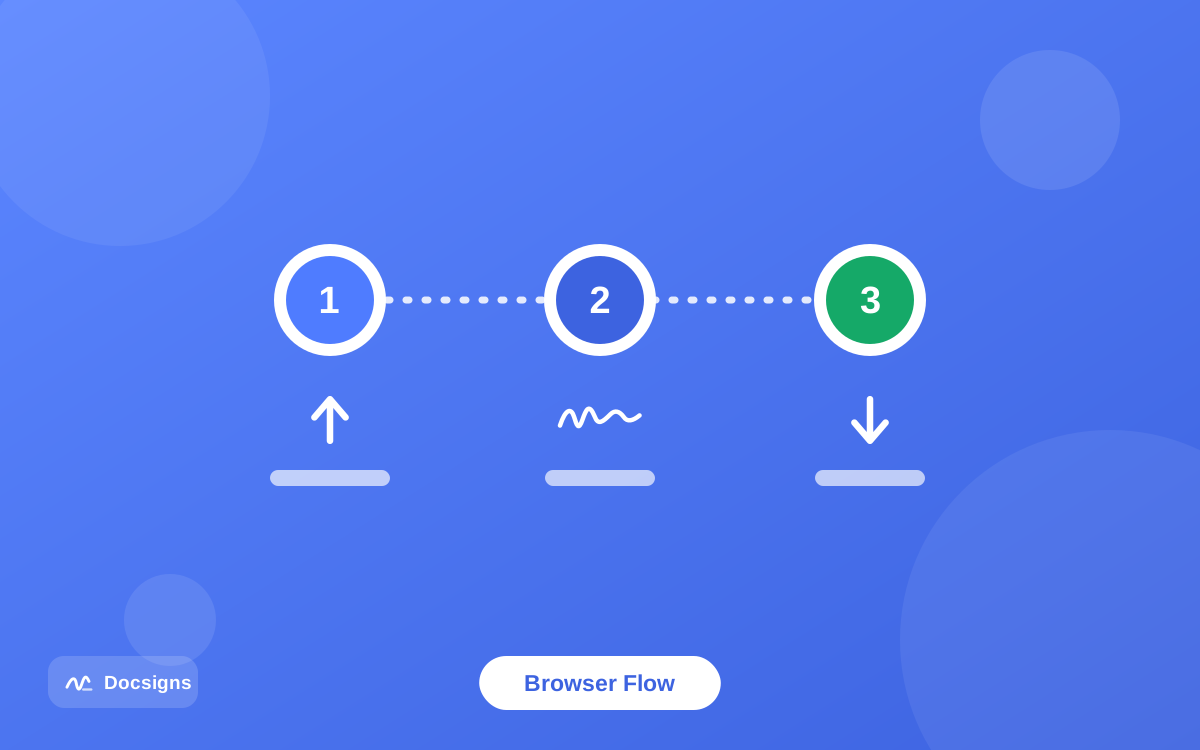
The browser route is the universal one: it works on iPhone, Android, tablets — anything with a modern browser, at any screen size. Docsigns is built responsive, so the same editor you would use on a desktop adapts to a phone screen, and PDFs are processed entirely in the browser on your device, never uploaded to a server.
One habit makes every later step easier: deal with the attachment first. Email apps love showing PDFs in a read-only preview that looks editable but is not. Use the share or download control to save the file to your phone's storage, and the rest of the flow is a few taps.
- Get the document onto your phone. If it arrived by email or chat, save the attachment to your phone's Files (iOS) or Downloads (Android) first — that makes it selectable from the browser.
- Open [Docsigns](/) in your mobile browser — Safari, Chrome, Firefox and Edge all work — and pick the file. PDF, DOC and DOCX are supported; Word files are converted to PDF before signing.
- Create your signature. Tap to draw with your finger, type your name and choose one of six handwriting fonts, or upload a photo of your ink signature.
- Place it. Drag the signature onto the signature line, pinch-zoom the page for precision, and use the handles to resize or rotate. Add a date item if the document needs one.
- Check every page. Multi-page documents often hide a second signature block or initials box; flick through before exporting.
- Download the signed PDF. It keeps the original file name and lands in your Files or Downloads, ready to send back.
- Send it back the way it came — reply to the email or share the file to WhatsApp, Gmail or LinkedIn directly.
That is genuinely all there is to it. If you have ever done the print-sign-photograph routine, this replaces the whole thing — here is how to sign documents without printing if you are still stuck in that loop for other document types.
Two phone-specific details are worth knowing. First, everything stays on your device: Docsigns renders and signs the PDF inside the browser itself, so even on mobile data nothing is uploaded to a server. Second, the editor adapts to your viewport rather than shrinking a desktop page, so controls stay tappable on a small screen instead of turning into pixel-hunting targets.
Finger-drawing: making a touchscreen signature look like yours
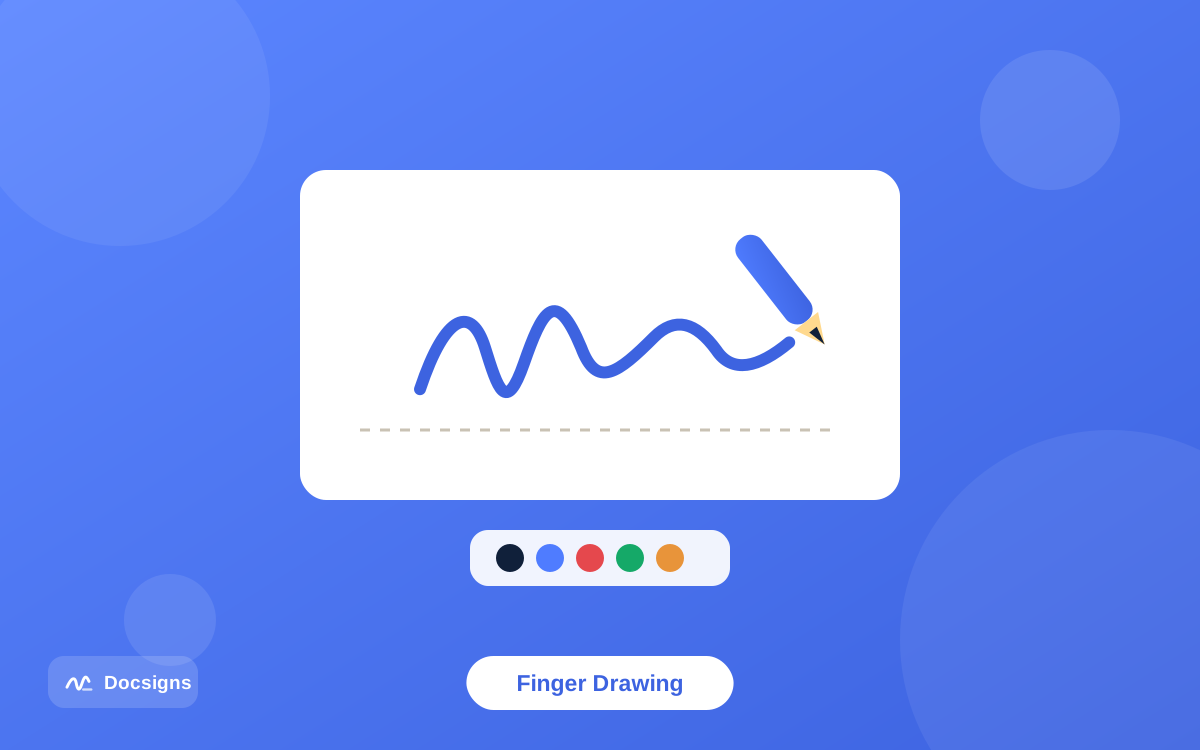
Drawing with a finger is harder than drawing with a pen — your fingertip is blunt, the glass is slippery and your view of the stroke is partly blocked by your own hand. A few technique changes close most of the gap:
- Rotate the phone to landscape before drawing. A wider canvas means bigger, smoother strokes — cramped signatures are shaky signatures.
- Draw big and let the tool shrink it. Sign across the whole canvas; the signature stays crisp when scaled down to fit the line, but a tiny drawing scaled up turns to fuzz.
- Slow down to about half your paper speed. Touchscreens sample your fingertip; fast flicks come out as angular segments, slower strokes come out as curves.
- Anchor your hand. Rest the edge of your palm or little finger on the phone bezel, the same way you steady a pen on paper.
- Use your index finger, not your thumb. Thumbs pivot in an arc and distort horizontal strokes.
- Clear and retry without guilt. Even on paper nobody signs perfectly every time; two or three attempts is normal. Once you get a good one, save it to your signature library and never draw it again.
If you own a stylus — an Apple Pencil on an iPad, an S Pen on a Samsung — use it. It restores the fine motor control of a pen and produces the most natural-looking drawn signature of any method.
Typing a signature: the fast option on small screens
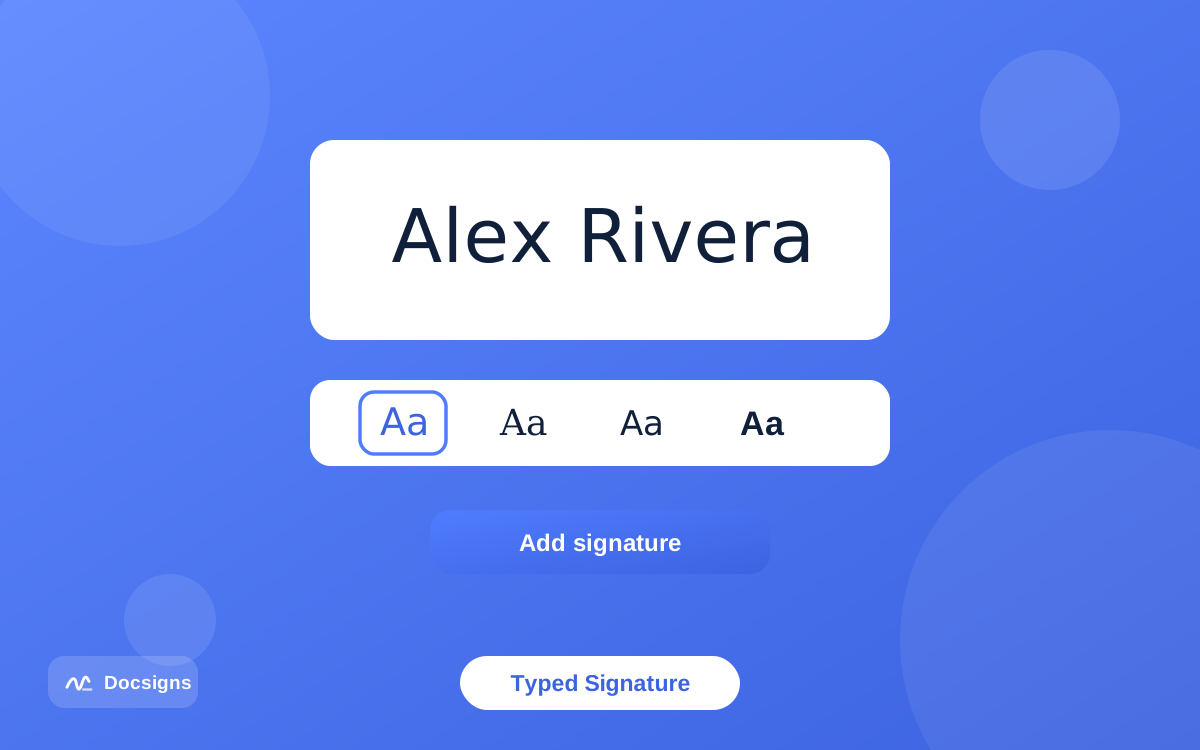
Here is the honest truth about signing on a phone: typing beats drawing for speed every single time. You type your name once, pick a handwriting style, and get a clean, consistent signature in about ten seconds — no landscape rotation, no retries, no shaky strokes.
Docsigns offers six handwriting fonts — Classic, Casual, Fine, Elegant, Relaxed and Marker — so you can match the tone of the document: something restrained for a client contract, something looser for an internal form. A typed signature is just as much an electronic signature as a drawn one; what generally matters legally is your intent to sign, not the pen stroke (our guide on whether electronic signatures are legally binding covers the frameworks — ESIGN, UETA, eIDAS — in plain language).
The third option, uploading a photo of your ink signature, gives the most authentic look but is the slowest on mobile — you need a well-lit photo on white paper, ideally cropped clean. It shines when someone specifically expects your "real" signature. Here is a quick comparison of all three on a phone:
| Method | Speed on a phone | How it looks | Best for |
|---|---|---|---|
| Type | Fastest (~10 seconds) | Clean, consistent handwriting font | Everyday forms and quick turnarounds on small screens |
| Draw | Medium (1–2 minutes with retries) | Genuinely yours, varies with technique | When the recipient expects your real handwriting |
| Upload image | Slowest (photo + crop) | Identical to your ink signature | Formal documents where your exact signature matters |
Whichever method you choose, save the result to your reusable signature library. The second document you ever sign on your phone should take under a minute. For a deeper look at the three methods, see our guide to creating a digital signature.
iPhone and Mac: the native Docsigns app
If you sign regularly on an iPhone, the Docsigns app on the App Store ("Docsigns – eSign PDF, Word") is the more comfortable home. It brings the same free signing — PDF, DOC and DOCX, no watermark — into a native app, and it runs on macOS too, so a signature saved on your phone workflow carries over to the Mac.
The app is the better choice when documents arrive through the iOS share sheet, or when you want signing one tap from your home screen instead of via a browser tab. For the full iPhone walkthrough — including Files-app tricks and share-sheet routing — read our dedicated guide to signing PDF files on iPhone.
Everything else matches the web version: draw, type or upload a signature, add dates in multiple formats, sign multi-page files, and share the result to WhatsApp, Gmail or LinkedIn via a private link. The app is free, like the web tool, with no watermark on the output.
Android: sign in the mobile browser, or install the app
Android users have both routes: the Docsigns app on Google Play, or the mobile browser with nothing installed. In the browser the flow is exactly the seven steps above: open Docsigns in Chrome (or Firefox, or Edge), pick the file from Downloads, draw or type your signature, place it, download.
The browser route on Android is not a consolation prize. It needs no installation and no storage space, it works identically on every Android brand and version with a modern browser, and the privacy model is the same — the PDF is processed on your device, not uploaded (why that matters is covered in our guide to signing documents online securely). Android-specific tips, including handling documents from Gmail and WhatsApp, are in our guide to signing PDF files on Android.
If you sign often on Android, add Docsigns to your home screen from the browser menu — it opens full-screen like an app and skips the address bar. When the native Android app ships, your habit stays the same; only the icon changes.
Common mistakes when you sign documents on mobile
Most of what goes wrong when people sign documents on mobile is mechanical rather than technical — the file was in the wrong place, the drawing canvas was too small, a page got missed. These are the five to watch for:
- Signing from the email preview. Attachment previews are read-only; save the file to Files or Downloads first, then open it in the signing tool.
- Drawing in portrait orientation. The narrow canvas forces cramped strokes — rotate to landscape before you draw.
- Skipping the zoom before placement. What looks aligned on a 6-inch screen can sit crooked at full size; pinch in to check the signature actually sits on the line.
- Missing pages. Small screens make it easy to overlook an initials box on page 3 — flick through every page before downloading.
- Losing the signed file. Note where it lands (Files on iOS, Downloads on Android) so you are not re-signing because you cannot find the export.
Sign documents on mobile whenever they catch you
Your phone is a fully capable signing device: open the PDF in the browser, type or draw a signature, place it with a pinch-zoom for precision, and send the signed file back — under three minutes, from anywhere. Type when you want speed, draw in landscape when you want your real hand, and let the signature library make every future document a one-minute job.
iPhone and Android users can both go one step further with the native app, and the mobile browser gives the identical experience with nothing to install. Either way, the days of "I'll sign it when I'm back at my computer" are over.
Next time a document catches you away from your desk, sign it on your phone now — free, no signup, and the file never leaves your device.
Frequently asked questions
How do I sign documents on my mobile phone?
Save the document to your phone, open Docsigns in your mobile browser, pick the file, then draw a signature with your finger or type your name and choose a handwriting font. Drag it onto the signature line, resize, and download the signed PDF — the whole flow takes about three minutes.
Can I sign a PDF on my phone without installing an app?
Yes. Browser-based tools like Docsigns run entirely in Safari, Chrome, Firefox or Edge on any phone — no installation, no signup, no watermark. The PDF is processed on your device and never uploaded to a server.
How do I make my finger-drawn signature look better?
Rotate the phone to landscape, draw large across the whole canvas, move at about half your normal paper speed, anchor your palm on the bezel, and use your index finger rather than your thumb. Then save the good attempt to your signature library so you never redraw it.
Is a typed signature valid on mobile?
Generally yes. Under frameworks like the US ESIGN Act, UETA and the EU's eIDAS regulation, what matters is your intent to sign, not whether the signature was typed or drawn. Requirements vary by jurisdiction and document type, so this is general information, not legal advice.
Is there a Docsigns app for iPhone?
Yes — "Docsigns – eSign PDF, Word" is on the App Store and runs on both iOS and macOS. It offers the same free signing of PDF, DOC and DOCX files as the web version, with no watermark.
Is there a Docsigns app for Android?
Yes — Docsigns is on Google Play. Android users can also get the full signing experience through the mobile browser without installing anything: open Docsigns in Chrome, Firefox or Edge, and sign exactly as you would on desktop.
Are documents signed on a phone secure?
With the right tool, yes. Docsigns renders and signs PDFs entirely in your phone's browser — the file is never uploaded or stored on a server. Make sure the page uses HTTPS and avoid signing sensitive documents on someone else's device.
Can I sign a Word document on my phone?
Yes. Docsigns accepts DOC and DOCX on mobile: the file is converted to PDF by a secure converter, you sign it in the browser, and you download a signed PDF that keeps the original file name.