How to Sign PDF Files on Android
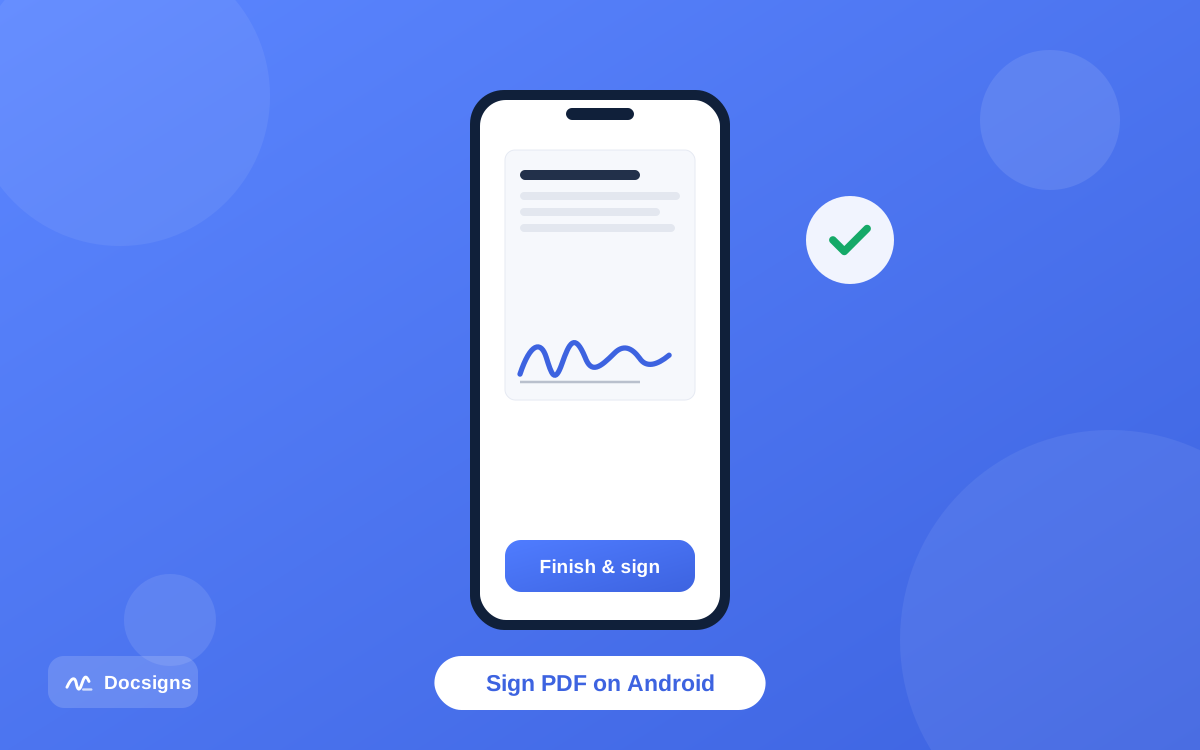
A lease shows up in your email while you are on the bus. A permission slip lands in WhatsApp five minutes before school pickup. You need to sign PDF on Android right now, and the last thing you want is a trip through an app store, an account form, and a paywall.
Good news: your Android phone can already do this. Any modern mobile browser — Chrome, Firefox, Samsung Internet, Edge — can open a free signing tool, let you draw your signature with a finger, and hand back a finished PDF ready to send.
This guide walks through the exact steps, shares finger-drawing tips that make a phone signature look clean instead of shaky, and gives an honest comparison of the other Android options, including Google Drive's built-in markup and Adobe's Fill & Sign app.
Can you sign a PDF on Android without installing an app?
Yes — and for most people it is the better route. Browser-based tools like Docsigns run entirely on the web page, so there is nothing to install, no storage used, and no signup screen between you and the signed document.
Docsigns works two ways on Android: in the mobile browser with nothing installed, or through the Docsigns app on Google Play. (There is an iOS and macOS app on the App Store too.) This guide takes the browser route first, because it needs no install — and every feature described below runs in Chrome on a phone exactly as it does on a desktop.
That matters because with Docsigns, your PDF never leaves the browser. The file is rendered and signed on your phone; it is never uploaded to or stored on a server. If the document is a contract, a medical form, or anything else you would rather keep private, that is a real difference from tools that process files in the cloud. You can read more about what to check before trusting any tool in our guide to signing documents online securely.
How to sign PDF on Android in the browser: step by step
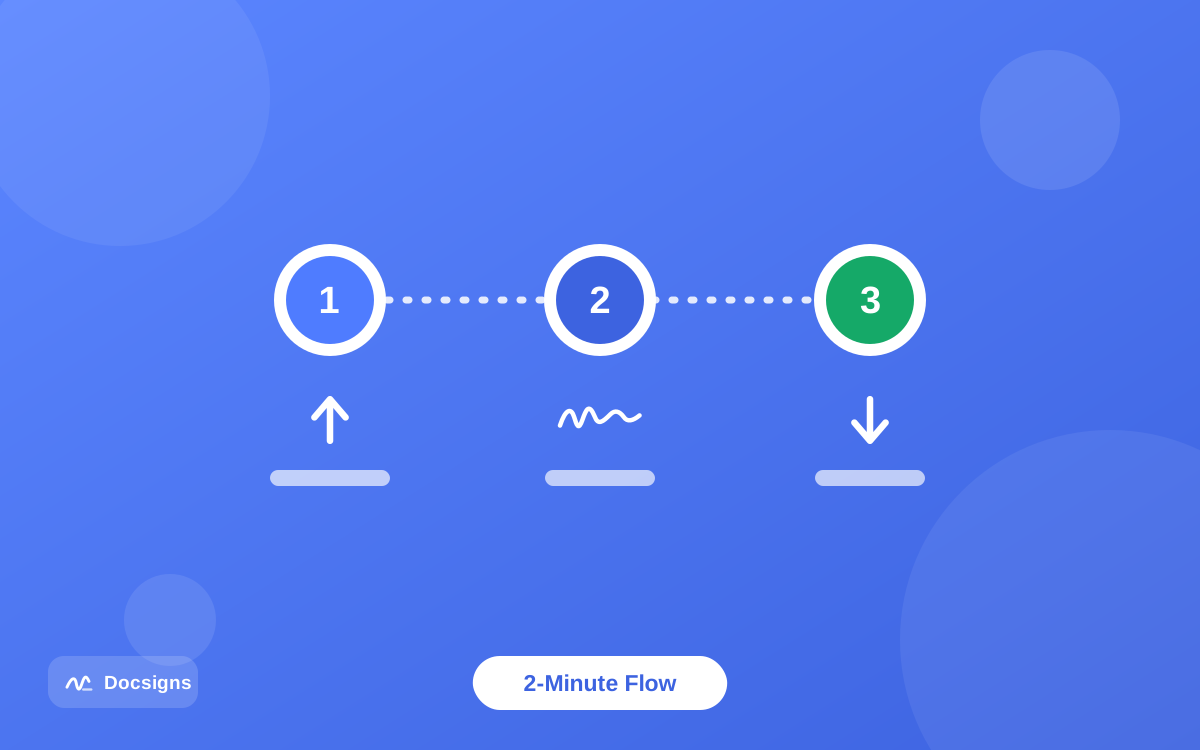
Here is the complete flow using Docsigns in Chrome (or any other Android browser). The whole thing typically takes under two minutes:
- Open your browser and go to docsigns.app. No account, no signup — the editor loads straight away.
- Tap to upload your PDF. You can pick it from Downloads, Google Drive, or straight from the file your email or WhatsApp saved. DOC and DOCX files work too — they are converted to PDF by a secure converter, then signed locally.
- Create your signature. Choose Draw to sign with your finger, Type to pick from six handwriting fonts, or Upload to use a photo of your real signature (PNG or JPG).
- Drag the signature onto the page. Pinch-zoom to get close, then move, resize, or rotate it until it sits exactly on the signature line. Multi-page documents are supported, so scroll to page 7 if that is where the line is.
- Add a date if the form needs one — formats like "June 11, 2026", "11/06/2026" or "2026-06-11" are built in.
- Tap download. The signed PDF keeps the original file name, and every item stays at the exact position you placed it.
- Send it. Share the signed PDF via a private link to WhatsApp, Gmail, or LinkedIn, or attach the downloaded file to any app you like.
If you also need to place a date next to your name — most contracts ask for one — the guide on adding a date and signature to PDF documents covers formats and placement in detail.
Signing PDFs that arrive in WhatsApp or Gmail
Most documents reach Android phones through a messaging or mail app, and the handoff is simpler than people expect. In Gmail, tap the attachment and choose download; in WhatsApp, open the document once so it saves to your phone. Either way the file lands in your Downloads folder (or the WhatsApp Documents folder), and that is exactly where the Docsigns upload picker will find it.
After signing, the return trip is just as short: the share option sends the signed PDF back through WhatsApp, Gmail, or LinkedIn via a private link, or you can attach the downloaded file to your reply the usual way. The person on the other end never needs to know you did the whole thing standing in a queue.
Finger-drawing tips: make a touchscreen signature look real
Drawing with a finger on glass feels different from pen on paper, and the first attempt usually looks wobbly. A few adjustments fix that quickly:
- Rotate the phone to landscape. A wider canvas means bigger, smoother strokes — the single biggest improvement you can make.
- Sign big, place small. Draw your signature large, then shrink it when you place it. Scaling down hides small wobbles; scaling up magnifies them.
- Use your index finger, not your thumb. Thumbs pivot from the side and produce cramped curves.
- Slow down slightly. Touchscreens sample your finger position; very fast strokes can come out angular.
- Redraw without guilt. Clearing and starting again takes two seconds. Most people are happy by the third attempt.
- Save the good one. Docsigns has a reusable signature library, so once a signature looks right you never have to draw it again.
When to type your signature instead of drawing
If your finger-drawn attempts keep looking like a seismograph reading, type it. Docsigns offers six handwriting fonts — Classic, Casual, Fine, Elegant, Relaxed, and Marker — and a typed signature is just as valid for everyday documents as a drawn one. Under laws like the U.S. ESIGN Act, what matters is your intent to sign, not the artistic quality of the mark; our guide on whether electronic signatures are legally binding explains the details.
A third option: photograph your real pen-and-paper signature once, and upload the image. On a phone this works surprisingly well — see the walkthrough on uploading and using a signature image in PDFs for lighting and cropping tips.
Other ways to sign a PDF on Android — honestly compared
The browser route is not the only one. Two other options genuinely exist on Android, and depending on your situation they may fit. Here is what each actually does.
Google Drive markup: quick, but not built to sign PDF on Android
Google Drive on Android has an annotation mode: open a PDF, tap the pen icon, and scribble on the page. In a pinch, you can scrawl your signature this way. But it is a highlighter tool, not a signing tool, and the limits show fast.
There is no way to type a signature or reuse a saved one — you freehand-draw every time, at the exact size you draw it. There is no dedicated date field, no fine positioning, and no resizing after the fact. If your scrawl lands crooked across the signature line, you undo and try again. For a one-time initial on a low-stakes form it works; for anything you will do twice, it gets old quickly.
Adobe Fill & Sign: a solid app, with trade-offs
Adobe's Fill & Sign is a free mobile app (bundled into the Acrobat Reader app on Android) that handles form filling and self-signing well. You can save a signature and initials, tap them into place, and fill text fields. It is a genuinely capable tool from the company that invented the PDF.
The trade-offs: it is an app you have to install, it prompts you to sign in with an Adobe ID, and it sits inside a product family designed to upsell you toward Acrobat subscriptions — more advanced features regularly bump into the paywall. If you already live in the Adobe ecosystem, it is a fine choice. If you just want to sign one PDF without creating another account, the browser route is faster. Our comparison of free PDF signature tools ranks the wider field.
| Option | Install needed | Account needed | Typed + saved signatures | Where your file goes |
|---|---|---|---|---|
| Docsigns (browser) | No | No | Yes — draw, type, or upload; reusable library | Stays in your browser; PDFs never uploaded |
| Google Drive markup | No (pre-installed) | Google account | No — freehand drawing only, no reuse | Stored in Google Drive |
| Adobe Fill & Sign | Yes (app) | Adobe ID prompted | Yes — saved signature and initials | Processed via Adobe; cloud features optional |
Common mistakes when signing PDFs on a phone
A few missteps come up again and again on mobile. All are easy to avoid once you know them:
- Signing a screenshot instead of the PDF. A photo of a document is an image, not the document. Open the actual PDF file so the output stays a proper PDF.
- Not zooming before placing. Placing a signature at full-page view on a 6-inch screen invites misalignment. Pinch in on the signature line first, then place.
- Forgetting the date. Many forms are returned as incomplete for a missing date, not a missing signature. Add both in one pass.
- Emailing the unsigned original. After downloading, double-check you are attaching the signed copy. Docsigns keeps the original file name, so open the file once to confirm before sending.
- Using a data-hungry app for a private document. Check where a tool sends your file before you upload a contract or medical form to it.
What about the Docsigns Android app?
It is live: Docsigns - Sign PDF & eSign on Google Play. The app is worth it if documents reach you more than once a month — your saved signature library is always one tap away, and it works offline. The browser version is not a cut-down fallback either: drawing, typing, uploading, dates, multi-page placement, zoom, and sharing all work in the mobile browser, with nothing to install.
If you also carry an iPhone or iPad, the same workflow is covered in our guide to signing PDF files on iPhone, and the broader mobile picture — including tablets — lives in how to sign documents on mobile devices.
Sign your next PDF on Android in the time it took to read this
You do not need to install an app, pay for a subscription, or print anything. To sign PDF on Android, open your browser, load the file, draw or type your signature, place it, and download — the signed copy keeps the original file name and never leaves your phone.
The next time a contract lands in your inbox while you are nowhere near a desk, handle it on the spot. Sign your document now — free, no signup, right from your Android browser.
Frequently asked questions
Can I sign a PDF on Android without downloading an app?
Yes. Open a browser-based tool like Docsigns in Chrome or any Android browser, upload the PDF, draw or type your signature, place it, and download the signed file. Nothing is installed and no account is needed.
Is there a Docsigns app for Android?
Yes — Docsigns is on Google Play as Docsigns - Sign PDF & eSign. Docsigns also runs fully in the Android mobile browser with the same features as the desktop version, if you would rather not install anything. An iOS and macOS app is available on the App Store.
How do I draw a neat signature with my finger on a phone?
Rotate the phone to landscape for a bigger canvas, draw the signature large and shrink it when placing, use your index finger rather than your thumb, and slow your strokes slightly. Save the result to a signature library so you only have to get it right once.
Is a finger-drawn signature on Android legally valid?
Generally yes for most everyday documents. Under frameworks like the U.S. ESIGN Act, UETA, and the EU's eIDAS regulation, a signature's validity comes from your intent to sign, not from how it was made. Some documents (like wills in many places) still require wet ink, and requirements vary by jurisdiction — this is general information, not legal advice.
Can I sign a PDF on Android using Google Drive?
Sort of. Drive's annotation mode lets you freehand-draw on a PDF, which can serve as a rough signature. But there is no typed signature, no saved or reusable signature, no date field, and no precise resizing — it is a markup tool, not a signing tool.
Does signing a PDF in the browser upload my document to a server?
With Docsigns, no — PDFs are rendered and signed entirely in your browser and are never uploaded or stored on a server. DOC and DOCX files are converted to PDF by a secure converter first, then signed locally. Other tools vary, so check before uploading sensitive files.
Can I sign Word documents on Android too, not just PDFs?
Yes. Docsigns accepts DOC and DOCX files, converts them to PDF securely, and lets you sign in the browser the same way. The signed download is a PDF that keeps the original file name.