Best Free PDF Signature Tools in 2026
"Free" means at least four different things in the world of PDF signing. Sometimes it means genuinely free. Sometimes it means free until the second document, free with a watermark, or free after you hand over an email address and dodge three upgrade prompts. This roundup of free PDF signature tools sorts out which is which in 2026.
One thing up front: Docsigns, the first tool on this list, is ours. We have tried to keep the comparison honest anyway — every tool here is genuinely useful for somebody, and we will tell you exactly who, including the cases where a competitor is the better pick.
The list covers six options: Docsigns, Adobe Acrobat's online Fill & Sign, Smallpdf eSign, Apple's Preview on Mac, the PDFgear/PDFescape class of free PDF editors, and Microsoft Edge's built-in PDF annotation.
How we compared these free PDF signature tools
Every tool was judged on the same five questions. They are the ones that decide whether a free tool actually saves you time or quietly costs you something else.
- Truly free? Can you sign an unlimited number of documents without ever hitting a paywall or daily cap?
- Watermark? Does the exported PDF carry the tool's branding?
- Signup required? Do you need an account before your first signature lands on a page?
- Privacy. Is the file processed on your device, or uploaded to a server — and if uploaded, what happens to it there? (Our guide on how to sign documents online securely explains why this is the question that matters most.)
- Platforms. Where does it actually run — any browser, one operating system, one specific app?
| Tool | Truly free? | Watermark? | Signup? | Privacy | Platforms |
|---|---|---|---|---|---|
| Docsigns | Yes, unlimited | No | No | PDFs signed in-browser, never uploaded | Any browser; iOS/macOS app |
| Adobe Fill & Sign (online) | Free tier with limits | No | Yes, Adobe account | Uploaded to Adobe cloud | Any browser; mobile apps |
| Smallpdf eSign | Limited free tasks | No | For some features | Uploaded, auto-deleted after processing | Any browser; mobile apps |
| Mac Preview | Yes, unlimited | No | No | Fully offline, on-device | macOS only |
| PDFgear / PDFescape class | Mostly free | Varies by tool | Varies | Desktop: local; web: uploaded | Windows/Mac apps; web |
| Microsoft Edge PDF | Yes, unlimited | No | No | Fully offline, on-device | Anywhere Edge runs |
Two patterns jump out of the table. The tools that are free without limits — Docsigns, Preview, Edge — are the ones that never hold your file on a server, because processing on your own device costs the provider nothing. The metered tools are metered precisely because uploads, storage and cloud processing carry real costs that somebody eventually has to cover.
Docsigns — fastest for private, no-signup self-signing
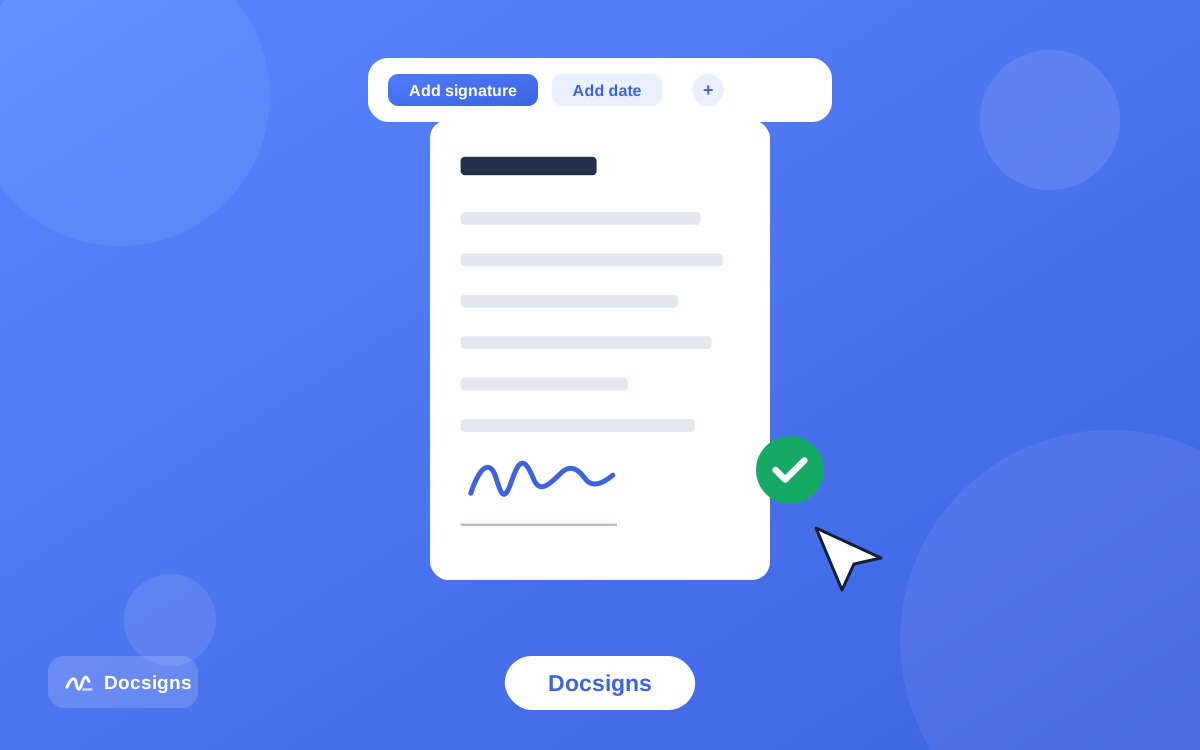
Full disclosure again: this one is ours. Docsigns is a free web app that signs PDF, DOC and DOCX files with no signup, no watermark and no usage caps. You draw a signature, type one in six handwriting fonts, or upload an image of one, then drag, resize and rotate it anywhere on any page and download the result with the original file name intact.
The design decision that sets it apart is privacy: PDFs are rendered and signed entirely in your browser and never uploaded or stored on a server. Word files are converted to PDF by a secure converter first, then signed locally. The exported PDF has flattened pages, which makes casual editing of the signed content impractical. There is also an iOS and macOS app, and you can share the signed file via a private link to WhatsApp, Gmail or LinkedIn.
The honest limits: Docsigns is a self-signing tool. It does not send signature requests to other people, track multi-party workflows or produce audit trails and completion certificates. If you need to collect signatures from three counterparties with reminders, use a workflow platform — some options are in our roundup of free e-signature software. If you need to put your own signature on your own document quickly and privately, this is the job Docsigns was built for.
Adobe Acrobat online Fill & Sign — the household name
Adobe's online Fill & Sign lets you add a signature to a PDF in the browser for free. The editor is polished, signatures can be drawn, typed or uploaded, and the output carries no watermark. If your counterparty asks "was this signed in Adobe?", the brand name alone can smooth things over.
The trade-offs are the account and the cloud. You need to sign in with an Adobe ID, and your document is uploaded to Adobe's servers as part of the process. The free tier also exists to funnel you toward Acrobat Pro, so expect regular nudges, and some adjacent tools (like requesting signatures from others) sit behind the subscription. Fine for occasional use if you already have an Adobe account; heavier or more private use is better served elsewhere — here is how to sign a PDF without Adobe Acrobat if you want the full escape route.
Smallpdf eSign — a signer inside a big toolbox
Smallpdf bundles eSign with twenty-odd other PDF utilities — compress, merge, convert — which is genuinely convenient when signing is one step in a longer chain. The interface is one of the cleanest in the category, and simple self-signing works on the free tier.
The catch is the metering. Free usage is capped (Smallpdf has used daily task limits for years), and advanced eSign features such as requesting signatures require a paid plan. Files are uploaded to Smallpdf's servers for processing; the company states uploads are deleted automatically after processing, which is a reasonable policy, but it is still an upload — a difference worth understanding before you send anything sensitive.
Mac Preview — the best answer that is already on your Mac
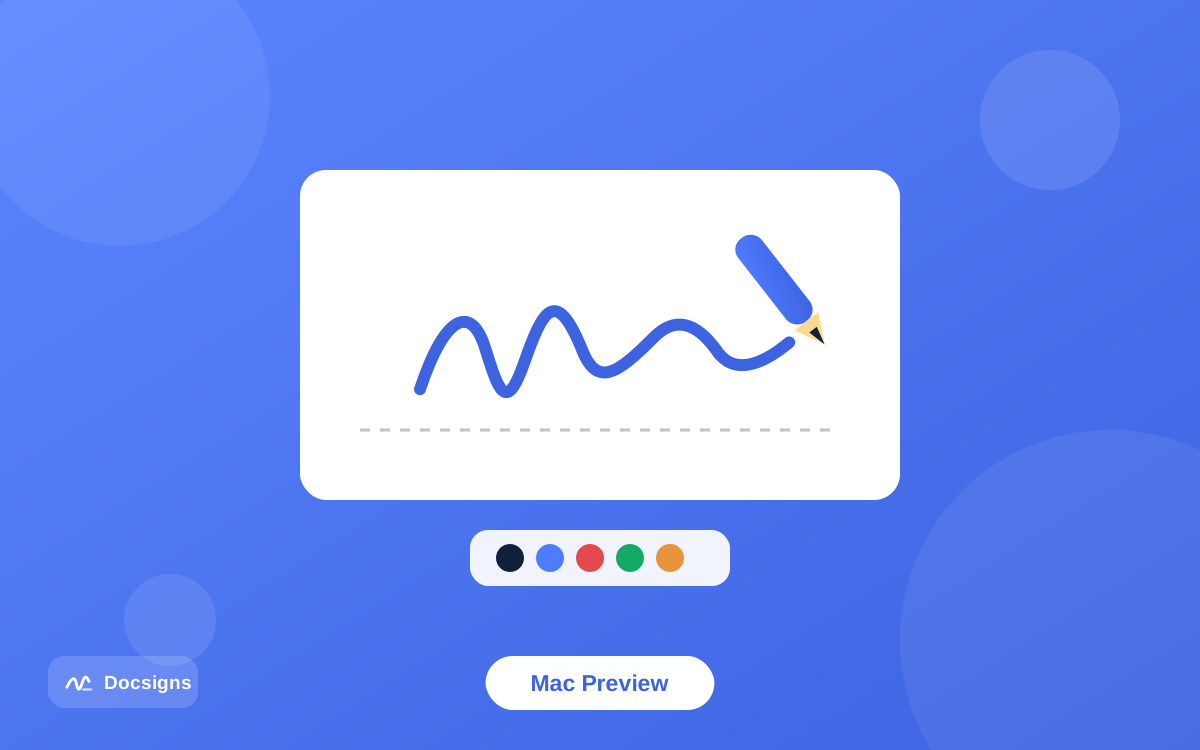
If you use a Mac, Preview can sign PDFs without installing anything. Open the PDF, click the Markup toolbar, choose Sign, and create a signature with your trackpad, your Mac's camera (hold a signed piece of paper up to it) or your iPhone. Saved signatures sync for reuse, everything happens on-device, and there is no watermark, no account and no limit.
The limits are platform and precision. Preview is macOS-only, so it cannot help you on a Windows PC, a Chromebook or an Android phone. Signature placement is fine for casual use but fiddlier than a dedicated editor when you need exact positioning, rotation or a matching date field. And there is no browser version — if you live outside the Apple ecosystem, Preview is simply not an option.
PDFgear, PDFescape and the free-editor class
A cluster of free PDF editors — PDFgear and PDFescape are the best-known names — include signing among broader editing features. PDFgear stands out for being genuinely free on desktop with no watermark, and because a desktop app processes files locally on your machine. PDFescape offers a free web editor with signing, with page-count and file-size caps on the free tier.
These make sense when signing is secondary: you also need to edit text, rearrange pages or fill complex forms. The trade-offs are heft and variability. You are installing a full application (or accepting web-version limits), the interfaces are busier than a single-purpose signer, and policies on watermarks, caps and upsells differ tool by tool and version by version — check the current terms of the specific one you pick, and pay attention to bundled offers during desktop installs.
Microsoft Edge — the zero-install Windows fallback
Edge's built-in PDF reader includes annotation: open any PDF in the browser, pick the draw tool, and write your signature directly on the page with a mouse, pen or touchscreen, then save the marked-up copy. It is completely free, works offline, and the file never leaves your machine. On a locked-down work laptop where you cannot install anything, this can be the only option that works at all.
But it is an annotation feature, not a signature tool. There is no typed or uploaded signature, no reusable signature library, no date fields, and mouse-drawn ink on a laptop rarely looks like your real signature. Precision is limited too — erasing and redrawing is the only way to adjust. Treat it as a fallback for low-stakes documents rather than a daily driver.
Which free PDF signature tools should you actually pick?
There is no single winner — the right pick depends on your platform, how often you sign, and how sensitive the documents are. Work through it in order:
- Decide how private the document is. Contracts, medical or financial files favor tools that never upload: Docsigns, Mac Preview, Edge, or a desktop editor. Our step-by-step guide to signing a PDF online for free shows the in-browser flow end to end.
- Check your platform. Mac users get Preview for free; Windows users always have Edge; anyone with a browser — including phones — can use Docsigns, Adobe or Smallpdf.
- Count how often you sign. Daily caps and account friction do not matter for one lease a year; they grind if you sign weekly.
- Ask if you need more than self-signing. Sending signature requests to other people with tracking rules out the lightweight tools — look at alternatives to Adobe Sign for workflow platforms instead.
- Test your top pick with a throwaway PDF before trusting it with a real contract — check the export quality, file name and placement accuracy.
Quick picks: the best free PDF signature tools by situation
- Fast, private, no-signup signing on any device: Docsigns.
- You already live in the Adobe ecosystem: Acrobat online Fill & Sign.
- Signing plus compress/merge/convert in one place: Smallpdf.
- Mac user, occasional signing: Preview — it is already installed.
- Need full PDF editing alongside signing: PDFgear or PDFescape.
- Locked-down Windows machine, nothing installable: Edge annotation.
Keep expectations straight about what any free tier includes, too. Simple self-signing is universally covered. The moment you need to collect a signature from somebody else — with reminders, status tracking and an audit trail — you have left free territory on every platform. That is workflow software, and it is priced like it.
Try the free tool that never sees your files
The free PDF signature tools of 2026 are good enough that paying to self-sign a document no longer makes sense. What separates them is everything around the signature: watermarks, accounts, usage caps, and above all whether your file is processed on your device or on someone's server.
Whichever you choose, spend two minutes on the privacy question first — it is the difference between a tool that works for you and one that works on your data. If fast, private, watermark-free self-signing is the job, sign your document now with Docsigns: free, no account, and your PDF never leaves the browser.
Frequently asked questions
What is the best free PDF signature tool in 2026?
It depends on the job. Docsigns is the strongest pick for fast, private self-signing with no signup or watermark; Mac Preview is best if you only sign on macOS; Adobe Fill & Sign suits people already inside the Adobe ecosystem; Smallpdf fits users who also need conversion and compression tools.
Are free PDF signature tools really free?
Some are. Docsigns, Mac Preview and Edge's PDF annotation are free without limits. Adobe's and Smallpdf's free tiers are real but metered — expect caps, account requirements and upgrade prompts as usage grows.
Which free PDF signers add a watermark?
None of the six covered here watermark simple self-signed output: Docsigns, Adobe Fill & Sign, Smallpdf eSign, Mac Preview and Edge all export clean files. Some editors in the PDFgear/PDFescape class vary by version, so check before relying on one.
Can I sign a PDF for free without creating an account?
Yes. Docsigns, Mac Preview and Microsoft Edge all work with no account at all. Adobe requires an Adobe ID, and Smallpdf requires signup for some features.
Do free PDF signature tools upload my document?
Web tools like Adobe Fill & Sign and Smallpdf upload your file to their servers for processing. Docsigns is the exception among web tools — PDFs are signed entirely in the browser and never uploaded. Preview, Edge and desktop editors also keep files on your device.
Are signatures from free tools legally valid?
Generally yes for most everyday documents — laws like the US ESIGN Act and the EU's eIDAS regulation recognize electronic signatures regardless of what tool made them. Requirements vary by jurisdiction and document type, so this is general information, not legal advice.
Can free tools send documents to other people for signature?
Mostly no. The tools in this roundup are built for signing documents yourself. Multi-party signature requests, reminders and audit trails are workflow-platform features and usually sit behind paid plans on services like Adobe Sign or Smallpdf's Pro tier.
What is the best free way to sign a PDF on a phone?
Use a browser-based signer — Docsigns works in any mobile browser on iOS and Android with drawing, typing and image upload, and there is a native Docsigns app for iPhone and Mac. Adobe and Smallpdf also offer mobile apps tied to their accounts.