How to Add a Signature to a PDF Without Adobe Acrobat
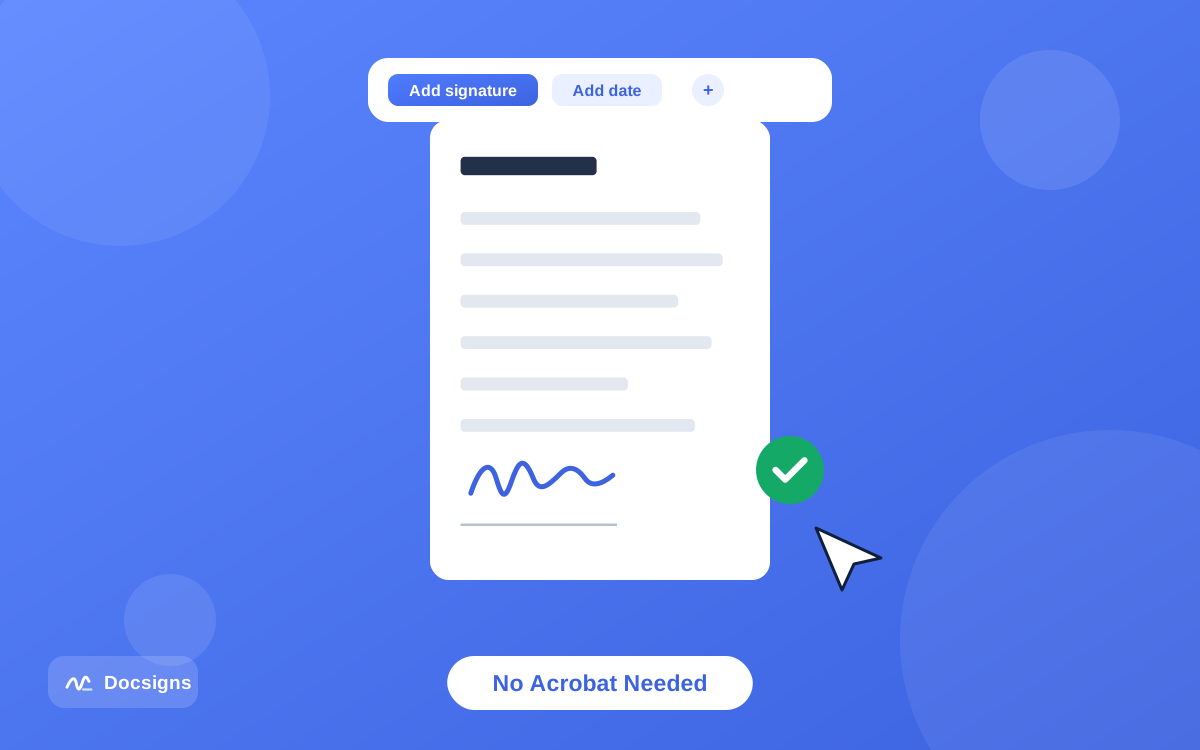
A PDF lands in your inbox, you go to sign it, and Acrobat wants a subscription, an update, or an Adobe account before it will cooperate. Here is the part the download page does not mention: you can add a signature to a PDF without Adobe Acrobat in about a minute, using nothing but the browser you are reading this in.
This guide walks through the free browser-based method step by step, compares it honestly with Acrobat, and — because honesty cuts both ways — covers the cases where Acrobat genuinely is the right tool.
To be clear on scope: this is about self-signing, the everyday case where you need to put your own signature and a date on a document someone sent you. That is exactly the job Acrobat is overkill for.
Why people look beyond Acrobat
Acrobat is capable software — the objection is not quality, it is proportion. For the job of placing one signature on one document, it asks for a lot:
- Subscription cost. Full Adobe Acrobat runs on a monthly subscription that adds up to a meaningful yearly spend — real money for a task you might do twice a month.
- Install weight. The desktop app is a large download and a heavyweight install; on older machines it is slow to open, and on locked-down work laptops you may not be allowed to install it at all.
- Account friction. Even the free Reader pushes you toward an Adobe ID, and the free tier's limits have a way of appearing mid-task.
- Overkill for the job. Most people need to sign and date a document. They do not need editing, redaction, OCR, and export pipelines riding along.
- Not always at hand. The document rarely arrives while you are at the machine where Acrobat is installed. A browser tool is wherever you are.
If you are weighing options more broadly, best free PDF signature tools in 2026 compares the field, and best alternatives to Adobe Sign covers the send-for-signature side of Adobe's lineup.
How to add a signature to a PDF without Adobe Acrobat
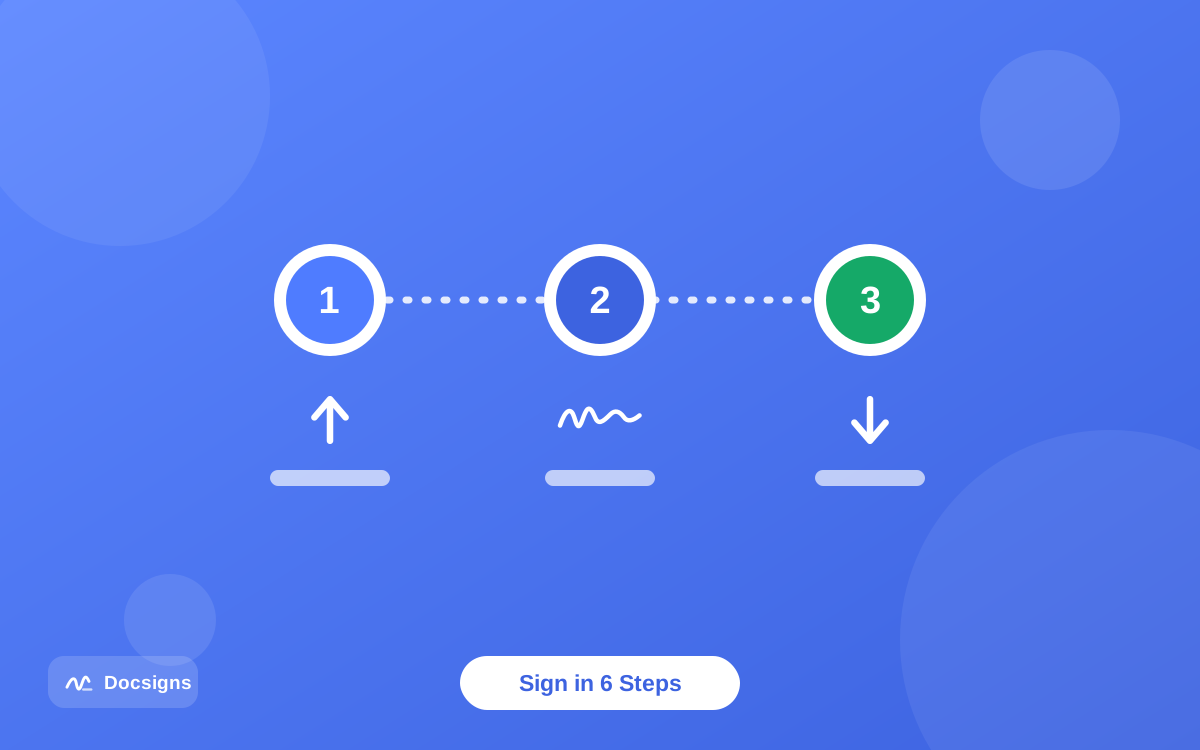
The replacement workflow uses a free browser-based signer — the steps below use Docsigns, which needs no signup and adds no watermark. Here is the complete process:
- Open the signing tool in any modern browser — Chrome, Safari, Firefox, or Edge.
- Upload your PDF (DOC and DOCX work too — they are converted to PDF, then signed in your browser).
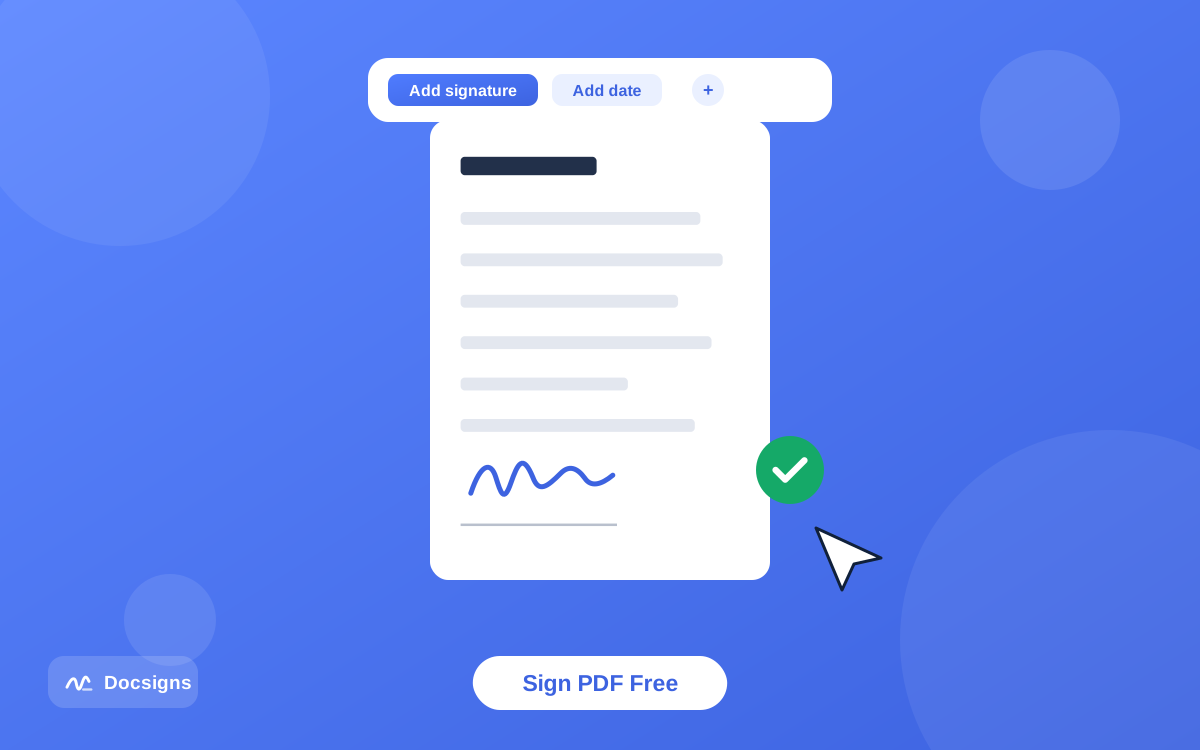
- Create your signature: draw it, type it in a handwriting font, or upload an image of it.
- Drag the signature onto the signature line; resize or rotate it to fit.
- Add the date in the format the form expects.
- Download the signed PDF — original file name, no watermark — or share it via private link.
Step 1–2: Open the tool and upload your PDF
There is nothing to install and no account to create — the editor loads directly in the browser. Drop your PDF in and it renders immediately, because the file is processed locally on your device rather than uploaded to a server. Multi-page documents load in full, with a zoom control for precise placement.
That local processing is worth pausing on, because it is where a good browser signer actually beats Acrobat's cloud features on privacy: the contract with your salary in it stays on your machine, full stop. With Word files, only the DOC-to-PDF conversion touches a secure converter — the signing still happens in your browser.
Step 3: Create your signature — draw, type, or upload
You get the same three creation methods Acrobat's Fill & Sign offers, without the Adobe ID. Draw your signature with a mouse or finger, type your name and pick from six handwriting fonts (Classic, Casual, Fine, Elegant, Relaxed, Marker), or upload a PNG or JPG photo of your pen-on-paper signature. The full technique for each method is in how to create a digital signature for documents.
Save the signature to your library once, and every future document is a one-click job.
Step 4–6: Place, date, and download
Drag the signature exactly onto the line, resize it by the corner handles, and rotate it if the field is angled. Add a date element next to it — formats like "June 19, 2026", "19/06/2026", "2026-06-19", and "19.06.2026" are supported, so you can match the form.
Placement works on any page of a multi-page document, so a contract that wants initials on page 3 and a full signature on page 12 is handled in one pass. Zoom in before you commit the position — a signature that sits squarely on the line reads as careful, and careful reads as credible.
The download keeps the original file name and places everything at the exact position you set. The output pages are flattened images, which makes casual text-editing of the signed content impractical. If the recipient is waiting, share the signed PDF directly via a private link to WhatsApp, Gmail, or LinkedIn.
Add a signature to a PDF without Adobe Acrobat on your phone
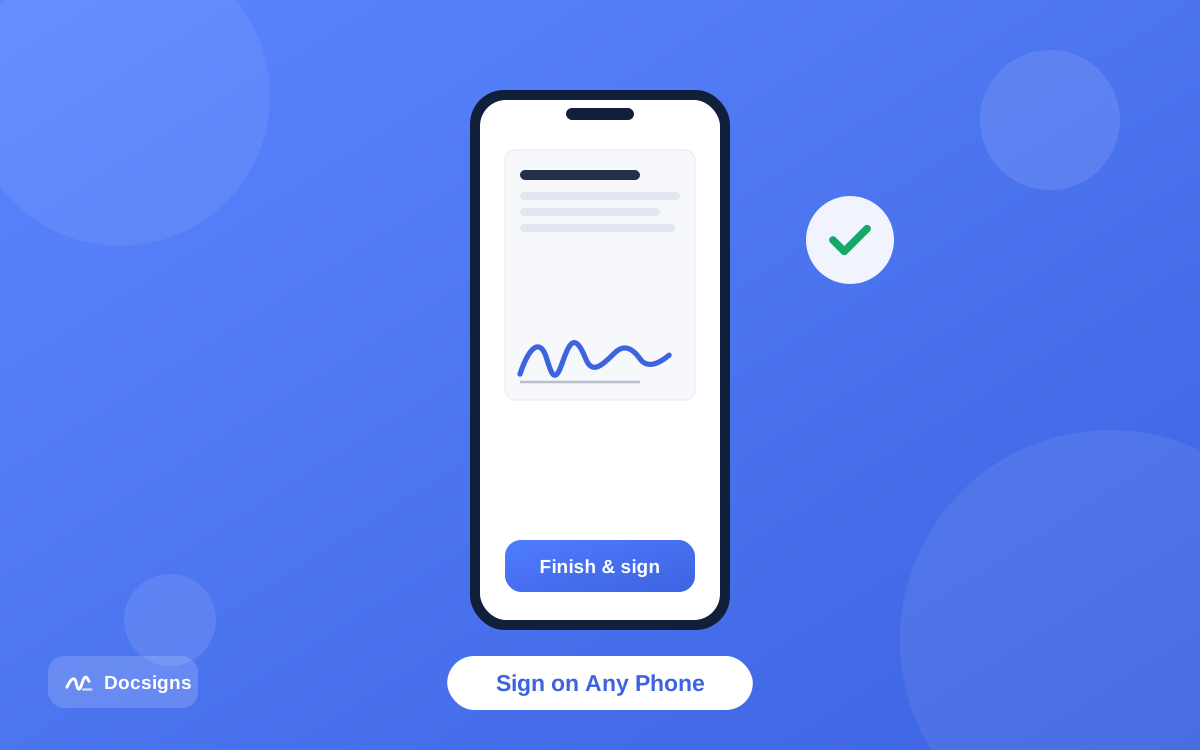
This is where skipping Acrobat pays off most. Instead of installing a mobile app and logging in, open the same browser tool on your phone, upload the PDF from your email, and sign with your finger — which is genuinely easier than signing with a mouse.
On iPhone and Mac there is also a native option: the Docsigns – eSign PDF, Word app on the App Store, and on Android the Docsigns - Sign PDF & eSign app on Google Play. Device-specific tips live in how to sign documents on mobile devices.
Acrobat vs a free browser tool for self-signing
Here is the honest comparison for the specific job of signing a document yourself:
| Adobe Acrobat | Free browser tool (Docsigns) | |
|---|---|---|
| Price for self-signing | Free tier with limits; full app is a paid subscription | Free — no hidden fees |
| Install | Large desktop download (or app) | None — runs in the browser |
| Account required | Adobe ID pushed throughout | No signup |
| Draw / type / upload signature | Yes, in Fill & Sign | Yes — six handwriting fonts, PNG/JPG upload |
| Where your file goes | Local app; cloud features upload to Adobe servers | PDF never leaves the browser — processed locally |
| Watermark on output | No | No |
| Certificate-based digital signatures | Yes | No — electronic signatures only |
| PDF editing, OCR, redaction | Yes (paid) | No — signing, dates, sharing only |
The pattern is clear: for self-signing, the free browser tool matches Acrobat feature for feature and wins on cost, speed, and friction. Acrobat's real advantages sit in the rows at the bottom — and they matter to a much smaller group of users.
What about Acrobat Reader's free Fill & Sign?
Fair question — Adobe's free Reader does include a basic Fill & Sign feature, and if Reader is already installed and signed in on your machine, it can handle a simple self-signing job. The catch is everything around it: you still need the desktop install, the experience steers you toward an Adobe ID and paid upgrades at every turn, and none of it helps you on a borrowed laptop, a locked-down work machine, or a phone without the app.
The browser tool wins on exactly those margins: zero setup, zero account, and identical behavior on every device you will ever touch. If Reader already works for you, keep using it — but there is no reason to install it just to sign.
When Acrobat is the right tool
Skipping Acrobat is the right call for signing — but not for everything. Reach for Acrobat (or another dedicated PDF suite) when you need:
- Certificate-based digital signatures. If a counterparty or regulation requires a cryptographic, certificate-backed signature, you need PKI-capable software — a drawn or typed signature will not satisfy it. The distinction is explained in electronic signature vs digital signature: key differences.
- Real PDF editing. Rewriting text, reordering pages, redacting content, or running OCR on scans is document editing, not signing — that is Acrobat's home turf.
- Enterprise workflows. Audit trails, bulk sending, and integration with Adobe's document pipeline belong to Adobe's paid ecosystem.
The point is proportion: pay for the heavy toolkit when you have heavy work. Signing your name is not heavy work.
Common mistakes when leaving Acrobat behind
The browser route is simple, but a few traps catch first-timers:
- Picking a "free" tool that charges at the download step. Do the ten-second test: check that the tool exports a clean, unwatermarked PDF without an account before you invest effort.
- Uploading confidential PDFs to tools that store them. Many web signers upload your file to their servers. Prefer local processing — with Docsigns, PDFs are rendered and signed entirely in your browser. More on vetting tools in how to sign documents online securely.
- Expecting the browser tool to edit the PDF. A signer places signatures and dates; it does not rewrite paragraphs. Know which job you are doing.
- Forgetting fields Acrobat used to flag. Some PDFs have form fields that Acrobat highlights. In a visual signer, scroll every page yourself and check for initials boxes and second signature lines.
- Signing a certificate-required document visually. If the instructions say "digitally sign with your certificate", stop — that is the one case the free route cannot cover.
A quick note on validity
A signature added in a browser tool is an electronic signature, and electronic signatures are legally recognized for most everyday transactions under the US ESIGN Act and UETA and the EU's eIDAS regulation. Nothing about Acrobat makes a visual signature "more legal" — the legal weight comes from your intent to sign, not from the software brand. This is general information, not legal advice; requirements vary by jurisdiction and document type, and are electronic signatures legally binding has the full picture.
Sign your PDF without Acrobat today
The next time a document needs your name on it, skip the subscription screen. You can add a signature to a PDF without Adobe Acrobat in the time it took to read this section: upload, sign, date, download — free, no account, no watermark, and your PDF never leaves your browser.
Keep Acrobat in mind for the jobs that genuinely need it — certificate signatures and heavy editing — and use the one-minute tool for the everyday task. The complete walkthrough of that flow is in how to sign a PDF online for free, or just sign your document now and see for yourself.
Frequently asked questions
How can I add a signature to a PDF without Adobe Acrobat?
Use a free browser-based signer like Docsigns: upload the PDF, create a signature by drawing, typing, or uploading an image, drag it into place, add a date, and download. No install, no signup, no watermark.
Is there a completely free way to sign a PDF?
Yes. Docsigns is free with no hidden fees: you can sign PDF, DOC, and DOCX files, save a reusable signature, and download or share the result without an account or watermark.
Do I need to install anything to sign a PDF?
No. A browser-based signer runs in Chrome, Safari, Firefox, or Edge on desktop and mobile. That also means it works on locked-down work machines where you cannot install software.
Is a PDF signed without Acrobat still legally valid?
For most everyday documents, yes. Legal recognition comes from laws like the ESIGN Act, UETA, and eIDAS, which focus on your intent to sign — not on which software placed the signature. Some documents have special requirements; this is general information, not legal advice.
What can Adobe Acrobat do that a free signing tool cannot?
Certificate-based digital signatures, real PDF editing, OCR, and redaction. If you need those, Acrobat or another dedicated PDF suite is the right choice. For placing your own signature and a date on a document, a free browser tool covers the whole job.
Can I sign a PDF without Acrobat on my phone?
Yes. Open the browser tool on your phone, upload the PDF from your email, and draw your signature with your finger. iPhone and Mac users can also use the Docsigns app from the App Store, and Android users can install it from Google Play.
Is it safe to sign a PDF in a browser instead of Acrobat?
It depends on the tool. With Docsigns, PDFs never leave your browser — they are rendered and signed locally and never uploaded or stored on a server. Before using any web signer, check whether it processes files locally or uploads them.