How to Sign Documents Online Securely
You are about to put your name on a lease, a tax form or a contract that contains your address, salary or bank details. Before you drop that file into a random website, it is worth asking a simple question: where does the file actually go? Knowing how to sign documents online securely comes down to answering that question before you click upload.
Most people never check. They search for a free signing tool, pick the first result, upload a sensitive PDF and hope for the best. Sometimes that works out fine. Sometimes the file sits on a server for weeks, gets scanned for marketing data or lingers in a backup long after you forgot the site existed.
This guide explains what really happens to your file inside an online signer, the difference between local in-browser processing and server uploads, what HTTPS does (and does not) protect, and the exact checks to run before you trust any tool with a contract.
What actually happens to your file in an online signer
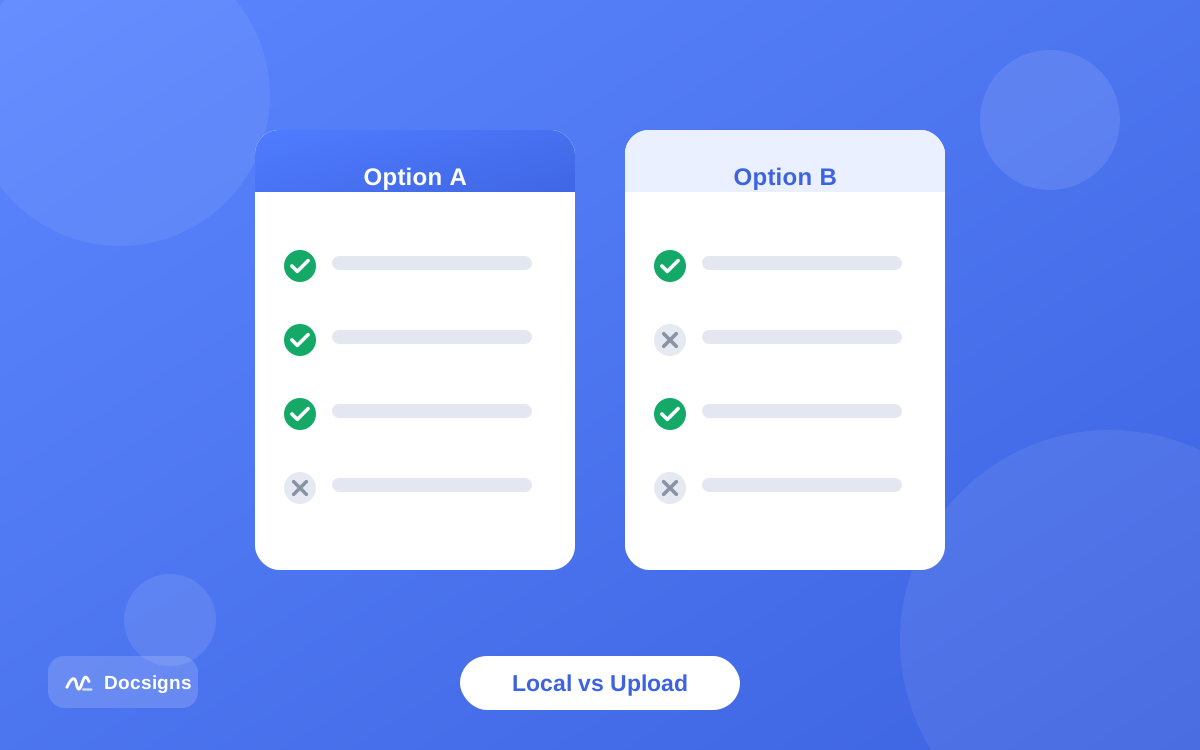
Every online signing tool has to do three things: display your document, let you place a signature on it, and produce a signed file you can download. The security question is where those three steps run — on your device, or on someone else's server.
The upload model: your file leaves your device
Most signing services use the upload model. Your PDF travels over the network to the company's servers, which render it, apply your signature and send a finished file back. The processing itself is invisible to you, and so is everything that happens afterwards.
That afterwards is the part that matters. Once a file is on a server, the operator decides how long it is stored, who can access it, whether it is encrypted at rest, and when (or whether) it is deleted. A reputable provider handles this carefully. A free tool with no visible business model may not — storage costs money, and your data can be the product.
The local model: signing happens in your browser
The second architecture does everything client-side. Modern browsers can render a PDF, draw a signature onto it and rebuild the finished file entirely in memory on your own device. The document never crosses the network, so there is nothing to store, leak or delete on a server. This is how signing a PDF online for free can be both convenient and genuinely private.
You cannot tell which model a tool uses just by looking at the page — both show you a document and a signature box. You have to check what the tool says about itself, and ideally verify it. More on that below.
| Question | Upload model | Local (in-browser) model |
|---|---|---|
| Where is the file processed? | On the provider's servers | On your own device |
| Does the document cross the network? | Yes, at least twice | No — it stays in the browser |
| Can the provider read the content? | Technically yes | No, it never receives the file |
| What happens after signing? | Depends on the retention policy | Nothing — there is no server copy |
| Works offline once loaded? | No | Often yes |
HTTPS is the minimum bar, not the whole story
The padlock in your address bar means the connection uses HTTPS, which encrypts data in transit. Nobody sitting on the same coffee-shop Wi-Fi can read your document while it travels to the server. That protection is essential, and you should never send a document to a site without it.
But HTTPS only protects the journey, not the destination. Once your file arrives at the server, encryption in transit is finished. The provider can still store the file indefinitely, index its contents or hand it to third-party processors. A padlock next to the URL tells you the pipe is secure; it says nothing about what sits at the end of the pipe.
So treat HTTPS as a filter, not a verdict: no padlock means walk away immediately, but a padlock alone is not a reason to trust a tool with a signed contract.
One more transit-level note: public Wi-Fi is generally fine for HTTPS traffic in 2026 — the encryption holds — but hostile networks can still push lookalike portal pages or prompt you to install certificates. If a network asks you to install anything before you can browse, do not sign documents on that connection.
How to sign documents online securely: vet the tool first
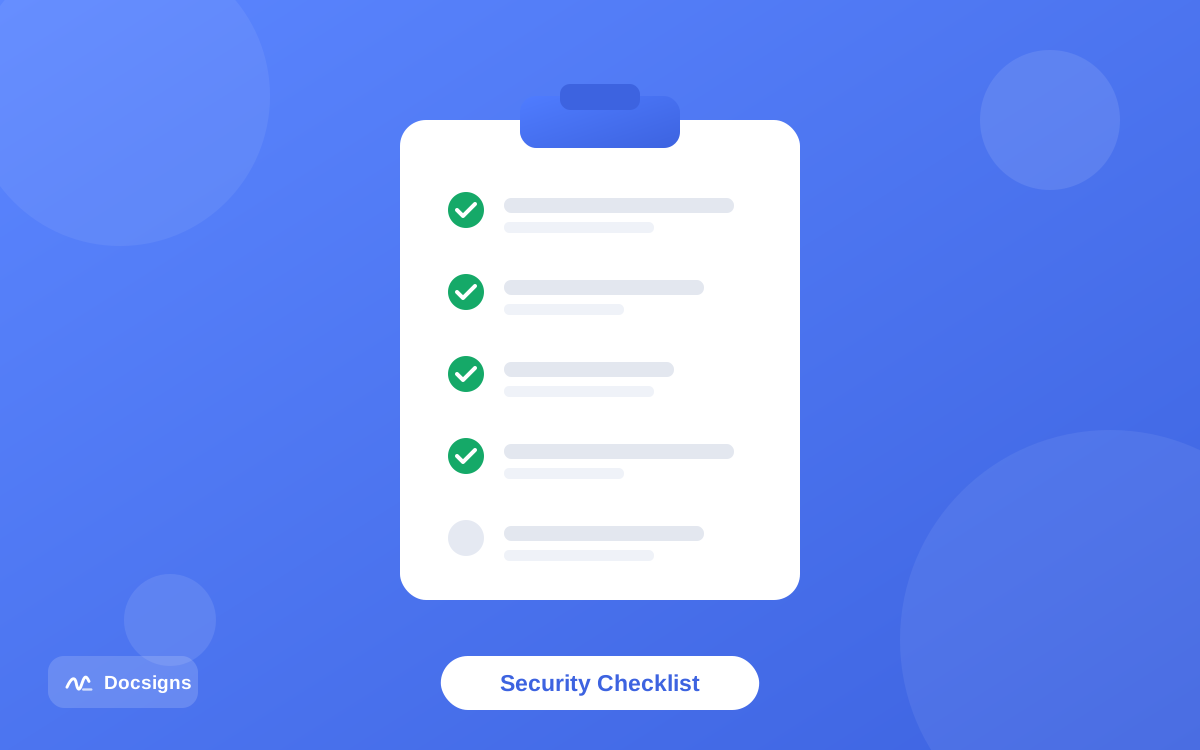
You do not need to be a security engineer to vet a signing tool. A few targeted checks reveal most of what you need to know, and they take about five minutes.
A quick checklist before you sign documents online securely
- HTTPS everywhere. The signing page, not just the homepage, must load over HTTPS. No exceptions.
- A clear processing claim. Look for an explicit statement about where files are processed. "Your files never leave your browser" is a strong, checkable claim; silence usually means uploads.
- A readable privacy policy. It should say what is collected, how long files are kept and whether content is shared with third parties. If the policy never mentions your documents, assume the worst.
- A stated retention period. "Deleted after one hour" is honest. "We may retain data as needed" is a blank cheque.
- No forced signup for basic signing. Every account is another database row tying your identity to your documents.
- Minimal trackers on the signing page. Open your browser's network tab; a signing page stuffed with ad trackers tells you how the operator thinks about your data.
- A real company or product identity. A named product with an app-store presence or contact details is easier to hold accountable than an anonymous single-page site.
One practical verification trick: open the browser's developer tools, switch to the Network tab, then load and sign a throwaway PDF. If the tool processes files locally, you will see no request carrying your document to a server. It is a two-minute test that separates marketing claims from architecture.
Privacy policy red flags
When you skim the policy, watch for phrases like "we may use uploaded content to improve our services", vague retention language, or a long list of third-party processors with no explanation. None of these is illegal, but each one widens the circle of people and systems that can touch your contract.
Also check the jurisdiction. Where a company stores data determines which privacy laws apply to your file. For a deeper look at what makes a signature itself trustworthy, see the difference between an electronic signature and a digital signature — the two terms get mixed up constantly, and the distinction matters for high-stakes documents.
Risky habits to avoid when signing online
Most real-world document leaks are not sophisticated attacks. They are small habits that quietly multiply the number of places your file exists.
- Emailing documents to yourself to sign on another device. Every mailbox that holds the attachment is another copy you cannot delete. Sign on the device where the file already lives — a good tool works on your phone too.
- Using the first search result without checking it. Ad placements go to the highest bidder, not the most private tool.
- Uploading to a tool just to add one signature. If the job is placing your own signature on your own document, a local in-browser signer does it without the upload entirely.
- Signing sensitive files on a shared or public computer. Downloads folders, browser caches and signed-in accounts all leave traces you will not clean up.
- Ignoring what happens to the signed copy. A securely signed file that is then posted in a public chat channel was not worth securing.
- Reusing one photographed signature image everywhere. If that PNG leaks once, it can be pasted onto anything. Prefer drawing or typing a fresh signature in the tool.
A secure signing workflow, step by step
Here is the full routine, compressed into an order you can actually follow. After the first time, steps one to three take under a minute.
- Confirm the page loads over HTTPS and the address is the site you meant to visit — not a lookalike domain from an ad.
- Check the tool's processing claim: local in-browser signing is the strongest option for personal self-signing.
- Skim the privacy policy for retention, third-party sharing and tracker use.
- Open the file in the tool and create your signature by drawing, typing or uploading it.
- Place, resize and position the signature, add the date if the document needs one, and review every page before exporting.
- Download the signed PDF and confirm it opens correctly and shows the signature exactly where you placed it.
- Share the signed file through a private channel — a direct message or email to the recipient, not a public link.
- Delete leftover copies you no longer need, especially from shared devices and cloud folders.
How Docsigns is designed: PDFs never leave your browser
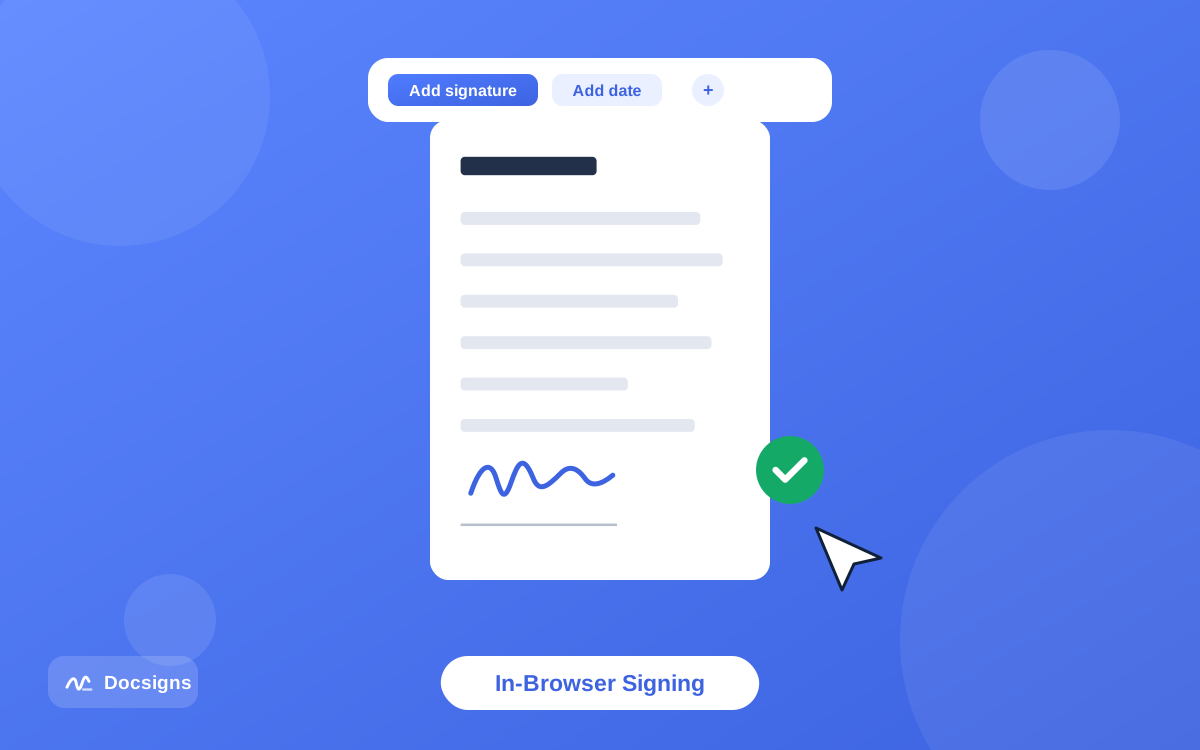
Docsigns is our tool, so judge this section with that in mind — but the design choice is exactly the local model described above. When you sign a PDF with Docsigns, the file is rendered and signed entirely client-side, in your browser. It is never uploaded to a server, never stored, and never readable by us. Close the tab and no copy exists anywhere except your own device.
There is no signup, so no account links your identity to what you signed. You can draw a signature, type one in six handwriting styles or upload an image of one, place it precisely on any page, and download a signed PDF that keeps the original file name. The exported pages are flattened images, which makes casual editing of the signed content impractical — useful when you want the signed file to resist quiet edits.
One honest caveat: Word files work differently. DOC and DOCX cannot be rendered natively by browsers, so Docsigns converts them to PDF through a secure converter first, then signs the result locally. If your document is already a PDF, nothing ever leaves the browser at all.
Docsigns does not do multi-party signature workflows, audit trails or certificate-based digital signatures — for those, use a dedicated platform. What it does is the most common job there is: putting your own signature on your own document, quickly and privately.
Sign your next document securely — without the upload
The core lesson is simple: to sign documents online securely, know where your file goes before you send it anywhere. Prefer tools that process documents locally in your browser, insist on HTTPS, read the retention policy, and drop the small habits — stray email attachments, public computers, unvetted first search results — that scatter copies of your contracts around the internet.
Run the five-minute checklist once for any tool you plan to keep using. After that, secure signing is no slower than careless signing — it is the same three clicks with none of the doubt.
If you want to feel the difference the local model makes, sign your document now with Docsigns — free, no signup, and your PDF never leaves the browser.
Frequently asked questions
Is it safe to sign documents online?
Yes, if you choose the tool carefully. The safest options process files locally in your browser so the document never reaches a server. If a tool uploads files, check its HTTPS, privacy policy and retention period before trusting it with anything sensitive.
How do I know if a signing tool uploads my file?
Open your browser's developer tools, go to the Network tab, then load and sign a test PDF. If your document is uploaded, you will see a request carrying the file to a server. Local tools show no such request — the file stays on your device.
Does HTTPS mean an online signing tool is secure?
Only partially. HTTPS encrypts the file in transit so it cannot be read on the network, but it says nothing about how the provider stores, scans or shares your document after it arrives. Treat a missing padlock as disqualifying, and a present one as just the starting point.
What is the most secure way to sign a PDF online?
Use a tool that renders and signs the PDF entirely in your browser, over HTTPS, without requiring an account. Docsigns works this way: the PDF is processed client-side and is never uploaded or stored, so there is no server copy to leak.
Should I avoid free online signature tools?
No — free does not automatically mean unsafe, and paid does not automatically mean private. Judge the architecture and the privacy policy, not the price. A free local-processing tool can be more private than a paid upload-based one.
Is a scanned image of my signature safe to use?
It is convenient, but treat the image file like a credential. Store it somewhere private, avoid emailing it around, and consider drawing or typing a fresh signature in the signing tool instead so no reusable image exists to leak.
Are documents signed online legally valid?
In most jurisdictions, yes — frameworks like the US ESIGN Act, UETA and the EU's eIDAS regulation recognize electronic signatures for most everyday documents. Requirements vary by country and document type, so check the rules that apply to you; this is general information, not legal advice.