How to Protect Signed PDF Documents from Editing
You signed the contract, sent the PDF, and then the doubt crept in: could someone open it and quietly change a number? It is a fair question. A plain PDF is more editable than most people assume, and if you want to protect signed PDF from editing you need to know which protections are real, which are speed bumps, and which require tools beyond a signing app.
This guide is deliberately honest about that last part. Docsigns — our free, browser-based signing tool — gives you one meaningful layer automatically: signed output is flattened, meaning every page becomes an image inside the PDF, which makes casual text edits impractical. But flattening is not encryption and not tamper-proofing, and we will say so plainly.
Below you will find the full protection ladder: what flattening actually does, what password and permission restrictions add, when a certificate-based digital signature is the right answer, and the unglamorous habits — keeping originals, hashing files, archiving to PDF/A — that quietly settle most disputes.
Why a plain PDF is easier to edit than you think
An ordinary PDF stores text as text. Open it in a capable editor and you can select a sentence, retype a price, or lift a signature image and paste it onto a different document. No exotic skills required — mainstream PDF editors do all of this in a couple of clicks.
That does not make signed PDFs worthless. In a dispute, the other side usually has a copy too, and a doctored version that contradicts everyone else's copy is a serious legal problem for the person who doctored it. But relying on "they probably wouldn't dare" is not a protection strategy. Layers are.
- Layer 1 — Flattening: make the signed content hard to edit casually.
- Layer 2 — Restrictions: passwords and permission flags that block opening or modifying (other tools required).
- Layer 3 — Tamper evidence: certificate-based digital signatures that mathematically reveal any change (dedicated PKI tools required).
- Layer 4 — Provenance: your own originals, checksums and archives that prove what the file looked like on signing day.
Most people need layers one and four, occasionally two. Layer three earns its complexity only where a court, regulator or counterparty demands cryptographic proof. Match the effort to the stakes: a freelance invoice does not need a qualified certificate, and a merger agreement should not rely on flattening alone.
Flattening: how Docsigns hardens signed output
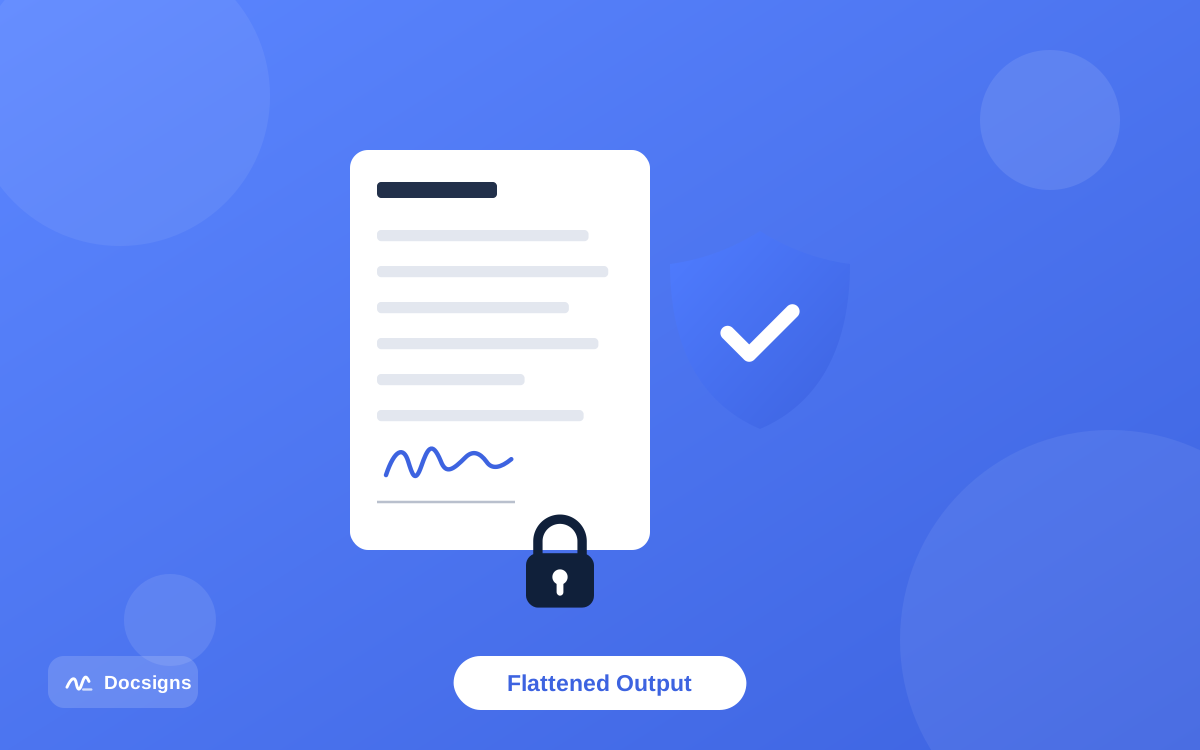
When you sign a document with Docsigns, the download you receive is a PDF whose pages have been converted to flattened images. The text layer, the form fields and your signature stop existing as separate, selectable objects — each page is a single picture, positioned exactly as you placed everything in the editor.
The practical effect: someone opening your signed file in a PDF editor cannot click into a paragraph and retype the payment terms, and cannot lift your signature out as a tidy vector object. To alter anything they would have to fake it at the pixel level in an image editor — a far higher bar than a two-second text edit, and one that tends to leave visible artifacts.
Be clear about the limits, though. Flattening deters casual editing; it is not cryptographic proof of integrity, and a determined forger with image tools is not stopped by it. It also means the signed PDF is no longer text-searchable. For everyday agreements — freelance contracts, approvals, forms — that trade-off is exactly right. And because Docsigns signs PDFs entirely in your browser without uploading them, you get the flattening without handing your document to a server.
Passwords and permission restrictions (other tools required)
The PDF standard supports two kinds of password protection, and it is worth knowing the difference because only one of them is strong. Docsigns does not add passwords or encryption — for this layer you need a tool like Adobe Acrobat, macOS Preview (open password only), or a command-line utility such as qpdf.
| Restriction type | What it does | How strong is it? |
|---|---|---|
| Open password (user password) | The file is encrypted; nobody can even view it without the password | Strong with a good password — the content is genuinely encrypted (AES-256 in modern PDFs) |
| Permissions password (owner password) | Viewing is free, but editing, printing or copying is flagged as forbidden | Weak — it is an honor-system flag that many tools can strip; treat it as a deterrent, not a lock |
| Flattening | Pages become images; no text layer to edit | Good against casual edits; no protection against image-level forgery |
| Certificate-based digital signature | Any change after signing invalidates the signature mathematically | Strong tamper evidence — the gold standard for high-stakes documents |
Combining layers to protect signed PDF from editing
A sensible combination for a sensitive agreement: sign and flatten the document, then apply an open password in a separate tool and share the password over a different channel (tell it by phone, not in the same email as the file). If you prefer the terminal, qpdf can apply AES-256 encryption to a PDF with a single command, and it is free and open source.
Certificate-based digital signatures: real tamper evidence
Everything above makes editing harder. A certificate-based digital signature does something different: it makes editing *detectable*. The signing software computes a cryptographic fingerprint of the document and encrypts it with a private key tied to a verified identity certificate. If even one byte of the PDF changes afterwards, any PDF reader that checks the signature reports it as invalid.
This is what regulations mean by advanced or qualified electronic signatures — the eIDAS framework in the EU defines tiers of exactly this kind. Getting one involves a certificate authority or a trust service provider, and tools built for PKI workflows.
Honest positioning: Docsigns does not create certificate-based digital signatures. It creates electronic signatures — drawn, typed or uploaded marks placed on your document — which are what the vast majority of everyday agreements actually use and which are broadly recognized under frameworks like ESIGN, UETA and eIDAS. If you are signing a merger agreement or a court filing that demands qualified signatures, use a dedicated PKI tool for that document. The difference between the two is worth five minutes of your time: read electronic signature vs digital signature and, for the legal backdrop, are electronic signatures legally binding. As always with legal topics: this is general information, not legal advice, and requirements vary by jurisdiction and document type.
Keep the original, hash it, archive it
The cheapest tamper protection is evidence you create yourself, the day you sign. None of it requires special software beyond what your computer already has.
Keep the unsigned original
Store the original file you signed — unmodified, in a folder you do not touch. If a dispute ever surfaces over what the document said, you can show the source document alongside the signed PDF. Docsigns keeps the original file name on the signed download, so pairing "contract.pdf" with its signed twin stays tidy.
Record a checksum (file hash)
A checksum is a short fingerprint computed from the file's exact bytes; change anything in the file and the fingerprint changes completely. On a Mac, open Terminal and run shasum -a 256 signed-contract.pdf; on Windows, run certutil -hashfile signed-contract.pdf SHA256. Email the resulting string to yourself and to the other party on signing day. Years later, re-running the command on the file proves it is byte-for-byte identical to what was signed.
Archive long-term copies as PDF/A
PDF/A is the ISO-standardized archival flavor of PDF: fonts embedded, no external dependencies, designed to render identically decades from now. For documents with long retention requirements — leases, insurance, HR records — converting a copy to PDF/A (Acrobat and LibreOffice can both do it) and storing it in two places is a habit archives professionals swear by.
Best practices checklist to protect signed PDF from editing
- Sign with a tool that flattens output — sign your PDF free with Docsigns and the download is flattened automatically.
- Always place a date next to your signature; undated signatures invite version disputes.
- Keep the unsigned original in an untouched folder, alongside the signed copy.
- Compute a SHA-256 checksum of the signed PDF and email it to both parties the same day.
- For confidential content, add an open password with a separate tool and share the password via a different channel.
- Never rely on a permissions-only password — assume it can be stripped.
- For high-stakes or regulated documents, use a certificate-based digital signature from a PKI tool for that specific document.
- For long retention, archive a PDF/A copy in two locations (local + cloud).
- Share only the signed, flattened PDF — never the editable source file next to it.
Common mistakes that undo your protection
- Emailing the password with the file. If both travel in the same message, the encryption protects nothing. Use a second channel.
- Sending the editable source alongside the signed PDF. The recipient now has everything needed to produce a "new version."
- Confusing "can't edit easily" with "tamper-proof." Flattening and permission flags deter; only cryptographic signatures detect.
- Losing the original. Without your reference copy and hash, a dispute becomes your word against a file.
- Scanning a printed copy as your archive. A low-quality scan is harder to verify than the born-digital file — archive the actual signed PDF.
- Choosing a weak password. AES-256 with the password "contract2026" is a locked door with the key under the mat. Use a long passphrase, and store it somewhere other than the document folder.
Protect your signed PDF from editing starting with the signature itself
The realistic way to protect signed PDF from editing is layered: flatten the signed file so casual edits are impractical, keep your own original and checksum so any alteration is provable, add encryption when the content is confidential, and reach for certificate-based signatures on the rare documents that truly demand them.
The first layer costs you nothing and takes a minute: sign your document now with Docsigns — free, no signup, your PDF never leaves the browser, and the signed download comes flattened by default. Then spend sixty seconds on the checksum. That combination covers the overwhelming majority of real-world risk.
Frequently asked questions
Does Docsigns lock my PDF after signing?
Docsigns flattens the signed output: each page becomes an image inside the PDF, so there is no text layer left to edit. That makes casual editing impractical. It does not add passwords, encryption or cryptographic tamper-proofing — use dedicated tools for those layers.
What does it mean that a signed PDF is flattened?
Flattening converts each page — text, fields and signature — into a single image at the exact layout you signed. Nobody can select and retype the text afterwards. The trade-off is that the file is no longer text-searchable.
Can someone still edit a flattened PDF?
Not with normal PDF text editing. A determined person could manipulate the page images in an image editor, but that is forgery rather than editing, it is much harder, and it tends to leave visible artifacts — especially when compared against the other party's copy or a recorded checksum.
How do I password-protect a signed PDF?
Use a tool with encryption support — Adobe Acrobat, macOS Preview or qpdf — to add an open (user) password after signing. Choose a strong password and share it over a different channel than the file. Docsigns itself does not add passwords.
Are PDF permission restrictions (no editing/printing) reliable?
No. Permissions set with only an owner password are advisory flags that many tools can strip. Treat them as a polite deterrent. Real protection comes from open-password encryption, flattening, and certificate-based signatures.
What is a checksum and why should I record one?
A checksum (e.g. SHA-256) is a fingerprint of the file's exact bytes. Record it on signing day — shasum -a 256 file.pdf on Mac, certutil -hashfile file.pdf SHA256 on Windows — and you can later prove the file is unchanged, because any edit alters the fingerprint completely.
Do I need a certificate-based digital signature?
For everyday contracts, approvals and forms, usually not — standard electronic signatures are broadly recognized under ESIGN, UETA and eIDAS. Certificate-based signatures matter for high-stakes or regulated documents where mathematical tamper evidence is required; they need dedicated PKI tools, which Docsigns does not provide.
What is PDF/A and when should I use it?
PDF/A is the ISO archival version of PDF: self-contained, fonts embedded, built to render identically for decades. Use it for a long-term copy of documents you must retain for years, such as leases, insurance papers and HR records.