Draw, Type or Upload: Which Signature Should You Use?

Drawing, typing and uploading a signature all produce the same thing legally — an electronic signature that carries the same weight for most everyday agreements. The choice is practical, not legal. Draw when you are on a phone or tablet with a finger or stylus. Type when you are on a laptop with only a trackpad. Upload when you already have a clean scan of your real signature and want every document to match.
That is the short answer. The longer answer is that each method fails in a specific way, and knowing which failure you are walking into saves you from re-signing a document twice. Here is what actually separates them.
The three methods at a glance
| Method | Best on | Looks like | Main weakness |
|---|---|---|---|
| Draw | Phone, tablet, touchscreen laptop | Your actual handwriting, roughly | Painful with a mouse or trackpad |
| Type | Any computer | A cursive font, consistent every time | Not your handwriting; obviously a font up close |
| Upload | Any device, once you have the image | Your real signature exactly | Needs a clean image first, or it looks grey and boxy |
All three are available on Docsigns, so you can try one, clear it, and try another before you commit — the signature is not fixed until you download the signed PDF.
Drawing: best on a touchscreen, worst with a mouse
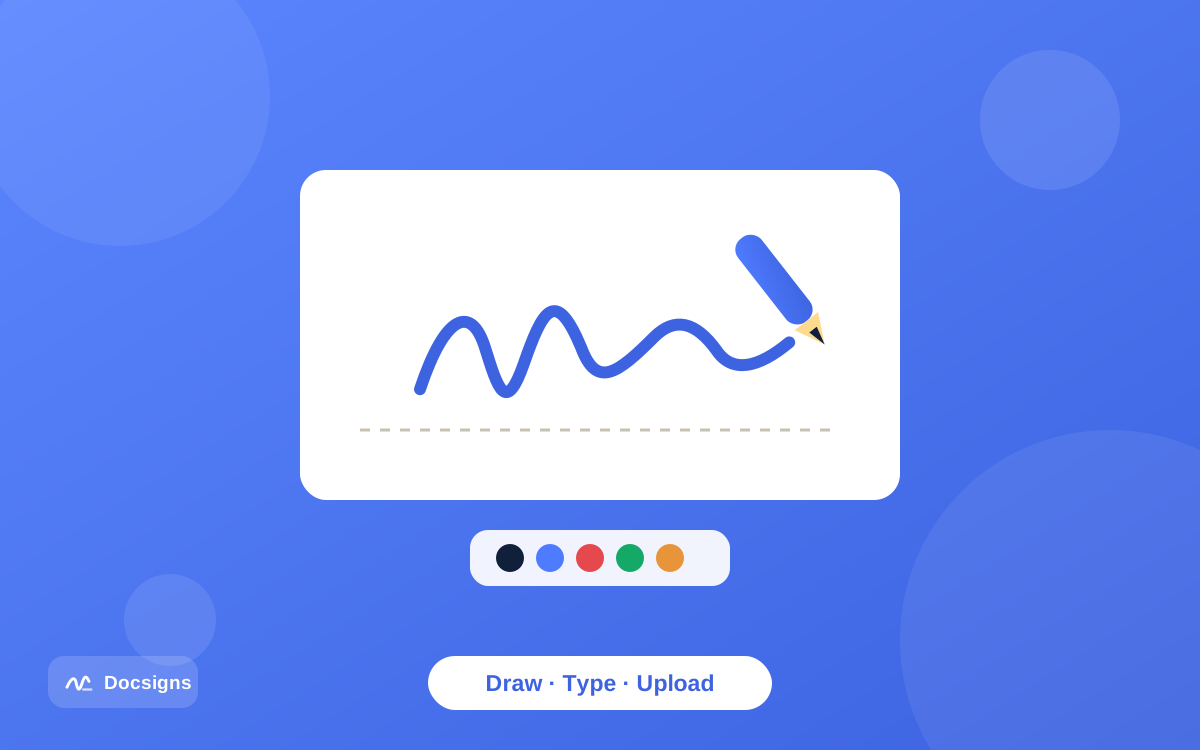
Drawing gives the most natural result if you have something to draw with. A finger on a phone screen produces a passable signature in two or three attempts. A stylus on a tablet produces something almost indistinguishable from pen on paper.
A mouse or trackpad produces neither. Wrist-driven handwriting does not survive being translated into arm-driven mouse movement, and the result usually looks like a child's approximation of your name. If you are on a laptop with no touchscreen, this is the method to skip.
Two things help when you do draw:
- Sign bigger than feels right. Use the full width of the drawing area. A large signature scaled down looks smooth; a small one scaled up looks shaky.
- Sign faster than feels right. Slow, careful strokes come out wobbly. Your real signature is a fast gesture, so treat it like one and redo it if it goes wrong.
Landscape orientation on a phone gives your hand noticeably more room, which is the single easiest improvement available.
Typing: consistent, quick, and clearly a font
Typing your name and picking one of the six cursive fonts takes about five seconds and looks identical every time. For an internal form, a delivery confirmation, an expense approval or anything where the point is to record that you approved it, that consistency is a genuine advantage.
The honest limitation: a typed signature is a typeface, and it looks like one to anyone paying attention. Two people with the same name and the same font produce identical marks. That is fine for routine paperwork and less comfortable on a document where the recipient expects to see something personal.
A typed signature is legally an electronic signature just like the other two. Intent to sign is what matters, not how the mark was produced. But there is a difference between what is valid and what looks considered, and on a client contract the second one counts too.
Uploading: the best result if the image is good
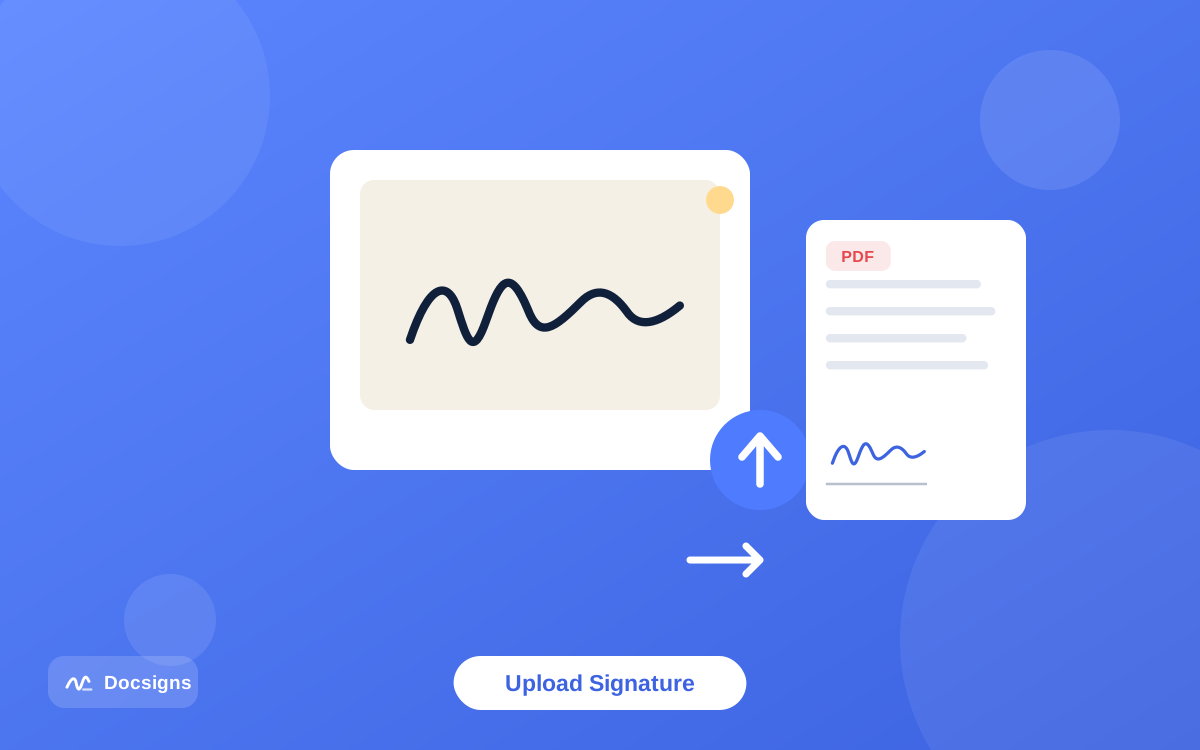
Uploading an image of your real signature gives the most convincing result and the same mark on every document you ever sign. It also has the highest chance of looking bad, because the quality of the output is entirely the quality of the image you feed it.
To get a usable one:
- Sign a plain white sheet of paper with a black pen, thicker than you would normally use. Ballpoint lines nearly disappear once photographed.
- Photograph it straight on in daylight, with no shadow across the paper. Move to the window rather than using the flash.
- Crop tightly to the signature, leaving a small margin.
- Upload it and look at the result on the document before you download anything.
The failure to watch for is a visible grey or off-white rectangle around the signature where the paper's tone did not quite disappear. It is obvious against a white PDF page. If you see one, take a brighter photo rather than accepting it — this is the single most common reason an uploaded signature looks worse than a typed one.
So which should you use?
A rule that holds up in practice:
- On a phone or tablet: draw. You have a touchscreen; use it.
- On a laptop, signing something routine: type. It is faster than anything else and perfectly valid.
- On a laptop, signing something that matters — a lease, a client agreement, an offer letter: upload a prepared image. Make the image once and reuse it for years.
- Signing regularly for work: prepare an upload image now. Ten minutes today removes the decision from every future document.
Whichever you pick, the mechanics afterwards are the same: drag the signature where it belongs, resize it to fit the line, and add a date beside it if the document asks for one. The how it works page walks through the placement step.
What none of them change
Being clear about this is more useful than any comparison. All three produce an electronic signature — a mark placed on a document with the intent to sign it. None of them produces a qualified digital signature backed by a certificate from a trust service provider, and Docsigns does not claim to.
Electronic signatures are accepted for most everyday agreements under frameworks like eIDAS in the EU and ESIGN and UETA in the US. Certain documents sit outside that: property transfers, wills, and some financial instruments often require a qualified signature, a notary, or wet ink. If your document is in that category, no choice of drawing versus typing helps — you need a different route entirely. This is general information rather than legal advice; when a document's requirements are unclear, ask the party requesting it what they will accept.
One practical note on privacy
The distinction is worth knowing because it depends on your file type. When you sign a PDF, the signing happens in your browser — the PDF itself is not uploaded. A DOC or DOCX is different: it has to be converted to PDF on a server first, so a Word file does leave your device as part of that conversion.
If that matters for a particular document, the workaround is simple. Save or export it as a PDF yourself first — every version of Word and Google Docs will do this — and sign the PDF instead. You can read the details on the privacy page.
Pen colour and the date beside it
Two small choices sit alongside the method itself. The first is pen colour: black, blue, red, green, orange or purple. Black is the safe default and matches a printed document. Blue has a long-standing practical use — it makes a signed original obvious next to a photocopy — and plenty of people prefer it for exactly that reason. The other four are there when a form actually asks for them; on a contract they read as decoration.
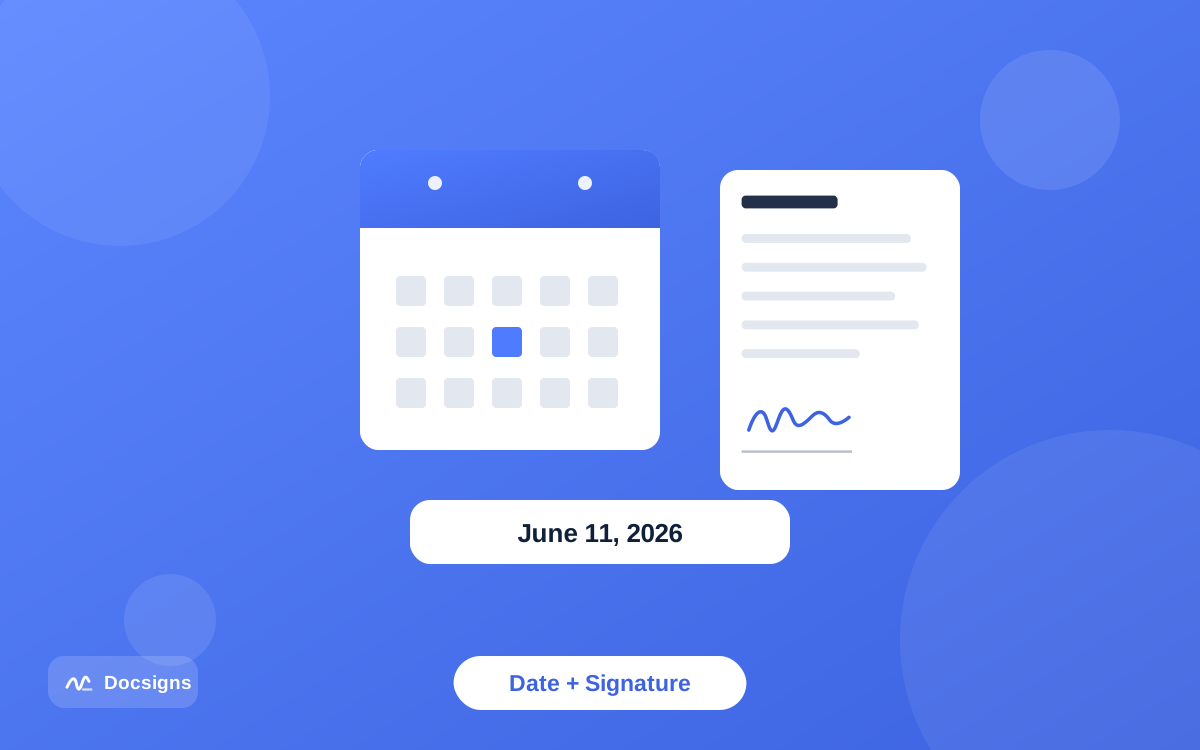
The second is the date. Many documents have a date field beside the signature line, and it is easy to sign, download, and only then notice the empty box. You can place a date next to your signature in several formats, so match whatever the document already uses: a form printed with DD/MM/YYYY should not get a date written the American way, because on the eighth of September that ambiguity is invisible and wrong. Set the date before you download rather than adding it by hand afterwards.
Getting it done
Signing is free, needs no account, and leaves no watermark on the file, so the cheapest way to decide is to try. Open the signer, load your document, and make a signature each of the three ways. Look at all three at actual size on the page. One of them will obviously be right for the document in front of you, and now you will know which method to reach for next time.
Frequently asked questions
Is a typed signature as valid as a drawn one?
Yes. What makes an electronic signature count is the intent to sign, not how the mark was made, so a typed name in a cursive font carries the same weight as a drawn one for most everyday agreements. The difference is appearance, not validity.
Why does my drawn signature look so bad?
Almost always because you are using a mouse or trackpad, which cannot reproduce a wrist-driven gesture. Switch to a phone, tablet or stylus, sign large and quickly rather than slowly, and turn a phone to landscape for more room.
How do I make a good signature image to upload?
Sign a plain white sheet with a thick black pen, photograph it straight on in daylight with no shadow, and crop tightly around the mark. Then check the result on the document — a faint grey rectangle around it means the photo was too dim and you should retake it.
Can I change my mind after creating a signature?
Yes. Nothing is fixed until you download the signed PDF, so you can clear a signature and create another with a different method, reposition it, or resize it as many times as you like before downloading.
Do these count as digital signatures?
No. All three produce an electronic signature — a mark placed with intent to sign. A qualified digital signature is a different thing, backed by a certificate from a trust service provider, and Docsigns does not issue those.
Does my document get uploaded when I sign it?
It depends on the file type. Signing a PDF happens in your browser, so the PDF is not uploaded. A DOC or DOCX has to be converted to PDF on a server first, so it does leave your device — export it to PDF yourself first if you would rather it did not.