How to Sign PowerPoint Presentations Before Sharing
Here is the short answer up front: to sign PowerPoint presentations reliably, you export the deck to PDF first, then add your signature to that PDF. No mainstream e-signature tool signs a .pptx file directly — and that includes Docsigns, which works with PDF, DOC and DOCX but not PowerPoint files. The PDF route is not a workaround; it is the correct workflow, and this guide walks through it step by step.
Why does the question come up at all? Because decks increasingly carry decisions. A pitch deck doubles as a proposal, the last slide holds the pricing, and the client asks you to "sign off on it." A slide with a quote is still a quote. When money or approval rides on a presentation, someone wants a signature on it.
Below you will find exact export steps for PowerPoint on desktop, PowerPoint for the web, Keynote and Google Slides, followed by how to sign the exported PDF for free in your browser — and why PDF was the format you should have been sharing anyway.
Why people sign PowerPoint presentations at all
Slides used to be a talking aid. Now they are frequently the deliverable itself, which means they inherit the paperwork rituals that used to belong to contracts. The common cases:
- Client proposals. The deck lists scope, timeline and price. A signature on the final version confirms which version the client actually approved.
- Quotes and estimates. Sales teams often present pricing as a slide. Signing it turns "the number we discussed" into "the number we agreed."
- Internal approval sign-off. Brand decks, campaign concepts and budget presentations often need a manager's visible approval before anything ships.
- Training and compliance decks. A signed acknowledgment slide records that someone reviewed the material.
- Design and creative reviews. A signature and date on the approved concept ends the "which version did we agree on?" debate.
In every case the signature does the same job: it freezes a specific version and attaches a name and date to it. That is exactly why the editable .pptx file is the wrong thing to sign — anyone can open it later, nudge a number, and the "signed" deck no longer matches what was approved.
Why you can't sign a .pptx file directly
A PowerPoint file is a bundle of editable objects: text boxes, images, animations, speaker notes. There is no standard way to anchor a signature to a fixed spot on a "page," because slides reflow and re-render depending on the app and version opening them. E-signature tools are built around PDF for a reason: a PDF page has fixed geometry, so a signature placed 40 mm from the bottom-left corner stays exactly there on every device.
Docsigns follows the same principle. It accepts PDF, DOC and DOCX — Word files are converted to PDF by a secure converter before signing, while PDFs are rendered and signed entirely in your browser and never leave your device. PowerPoint files are not accepted, so the honest instruction is: export the deck to PDF yourself, then sign the PDF. If you also work with Word files, the same logic is covered in our guide to signing Word documents online.
Step 1: Export your deck to PDF (every major app)
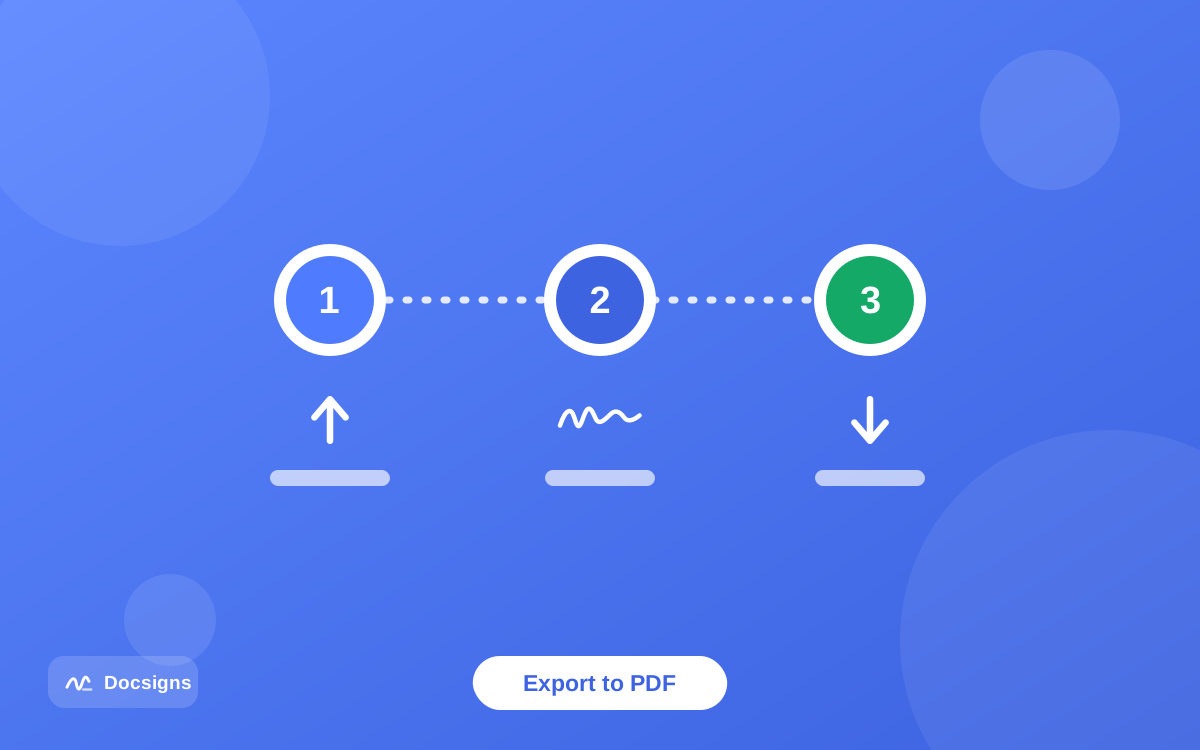
Every major presentation app has a built-in PDF export. Use the one that matches where your deck lives — the output is the same: one fixed page per slide.
PowerPoint for Windows or Mac (desktop)
- Open the finished deck and check it once in slideshow view — the PDF captures slides exactly as they render.
- Go to File → Export → Create PDF/XPS Document (Windows) or File → Save As and choose PDF as the format (Mac).
- Under Options, choose whether to include all slides or a range, and skip hidden slides if you have any.
- Click Publish (Windows) or Save (Mac) and note where the PDF lands.
PowerPoint for the web
- Open the deck at office.com in your browser.
- Go to File → Export → Download as PDF.
- Wait for the conversion, then click Download — the PDF saves to your downloads folder.
Keynote (Mac)
- Open the presentation in Keynote.
- Choose File → Export To → PDF….
- Pick image quality (Best for decks with photos), leave presenter notes off for a client-facing file, and click Next.
- Name the file and click Export.
Google Slides
- Open the deck in Google Slides.
- Choose File → Download → PDF Document (.pdf).
- The browser downloads one PDF page per slide — open it once to confirm fonts and layout survived.
Quick tip: name the exported file the way you want the client to see it, e.g. acme-proposal-v3.pdf. Docsigns keeps the original file name on the signed download, so a clean name here means a clean name in the client's inbox. Skip generic names like final-v2-FINAL.pdf — the client sees exactly what you send.
Step 2: Sign the exported PDF with Docsigns
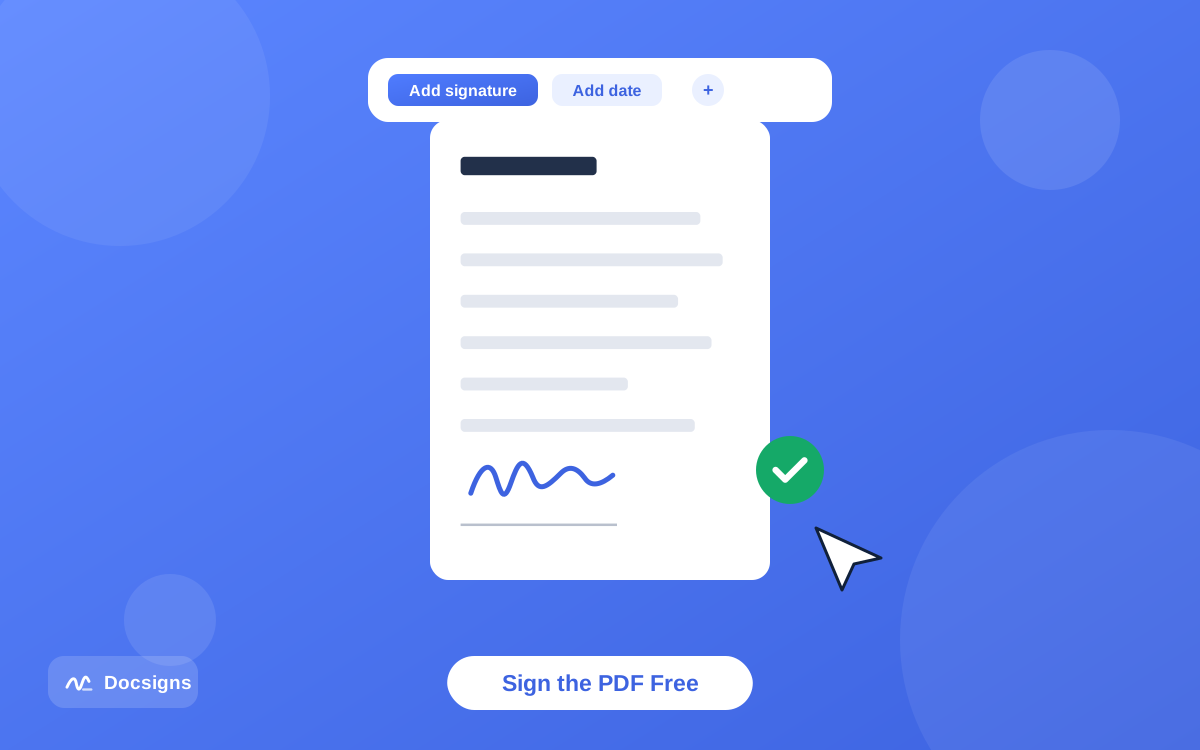
With the PDF in hand, the signing part takes about a minute and costs nothing. Docsigns is a free online signing tool — no signup, no watermark — and because your PDF is processed entirely in the browser, the deck is never uploaded to a server. For confidential pricing decks, that privacy detail matters; we cover it in depth in our guide to signing documents online securely.
Quick steps to sign PowerPoint presentations after export
- Go to Docsigns and open your exported PDF.
- Create your signature: draw it with a mouse or finger, type your name and pick one of six handwriting fonts, or upload a PNG/JPG of your real signature.
- Navigate to the slide that needs the signature — usually the approval or pricing page — using the multi-page view.
- Drag the signature into place; resize or rotate it so it sits naturally on the slide layout.
- Add a date field in the format you prefer, such as "June 11, 2026" or "11/06/2026".
- Download the signed PDF, or share it straight to WhatsApp, Gmail or LinkedIn via a private link.
If you send proposals every week, save your signature to the reusable library the first time you sign PowerPoint presentations this way. The next deck takes under a minute: export, open, click your saved signature, add the date, download. The export quickly becomes the slowest part of the routine — and it is a one-minute step.
If this is your first time signing anything in a browser, the fuller walkthrough in how to sign a PDF online for free covers every option, and how to add a date and signature to PDF documents shows the date formats in detail.
One more benefit worth knowing: the signed file Docsigns produces has flattened pages — each page becomes an image inside the PDF. That makes casual text edits to the signed deck impractical, which is exactly the property you want on an approved proposal. More on that in how to protect signed PDF documents from editing.
Why PDF is the right sharing format for decks anyway
Even setting signatures aside, sending a .pptx to a client is usually a mistake. The PDF export step you just did is one you should be doing for every outbound deck. Compare the two side by side:
| Concern | Sharing .pptx | Sharing PDF |
|---|---|---|
| Layout & fonts | Depends on recipient's app, version and installed fonts — slides can reflow or break | Fixed. PDF is an ISO-standardized format that renders identically everywhere |
| Editability | Fully editable — anyone can change your pricing slide | Read-oriented; signed Docsigns output is flattened, so casual edits are impractical |
| Hidden content | Speaker notes, hidden slides and revision leftovers travel with the file | Only what you exported is in the file |
| Opens on | Needs PowerPoint, Keynote or a compatible app | Any browser, phone or OS with zero extra software |
| Signature support | No standard way to sign | Native territory for every e-signature tool |
The speaker-notes row deserves emphasis. Notes fields collect candid remarks ("push hard on the upsell here") that were never meant for the client. A PDF export with notes disabled removes that entire risk category in one move.
Common mistakes when signing presentation files
- Signing an old export. You tweak slide 12, forget to re-export, and sign a PDF that no longer matches the deck. Always export immediately before signing.
- Leaving speaker notes in the export. Check the export options — Keynote and PowerPoint both let you exclude notes.
- Pasting a signature image into a slide instead. Dropping a PNG of your signature onto a slide inside PowerPoint leaves the whole file editable and the signature copy-able. Sign the PDF, not the slide.
- Sending both files. If you send the signed PDF and the editable .pptx together, the signature guarantees nothing. Share only the signed PDF.
- Forgetting the date. A signature without a date invites version disputes — the exact problem you were trying to solve. Add a date item next to the signature.
- Low-quality image export. If your deck is photo-heavy, pick the higher-quality PDF setting so the signed proposal still looks sharp.
What a signed deck does — and doesn't — prove
A drawn, typed or uploaded signature on a PDF is an electronic signature: a mark that shows intent to approve. Under frameworks like the U.S. ESIGN Act and UETA, electronic signatures are broadly recognized for everyday business documents, and a signed proposal deck falls comfortably in that territory. This is general information, not legal advice — requirements vary by jurisdiction and document type.
What it is not: a certificate-based digital signature with cryptographic tamper evidence. Docsigns does not issue those, and for a typical proposal sign-off you do not need one. If you are curious where the line runs, electronic signature vs digital signature breaks it down without the jargon.
Sign your next presentation PDF in minutes
The recipe to sign PowerPoint presentations is genuinely this short: export to PDF from whichever slide app you use, open the PDF in Docsigns, place your signature and date on the approval slide, and download a flattened, signed file with its original name intact. One export step, one minute of signing, zero cost.
Your next proposal deck deserves better than an editable attachment and a "looks good!" email. Export it, sign your presentation PDF now — free, no signup, and the file never leaves your browser.
Frequently asked questions
Can I sign a PowerPoint file (.ppt or .pptx) directly in Docsigns?
No. Docsigns accepts PDF, DOC and DOCX files only. Export your deck to PDF first — every major app (PowerPoint, Keynote, Google Slides) has a built-in PDF export — then sign the PDF in Docsigns for free.
How do I convert a PowerPoint presentation to PDF?
In PowerPoint desktop use File → Export → Create PDF/XPS (Windows) or File → Save As → PDF (Mac). In PowerPoint for the web use File → Export → Download as PDF. In Google Slides use File → Download → PDF Document. In Keynote use File → Export To → PDF.
Why do people sign presentations at all?
Because decks often carry commitments: client proposals, price quotes and approval sign-offs. A signature with a date freezes a specific version and records who approved it, ending disputes about which version was agreed.
Will my slides look the same in the signed PDF?
Yes — PDF export renders each slide as a fixed page, so fonts and layout are locked in. Check the exported PDF once before signing, especially if the deck uses unusual fonts, and pick the higher-quality export setting for photo-heavy decks.
Can the client edit the deck after I sign it?
Not casually. Docsigns flattens the signed output — each page becomes an image inside the PDF — so ordinary text editing of the signed content is impractical. Just make sure you share only the signed PDF, not the editable .pptx alongside it.
Is a signature on a presentation PDF legally meaningful?
Generally yes for everyday business approvals: frameworks like the ESIGN Act, UETA and eIDAS recognize electronic signatures broadly. Requirements vary by jurisdiction and document type, so this is informational only, not legal advice.
Does my presentation get uploaded when I sign it with Docsigns?
No. PDFs are rendered and signed entirely in your browser — the file never leaves your device and is never stored on a server. That matters for confidential pricing and strategy decks.
Can I sign the deck PDF on my phone?
Yes. Docsigns works in any modern mobile browser, and there is an iOS and macOS app on the App Store. Export the deck to PDF, open it on your phone and sign with your finger.