How to Sign a Document Sent by Email and Send It Back
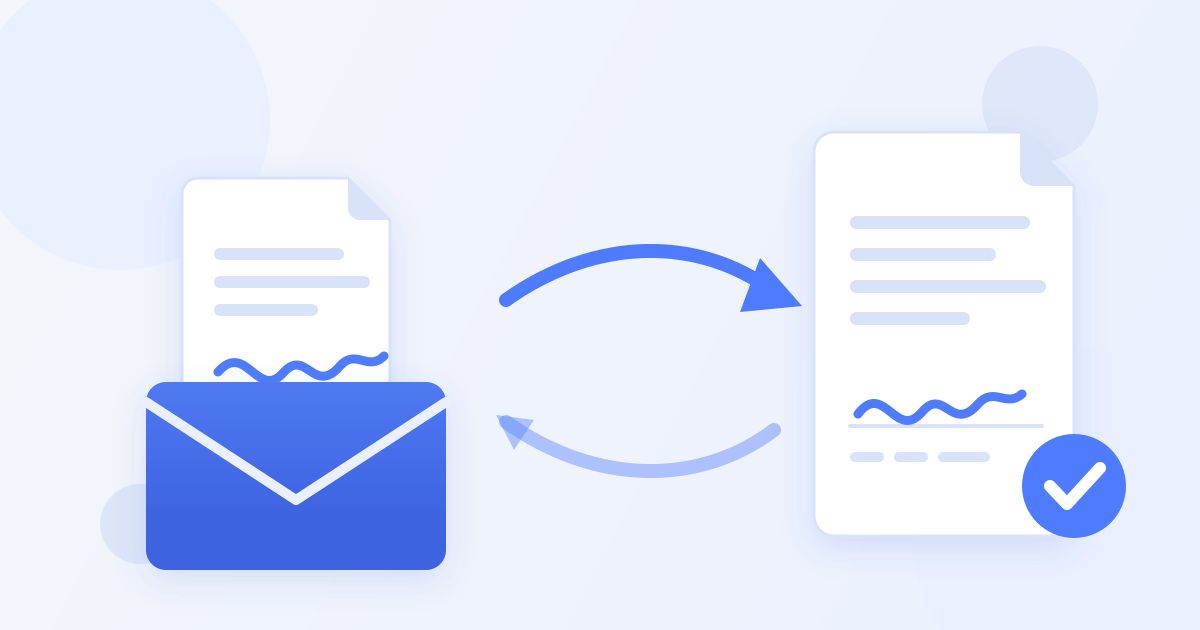
Someone has emailed you something to sign, and you would rather not dig out a printer. You do not have to. Download the attachment, open the Docsigns signer, draw or type your signature, place it on the signature line, download the signed PDF and attach it to your reply. It takes a couple of minutes on a laptop or a phone, and there is no account to create.
This guide walks through the whole loop — getting the file out of the email, signing it, and sending it back in a way the other person can actually use — plus the mistakes that cause a signed document to bounce back for a second attempt.
Step 1: get the attachment out of the email
Sign the file, not the preview. Every mail app shows attachments in a built-in viewer, and that viewer is read-only. You need the actual file on your device first.
- Gmail on desktop: hover the attachment and click the download arrow, not the preview thumbnail.
- Outlook on desktop: use the attachment's dropdown and choose Save As.
- iPhone: tap the attachment, then the share icon, then Save to Files.
- Android: tap the download icon on the attachment; it lands in your Downloads folder.
Note what kind of file arrived. A PDF is the straightforward case. A DOC or DOCX works too, but it is handled differently — more on that below.
Step 2: open it in the signer and add your signature
Go to docsigns.online and upload the file you just saved. You then create a signature in one of three ways, and none of them is more "official" than the others:
- Draw it — with a finger or stylus on a phone or tablet, or a trackpad on a laptop. This gives the most natural result on touchscreens.
- Type it — pick from six cursive fonts. Fastest option, and perfectly readable.
- Upload an image of it — if you already have a photo or scan of your signature saved.
Choose a pen colour if you want one — black, blue, red, green, orange or purple. Blue is a common convention for signatures precisely because it distinguishes the original mark from a black-and-white photocopy, though nothing depends on it.
Then drag the signature onto the signature line, resize it so it sits inside the space provided rather than sprawling across the text, and repeat on any other page that needs it. If there is a date field next to the line, place a date alongside the signature and pick the format that matches the rest of the document. The how it works page covers the placement step in more detail.
Step 3: download and reply
Download the signed document — it comes out as a PDF, with no watermark. Then reply to the original email and attach it. A few practical points that save a round trip:
- Reply to the same thread rather than starting a new email. The sender is usually tracking several documents at once.
- Rename the file so it is obvious what it is: lease-agreement-signed-jsmith.pdf beats document(3).pdf.
- Say what you signed in one line of the message — which document, which date. It helps the person filing it, and it gives you a record too.
- Keep your own copy. Save the signed PDF somewhere you will find it again. This is the single most-skipped step and the one people regret.
If the file is a Word document
Docsigns signs DOC and DOCX files as well, with one difference worth knowing: a Word file is converted to PDF on a server first, and then you sign the PDF. Signing a PDF happens in your browser and the PDF itself is not uploaded, but a Word document does get sent for that conversion step. If the contents are highly sensitive and that matters to you, convert it to PDF yourself on your own machine before uploading.
The output is a PDF either way. That is normally what the sender wants — a PDF is fixed, it looks the same everywhere, and it cannot be casually edited by accident. If they specifically asked for the signed copy back as a Word file, tell them a PDF is what a signed copy looks like; almost everyone accepts it.
What to do when the document has no signature line
Plenty of documents that need signing were never laid out for it — a one-page letter of consent, a scanned form, an invoice someone wants countersigned. Place your signature where it reads naturally: under the final paragraph, or at the bottom right of the last page. Add a date next to it. If the sender needs your name printed as well as signed, type it in the message of your reply rather than trying to force extra text into the document.
If the document arrived as a scan or a photo of a paper form, it still works. You are placing a signature onto the page image, which is exactly what signing a scanned form means.
Four mistakes that get the document sent back
Almost every rejected signature comes down to one of these, and all four take seconds to avoid.
Only signing the last page. Many agreements ask you to initial each page, or have a signature block on both a main document and an annex. Scroll the whole file before you download it and check every place your mark is expected. This is the most common reason a document comes back.
A signature that covers the text. Dragging a large signature over the printed name or the date field underneath it makes the clause harder to read and looks careless. Resize it to sit inside the line provided. On a phone, zoom in before you position it — placing it at a zoomed-out view is how signatures end up half off the page.
Missing the date. If there is a dated line, fill it. An undated signature invites a follow-up email asking when you signed, and on some agreements the date is what starts the clock on a notice period or a term.
Sending a photo of the screen. It happens more than you would think — someone signs, then photographs the laptop rather than downloading the file. Attach the downloaded PDF itself; a photo of a document is not a signed document.
Is an emailed signature good enough?
For most everyday agreements, yes. Electronic signatures are recognised for the majority of ordinary commercial and personal agreements under frameworks such as eIDAS in the EU, and ESIGN and UETA in the United States. Freelance contracts, NDAs, rental agreements, consent forms, purchase orders and offer letters are all routinely signed this way.
The honest caveats matter more than the reassurance:
| Situation | An emailed electronic signature |
|---|---|
| Freelance contract, NDA, offer letter | Normally fine |
| Rental or service agreement | Normally fine |
| Property transfers, wills, some financial instruments | Often requires more — check locally |
| Anything the other party says needs a qualified signature | Use a certificate-based provider instead |
Docsigns produces an electronic signature: your mark, placed on the document. It is not a qualified digital signature backed by a certificate from a trust service provider, and it is not notarised or certified. For the small set of documents that require one of those, you need a provider that issues certificates. For everything else — which is the vast majority of what lands in an inbox — a signed PDF sent back by email is the normal, accepted way to do it.
This is general information rather than legal advice. If a specific agreement matters a great deal or you are unsure what your jurisdiction requires, ask a professional before you sign.
Doing it entirely from your phone
The whole loop works on a phone, which is often where the email arrives in the first place. Save the attachment to Files or Downloads, open the browser, upload it, draw your signature with your finger — the result is usually better than a trackpad — place it, download, then attach the signed PDF to your reply from the same Files or Downloads location.
There is nothing to install and no account to make. If you want the background on what the tool does and does not do before you use it, the about page lays it out, and other walkthroughs are on the blog.
Frequently asked questions
How do I sign a document someone emailed me?
Download the attachment to your device rather than signing it in the mail app's preview, upload it to an online signer, add and position your signature, then download the signed PDF and attach it to your reply. No printer or scanner is needed.
Do I need to print and scan the document?
No. Printing, signing on paper and scanning was the old workaround for the same problem, and it usually produces a worse-looking file. Signing the digital file directly keeps the text sharp and takes a fraction of the time.
Can I sign an emailed contract on my phone?
Yes, and it is often easier. Save the attachment to Files on iPhone or Downloads on Android, open the signer in your mobile browser, and draw the signature with your finger. Then attach the downloaded PDF to your reply.
What if the attachment is a Word document instead of a PDF?
That works too. A DOC or DOCX is converted to PDF on a server first, and you then sign the PDF, so the signed copy comes back as a PDF. If the contents are highly sensitive, convert the file to PDF yourself before uploading.
Is a signature added this way legally valid?
For most everyday agreements, electronic signatures are recognised under frameworks such as eIDAS in the EU and ESIGN and UETA in the US. Some documents — property transfers, wills, certain financial instruments — require more, so check what applies to your situation. This is general information, not legal advice.
How should I send the signed document back?
Reply in the original email thread, attach the signed PDF, rename it so its contents are obvious, and add one line saying what you signed and when. Keep a copy for yourself before you hit send.