How to Sign a PDF in Firefox (Built-In Tool or Free Signer)
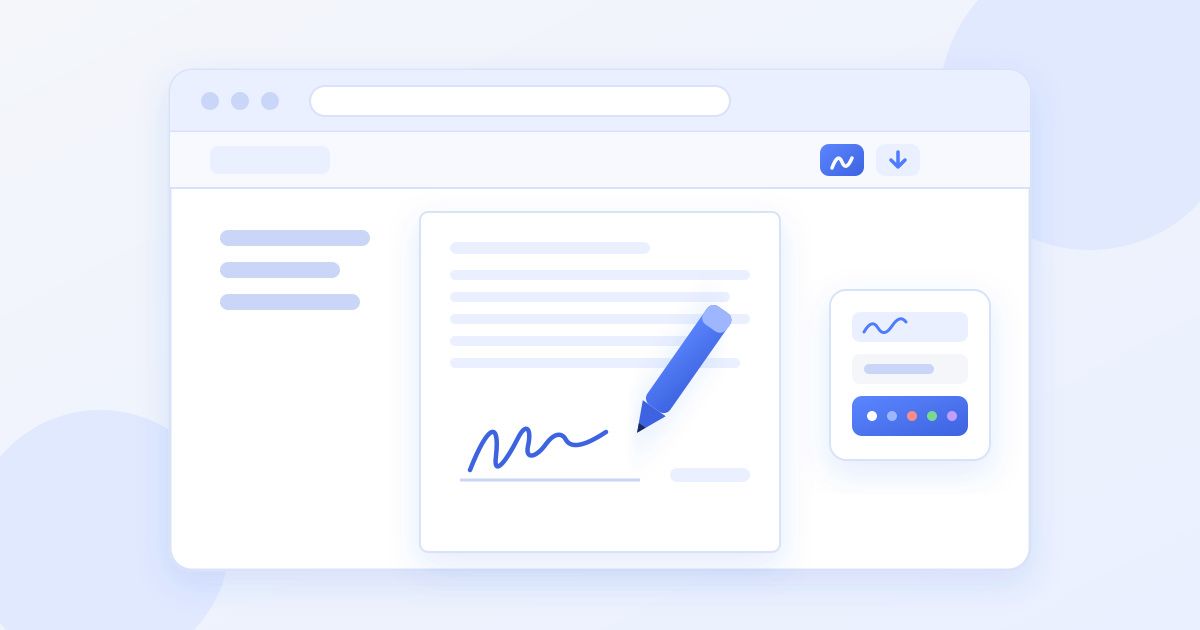
You can sign a PDF in Firefox without installing anything. Recent versions of Firefox have a signature tool built into their PDF viewer: open the PDF in Firefox, click the signature icon in the toolbar, type, draw or add an image of your signature, place it, and download the file. If you don't see that icon, or you need to sign a Word file, add a date, or pick an ink colour, a free browser-based signer like Docsigns does the job in the same tab.
Below are both methods step by step, what to do when the signature button is missing, and how to check the signed file before you send it.
Method 1: Firefox's built-in PDF signature tool
Firefox opens PDFs in its own viewer rather than handing them to another app. That viewer has grown editing tools over the last few releases: text, highlighting, drawing and, more recently, signatures.
- Open the PDF in Firefox. Drag the file onto a Firefox window, or right-click the file and choose Open With > Firefox. If the PDF is an email attachment, click it in your webmail and it will usually open in the viewer.
- Click the signature icon in the toolbar at the top right, then choose to add a new signature.
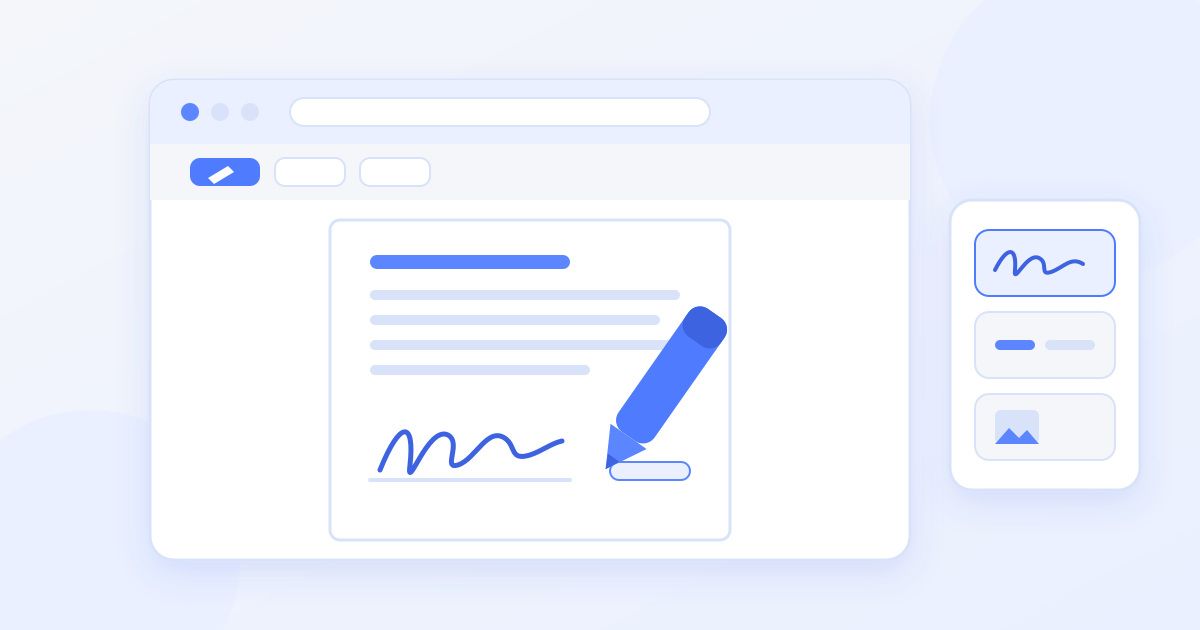
- Create your signature. You can type your name (Firefox renders it in a handwriting-style font), draw it with a mouse, trackpad or touchscreen, or use an image of your signature.
- Place it. The signature appears on the page. Drag it onto the signature line and resize it from the corners.
- Save the file. Click the download icon (or press Ctrl+S, Cmd+S on a Mac) to save a copy of the PDF with your signature on it.
Firefox can remember a signature for next time, which helps if you sign the same kind of form often.
No signature button? Try this
Mozilla rolled the signature tool out gradually, so not every installation shows it. In order:
- Update Firefox. Open Settings, scroll to Firefox Updates and let it install the latest version, then restart. This fixes most cases.
- Check the PDF opened in Firefox's own viewer. If Firefox is set to hand PDFs to another program, you won't see its toolbar at all. In Settings, under Applications, set PDF files to "Open in Firefox".
- Check the file isn't locked. Some PDFs are restricted against changes by their creator. A viewer that respects those restrictions will not let you annotate them.
- Use a dedicated signer instead. If none of that works, Method 2 below runs in any modern browser, Firefox included.
Method 2: Sign the PDF with Docsigns in Firefox
Docsigns is a free online signer. It works in Firefox, Chrome, Edge and Safari, on desktop and on phones, with no account and no watermark on the output.
- Open docsigns.online in Firefox and upload your document. PDF, DOC and DOCX are all accepted.
- Create your signature one of three ways: draw it, type it and pick one of six cursive fonts, or upload a photo or scan of your real signature.
- Pick an ink colour if the form asks for one. Black, blue, red, green, orange and purple are available, which helps when a document says "sign in blue ink".
- Add the date next to your signature, choosing the date format the document uses.
- Drag and resize the signature and date onto the right place, on any page.
- Download the signed document as a PDF.
The how it works page shows the same three steps with screenshots if you want to see them before you start.
Signing a PDF you received by email
Most PDFs that need a signature arrive as attachments. In Gmail, Outlook.com or Yahoo Mail in Firefox, clicking the attachment usually opens a preview inside the mail service, not Firefox's own viewer, so you won't see the signature tool there. Download the attachment first (the download arrow on the attachment), then open the downloaded file from Firefox's downloads panel. It opens in Firefox's viewer with the full toolbar.
With Docsigns, the flow is the same: download the attachment, then upload it at docsigns.online. When you've downloaded the signed PDF, reply to the original email and attach the signed copy, not the blank file you received.
Signing in Firefox on a phone
Firefox on Android and iPhone handles PDFs differently from desktop Firefox, and the signature tool is a desktop feature you shouldn't count on there. On a phone, the reliable route is to open docsigns.online in Firefox, upload the file from your downloads or Files app, and draw your signature with your finger. A few tips that help on a small screen:
- Turn the phone sideways when drawing, so you have a wider area to sign in.
- Sign slowly; quick strokes on glass come out jagged.
- If drawing still looks wrong, type your name in one of the cursive fonts instead, or upload a photo of your signature on paper.
Which method should you use?
| You need to | Firefox built-in | Docsigns |
|---|---|---|
| Sign a PDF quickly | Yes | Yes |
| Sign a Word file (DOC/DOCX) | No, PDFs only | Yes, converted to PDF first |
| Type, draw or use a signature image | Yes | Yes |
| Choose ink colour | Varies by version | Six colours |
| Add a formatted date | Type it as text | Date tool with several formats |
| Works when the signature icon is missing | No | Yes |
| Output | Saved PDF | Downloaded signed PDF |
For a one-page PDF and a recent Firefox, the built-in tool is perfectly good. Docsigns earns its place when you have a Word document, need a date in a specific format, or the button just isn't there.
What happens to your file
This matters when the document is a contract or a form with personal details, so it is worth being precise.
- Firefox's built-in tool works on the PDF inside the browser on your computer.
- Docsigns with a PDF: signing happens in your browser, and the PDF is not uploaded.
- Docsigns with a Word file: a DOC or DOCX has to be converted to PDF first, and that conversion runs on a server. If you'd rather a Word file never leaves your computer, save it as PDF in Word yourself (File > Save As > PDF) and sign the PDF.
The privacy policy has the full details.
Check the signed PDF before you send it
- Open the downloaded file, not the tab you signed in, and confirm the signature is there. A signature that is still in the editor but was never saved is the most common way to send an unsigned document.
- Check every page that needed a signature or initials. Contracts often have more than one signature line.
- Zoom in to make sure the signature sits on the line and doesn't cover printed text.
- Rename the file to something clear, such as the document name plus "signed", so the other party can tell it apart from the blank version.
Is a signature added in Firefox valid?
Both methods create an electronic signature: an image of your signature placed on the document. For most everyday agreements, such as offer letters, leases, invoices, permission slips and NDAs, that is widely accepted under laws like ESIGN and UETA in the US and eIDAS in the EU.
It is not a certificate-based qualified digital signature. Some documents, such as property transfers, wills and certain financial or official filings, can require a qualified signature, a witness or a notary. If a form has a special digital ID field or the sender asks for a specific signing service, follow their instructions. This is general information, not legal advice.
Frequently asked questions
Can I sign a PDF in Firefox without Adobe?
Yes. Recent versions of Firefox have a signature tool in their built-in PDF viewer, so you can type, draw or add an image of your signature and save the PDF. No Adobe software or add-on is needed.
Why don't I see the signature option in Firefox?
The feature was rolled out gradually, so update Firefox first and restart it. Also check that PDFs open in Firefox's own viewer (Settings > Applications). If it still isn't there, use a free online signer that works in Firefox.
How do I save a signed PDF in Firefox?
After placing your signature, click the download icon in the PDF toolbar or press Ctrl+S (Cmd+S on a Mac). Open the saved copy afterwards to make sure the signature is in it.
Can I sign a Word document in Firefox?
Firefox's built-in tool only works on PDFs. Docsigns accepts DOC and DOCX files in Firefox, converting them to PDF on a server before you sign. To keep a Word file off any server, save it as PDF in Word first.
Can I add the date next to my signature in Firefox?
In Firefox's viewer you can type the date as text. Docsigns has a date tool that places the date next to your signature in the format you choose.
Is a signature added in Firefox legally binding?
It is an electronic signature, which is accepted for most everyday agreements under laws like ESIGN, UETA and eIDAS. Some documents, such as property transfers and wills, need a qualified signature, witness or notary. This is general information, not legal advice.