How to Draw a Signature With a Mouse or Trackpad (Neatly)
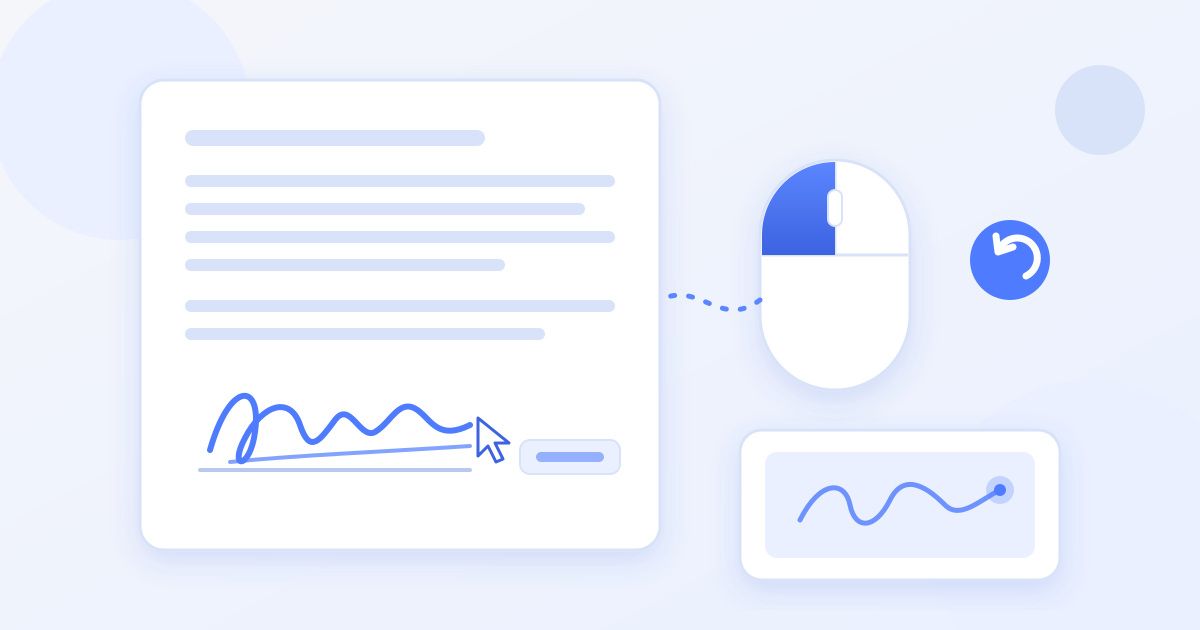
To draw a signature with a mouse or trackpad that does not look shaky, slow down, sign larger than you think you need to, and draw it in two or three strokes instead of one. If it still looks wrong after a few tries, you do not have to keep fighting the cursor: type your name in a cursive font or upload a photo of your real signature instead.
This guide covers practical tricks for mice and laptop trackpads, the settings worth changing, what to do when a drawn signature still looks childish, and how to place the result neatly on a PDF or Word document with Docsigns, a free signer that needs no account.
Why signatures drawn with a mouse look bad
Your handwritten signature is a fast, practised movement made with your fingers and wrist. A mouse moves with your whole arm, and a trackpad gives you a few centimetres of surface for a movement that normally covers several. Three things usually go wrong:
- Speed. Signing at your normal pace makes the cursor skip, so curves become jagged corners.
- Size. A small signature exaggerates every wobble. The same wobble on a larger drawing is barely visible once it is scaled down on the page.
- Lifting. On a trackpad, lifting your finger mid-stroke can end the line or start a gesture, leaving gaps where your signature should be connected.
Tips for drawing with a mouse
- Draw big, then shrink. Use most of the drawing area. A large signature scaled down to fit a signature line looks far smoother than one drawn small to begin with.
- Go slower than feels natural. Aim for steady, deliberate strokes. Speed is what makes signatures look like handwriting on paper, but on screen it mostly produces jagged corners.
- Break it into strokes. Most signatures are naturally two or three movements: the first name, the surname, and a final flourish or underline. Release the button between them.
- Anchor your wrist. Rest your wrist on the desk and move from the wrist and fingers rather than the shoulder. You get finer control.
- Clear and retry. It typically takes a few attempts. Clearing and redrawing costs nothing, so keep going until one looks right.
Tips for drawing with a laptop trackpad
Trackpads are trickier because you have so little room. These habits help:
- Click and hold with one finger, draw with another. Hold the trackpad button (or press down) with your thumb and trace the signature with your index finger. That keeps the line continuous while your drawing finger moves.
- Turn on three-finger drag on a Mac. In System Settings, under Accessibility, Pointer Control, Trackpad Options, you can enable dragging with three fingers. Many people find it easier for signing because you do not need to hold the click down.
- Slow the pointer down. Lowering the tracking speed in your trackpad settings means each movement of your finger covers less of the screen, which gives you more precision.
- Use a fingertip, not a fingernail. The trackpad tracks skin contact, and a light, consistent touch avoids broken lines.
On a Windows laptop, the equivalent settings live under Bluetooth & devices, Touchpad. Look for cursor speed and, if your touchpad supports it, a tap-and-drag option.
Use Undo instead of starting over
Drawing in separate strokes has a second advantage: you can fix one part without redrawing the whole thing. In the Docsigns drawing pad, Undo removes only the last stroke you drew, while Clear wipes everything. So if your first name came out well but the surname wobbled, press Undo once and redraw just the surname.
A practical routine that works for most people:
- Draw the first stroke slowly. If it is off, Undo and repeat until you are happy with it.
- Add the second stroke, using the first as your guide for height and slant.
- Finish with the flourish or underline, which hides small irregularities in the letters above it.
Building a signature one good stroke at a time is far less frustrating than hoping a single continuous attempt comes out right.
Settings that make a real difference
| Device | Change this | Why it helps |
|---|---|---|
| Mouse | Lower pointer speed temporarily | Smaller cursor jumps, smoother curves |
| Mouse | Turn off "enhance pointer precision" (Windows) while signing | Acceleration makes stroke length unpredictable |
| Mac trackpad | Enable three-finger drag | No need to hold the click while drawing |
| Windows touchpad | Lower cursor speed, enable tap-and-drag | More control, continuous lines |
| Any device | Make the browser window larger | A bigger drawing area hides small wobbles |
Remember to switch your pointer settings back afterwards if you prefer them faster for everyday use.
When drawing is not working: two better options
A drawn signature is not more "valid" than a typed one or an uploaded image. All three are electronic signatures. If drawing is frustrating, use whichever looks best:
- Type it. Docsigns lets you type your name and choose from six cursive fonts. The result is clean and consistent every time, which many people prefer for business documents.
- Upload a photo of your real signature. Sign a blank sheet of white paper with a dark pen, photograph it in good light, crop it close to the signature, and upload the image. A tight crop on a clean background usually looks best on the page, because a big white box around the signature can cover lines or text underneath it.
There is a fuller comparison of the three methods on the Docsigns blog if you are unsure which to pick for a particular document.
How to sign a document with your drawn signature
- Open docsigns.online and upload your PDF, DOC or DOCX file.
- Choose to draw your signature, then sign in the drawing area using the tips above. Pick a pen colour if you need one other than black, such as blue.
- Place the signature on the page, then drag and resize it so it sits neatly on the signature line.
- Add a date next to it if the document asks for one, in the format you need.
- Download the signed document as a PDF.
The how it works page walks through the same steps with more detail on placement. There is no watermark on the downloaded file, and you do not need an account.
A note on privacy and validity
When you sign a PDF with Docsigns, the file is handled in your browser and is not uploaded. A Word file (DOC or DOCX) is different: it is first converted to PDF on a server, and then signed. If the document is sensitive, saving it as a PDF before you sign keeps the whole process in your browser. The privacy policy has the details.
On validity: an electronic signature, whether drawn, typed or uploaded, is accepted for most everyday agreements under laws such as ESIGN and UETA in the US and eIDAS in the EU. Some documents, such as property transfers, wills and certain financial instruments, need more formal methods, including qualified digital signatures backed by a certificate. Docsigns creates an electronic signature, not a qualified digital one. This is general information, not legal advice; if you are unsure what a specific document needs, ask the person or organisation that sent it.
Quick checklist
- Draw large and slowly, in two or three strokes.
- Lower your pointer speed while signing.
- On a trackpad, hold the click with your thumb or turn on three-finger drag.
- Not happy after a few tries? Type it or upload a photo instead.
- Resize the signature to fit the line, add a date if needed, download the PDF.
Frequently asked questions
How do I make my signature look better with a mouse?
Draw it much larger than the final size, move slowly, and split it into two or three strokes so you can undo and redraw just the part that went wrong. Lowering your pointer speed while signing also makes curves smoother.
How do I sign with a laptop trackpad?
Hold the click down with your thumb and draw with your index finger, or turn on three-finger drag on a Mac so you do not have to hold the click. Lowering the tracking speed gives you more control.
Is a typed signature as valid as a drawn one?
For most everyday agreements, yes. A typed, drawn or uploaded signature is an electronic signature, and laws such as ESIGN, UETA and eIDAS treat them the same way; some documents, such as wills or property transfers, need more formal methods.
Can I upload a picture of my handwritten signature instead?
Yes. Sign on white paper with a dark pen, photograph it in good light, crop it tightly and upload the image. A clean, close crop looks neatest once placed on the document.
Why does my drawn signature have gaps in it?
On a trackpad, lifting your finger or easing pressure ends the stroke. Keep a steady fingertip contact, or hold the click with one finger while drawing with another.
Do I need a stylus or drawing tablet to sign documents online?
No. A mouse or trackpad works fine with a few tricks, and you can type or upload your signature instead. A touchscreen phone or tablet also lets you sign with your finger.