How to Sign a PDF in Chrome (Built-In Draw Tool or Free Signer)
You can sign a PDF in Google Chrome in two ways. On a computer, open the PDF in Chrome, click the Draw (pen) icon in the PDF toolbar, write your signature with the mouse or trackpad, then Download the file. If you want a neater result, a typed or uploaded signature, a date, or you are on a phone, open a free browser signer such as Docsigns in Chrome instead.
Neither option needs an extension, an account or Adobe Acrobat. Below is how each one works, where each falls short, and how to avoid the most common slip with Chrome's own tool: saving a copy that doesn't actually contain your signature.
Option 1: Chrome's built-in Draw tool
Recent desktop versions of Chrome (Windows, Mac and ChromeOS) have a basic annotation tool in the built-in PDF viewer. There is no button labelled "Sign"; you draw your signature freehand.
- Open the PDF in Chrome. Drag the file onto a Chrome window, or right-click it and choose Open with → Google Chrome. If an email attachment opens in a preview, use the preview's open-in-new-tab option so the full Chrome PDF viewer loads.
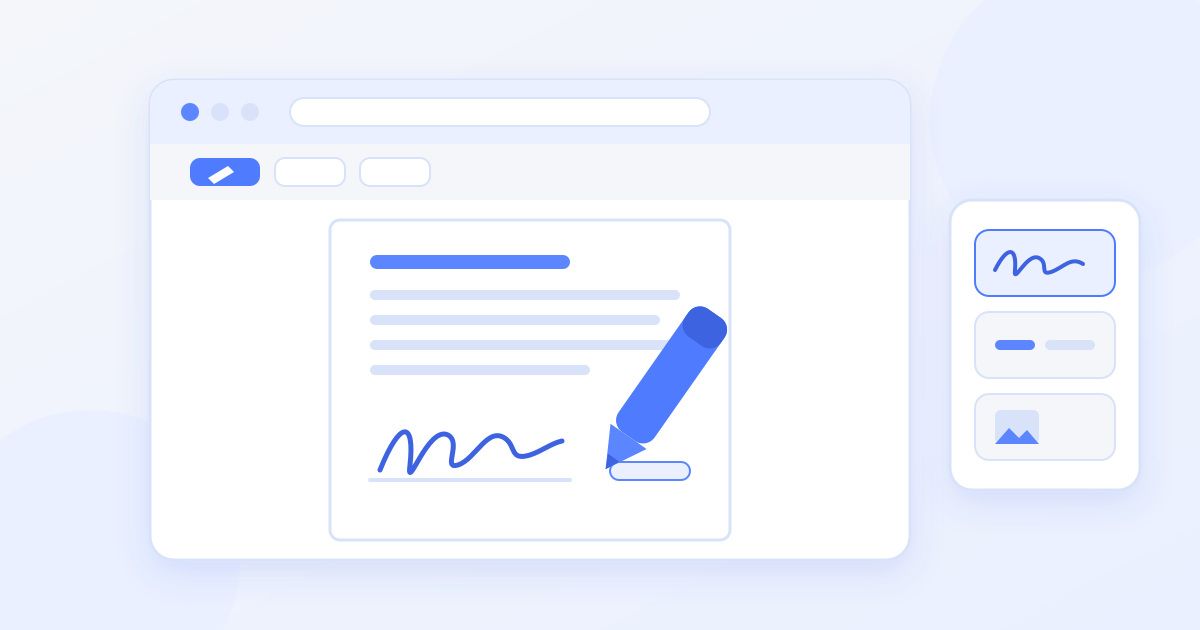
- Click the Draw icon (a small pen or squiggle) in the toolbar at the top of the PDF. A panel appears with a pen, a highlighter and an eraser.
- Pick the pen, then set a thin line and a dark colour. Black or blue looks most like real ink.
- Zoom in on the signature line so your strokes are bigger and smoother.
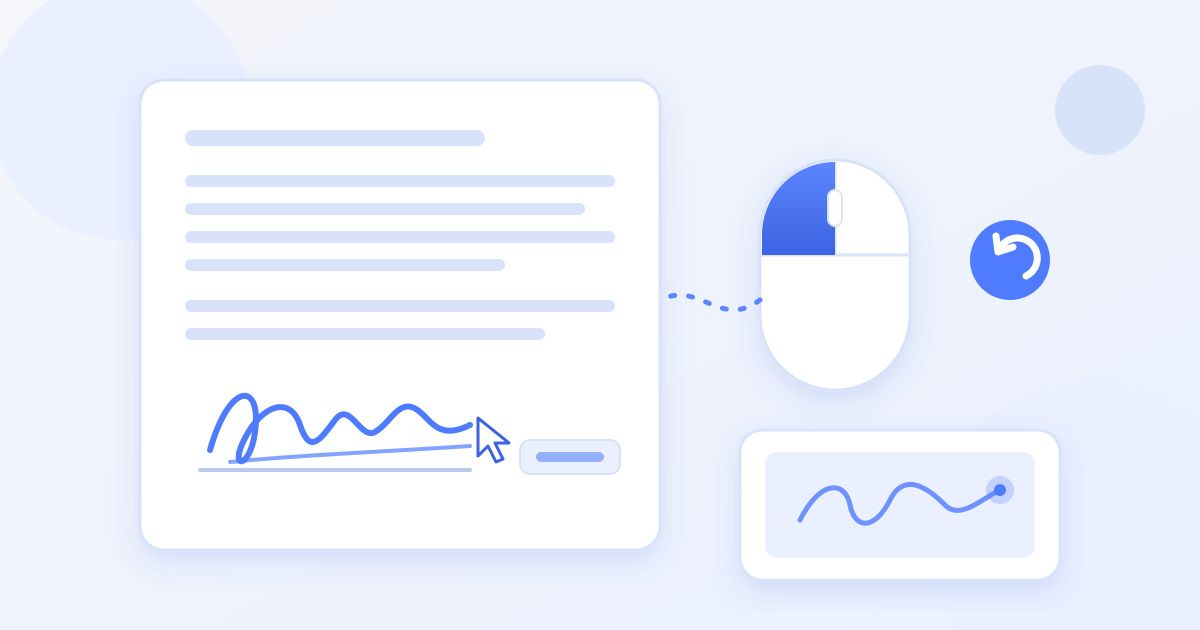
- Sign by dragging with the mouse, trackpad or a touchscreen. Use undo if a stroke goes wrong.
- Click Download (the down-arrow icon) and choose to save the edited version.
Open the downloaded file in a different program, or a fresh Chrome tab, and check that the signature is there before you send it. If you don't see the Draw icon, update Chrome under Settings → About Chrome; the tool only appears in newer versions.
Where the Draw tool falls short
- Freehand only. You can't type a signature in a script font or drop in an image of your real one.
- Hard to make neat. Writing a signature with a mouse often looks shaky, and you can't move or resize it once drawn; you erase and try again.
- No date stamp. You'd have to draw the date by hand too.
- Desktop only. Chrome on Android and iPhone doesn't offer the Draw tool, so this route doesn't help when the document arrives on your phone.
- PDF only. A Word file won't open in Chrome's viewer at all.
Option 2: Use a free signer in a Chrome tab
Docsigns runs in any Chrome tab, on desktop or phone, and gives you more control over how the signature looks and where it goes.
- Go to docsigns.online in Chrome and upload the PDF (DOC and DOCX work too).
- Create your signature one of three ways: draw it, type your name and pick one of six cursive fonts, or upload a photo of your handwritten signature.
- Choose a pen colour. Black and blue are the usual choices for documents; some forms specifically ask for blue.
- Drag the signature onto the signature line and resize it so it sits naturally in the space.
- Add the date beside it in the format the document uses.
- Download the signed PDF and send it back.
The How it works page walks through the same three steps with screenshots. It's free, with no account and no watermark on the signed file.
Chrome Draw tool vs a browser signer
| Chrome Draw tool | Docsigns in Chrome | |
|---|---|---|
| Draw a signature | Yes | Yes |
| Type a signature in a script font | No | Yes (6 fonts) |
| Upload an image of your signature | No | Yes |
| Move and resize after placing | No (erase and redraw) | Yes |
| Add a date | Draw it by hand | Yes, several formats |
| Works on Chrome for Android/iPhone | No | Yes |
| Signs Word files | No | Yes, converted to PDF |
| Account needed | No | No |
For a one-off form where a rough scribble is fine, Chrome's own tool is quickest. For anything going to an employer, landlord or client, a placed, sized and dated signature simply looks more professional.
What happens to your file
It's worth knowing where a document goes when you sign it, especially for contracts and forms with personal details.
- Chrome's Draw tool edits the PDF inside the browser on your computer.
- Docsigns with a PDF: the signing happens in your browser, and the PDF itself is not uploaded.
- Docsigns with a Word file (DOC/DOCX): the file is first sent to a server to be converted to PDF, then you sign the converted PDF. If you'd rather a Word document didn't leave your computer, save it as PDF in Word (File → Save As → PDF) and sign that instead.
The privacy policy has the full detail.
Is a signature added in Chrome valid?
For most everyday agreements (offer letters, leases, invoices, consent forms, NDAs) an electronic signature like this is generally accepted under laws such as ESIGN and UETA in the US and eIDAS in the EU. Both methods above produce a simple electronic signature: a visual mark of your intent to sign. Neither creates a certificate-backed qualified digital signature, and neither is notarised.
Some documents need more than that: wills, property transfers, certain court and financial documents, and anything where the other party specifically asks for a qualified signature or a wet-ink original. If a form has a certificate-based signature field (it usually says "digital ID" when you click it), the sender is expecting that stricter kind of signature, so check with them first. This is general information, not legal advice.
Signing a PDF that arrived in Gmail
Many PDFs that need signing arrive as Gmail attachments, and Chrome is where most people read Gmail. Clicking the attachment opens Gmail's own preview, which is not Chrome's PDF viewer and has no Draw tool. You have two quick routes:
- Download the attachment (the down-arrow on the attachment), then open the downloaded file from Chrome's downloads bar. It opens in the full Chrome PDF viewer, where the Draw tool is available on desktop.
- Or upload the downloaded file to Docsigns in a new tab if you want a typed signature, a date or a neater placement.
When you reply, attach the signed file from your Downloads folder, not the original attachment still sitting in the email thread. It's an easy mix-up and the sender then receives an unsigned copy.
Make your signature look natural
A signature that is far too large, sits on top of the printed line, or floats in empty space draws attention. Size it to roughly the height of two lines of text, rest it on the signature line rather than through it, and keep the same colour on every page if the document needs more than one signature or a set of initials. If you sign documents often, a photo of your real signature on white paper, uploaded once per session, gives the most consistent result.
Common problems and fixes
- The PDF downloads instead of opening in Chrome. In Chrome's settings, search for "PDF" and switch PDF documents to open in Chrome rather than download.
- The signature disappeared after saving. You probably saved the original rather than the edited copy. Use the Download icon in the PDF toolbar and choose the version with your changes.
- The signature looks jagged. Zoom in further before drawing, or type the signature in a script font instead.
- You need two people to sign. Sign your part, download the file, then send it to the second person to add theirs. Each signature is placed separately on the same PDF.
Once the signed file is downloaded, keep a copy for your records and send it back the way the document arrived. For more device-specific guides, browse the Docsigns blog.
Frequently asked questions
Can I sign a PDF in Chrome without an extension?
Yes. Recent desktop versions of Chrome have a Draw tool in the PDF viewer that lets you write a signature with your mouse or trackpad, then download the file. You can also open a free browser signer in a Chrome tab, which needs no extension either.
Why can't I see the Draw button in Chrome's PDF viewer?
The tool only appears in newer versions of desktop Chrome. Update Chrome under Settings, About Chrome, and reopen the PDF. Chrome on Android and iPhone does not have the Draw tool.
How do I sign a PDF in Chrome on my phone?
Chrome on phones doesn't include a signing tool, so open a browser signer such as Docsigns in Chrome, upload the PDF, draw or type your signature, place it and download the signed file.
Can I type my signature instead of drawing it in Chrome?
Not with Chrome's built-in Draw tool, which is freehand only. A browser signer lets you type your name and pick a cursive font, or upload an image of your handwritten signature.
Is a PDF signed in Chrome legally valid?
For most everyday agreements, an electronic signature like this is generally accepted under ESIGN, UETA and eIDAS. Some documents, such as wills or property transfers, need a qualified signature or wet ink. This is general information, not legal advice.
Why did my signature disappear after I saved the PDF in Chrome?
You likely saved the original file instead of the edited version. Use the Download icon in Chrome's PDF toolbar and choose to save with your changes, then reopen the file to confirm the signature is there.