How to Sign a PDF in Google Drive (Free, No Add-On)
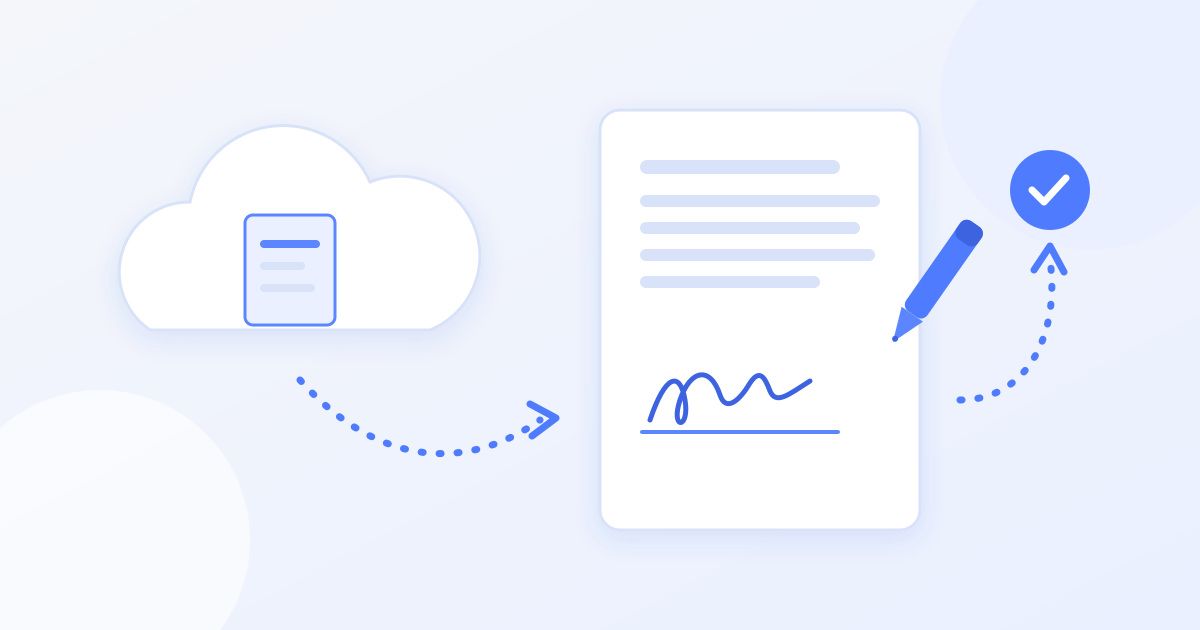
To sign a PDF that lives in Google Drive, download it, sign it in a browser-based signer such as Docsigns, and upload the signed copy back to the same Drive folder. It takes about two minutes, works on a laptop or phone, and needs no add-on or paid plan. Some Google Workspace business plans also include Google's own eSignature feature, which you can use if your account has it.
Google Drive is a place to store files, not to sign them. On most personal accounts, opening a PDF in Drive gives you a viewer with comments, not a signature tool. So the job splits into three parts: get the file out, sign it, put it back. Below is each step for desktop and phone, plus the details that trip people up, like ending up with two copies of the same file.
The quick version
- In Google Drive, right-click the PDF and choose Download.
- Open docsigns.online and upload the downloaded PDF.
- Draw, type or upload your signature, drag it into place, and add a date if the form asks for one.
- Download the signed PDF.
- Back in Drive, upload the signed file, ideally as a new version of the original.
Your options for signing a Drive PDF
| Method | What you need | Good for | Trade-offs |
|---|---|---|---|
| Download, sign in a browser signer, re-upload | Any Google account, any browser | Signing a document yourself, quickly | A couple of extra clicks to move the file |
| Google Workspace eSignature | An eligible paid Workspace plan | Sending a document to others to sign, inside Google | Not available on every account |
| Third-party Drive add-on | Installing an app from the Workspace Marketplace and granting it Drive access | Teams already using that service | The add-on gets access to your Drive; many have paid tiers |
| Print, sign, scan | A printer and scanner | Forms that insist on ink | Slow, and the scan is often harder to read |
If you only need to put your own signature on a PDF and send it on, the first route is usually simplest, and it does not require giving a third-party app permission to read your Drive.
On a computer, step by step
1. Download the PDF from Drive
Find the file, right-click it and choose Download. If the PDF is open in Drive's preview, use the download arrow at the top of the screen. If you do not see a download option, the owner may have turned off downloading for viewers. In that case, ask them to share it with download access, or to send the file directly.
2. Sign it
Open the signer and upload the file. You can create a signature three ways: draw it with a mouse or trackpad, type your name and pick one of six cursive styles, or upload a photo of your handwritten signature. Choose a pen colour; some forms specifically ask for blue. Then drag the signature onto the signature line, resize it to fit, and add a date in the format the form uses. If the document has more than one place to sign, add a signature on each page that needs one. The how it works page shows the three steps with screenshots.
3. Download the signed copy
The result downloads as a PDF with no watermark. Open it once to check the signature sits where you expect and is not covering any printed text.
4. Put it back in Drive without making a mess
If you simply drag the signed file into Drive, you end up with two near-identical PDFs, and sooner or later someone opens the unsigned one. Two cleaner choices:
- Replace the original: right-click the original file, open File information or Manage versions (the exact label depends on your Drive version) and upload the signed PDF as a new version. The link and sharing settings stay the same, so anyone who had the old link now sees the signed copy.
- Keep both, clearly named: upload the signed copy with "signed" and the date in the file name, for example lease-2026-signed.pdf. Useful when you want to keep the unsigned original for reference.
On a phone
The same flow works from the Google Drive app on Android or iPhone.
- In the Drive app, tap the three dots next to the PDF. On Android choose Download; on iPhone choose Open in or Send a copy and save it to Files.
- Open docsigns.online in your phone's browser and upload the PDF from your downloads or the Files app.
- Draw your signature with a finger, or type it, place it, and download the signed PDF.
- In the Drive app, tap the + button, choose Upload, and pick the signed file.
Drawing with a finger is easier if you turn the phone sideways to get a wider canvas, and pinch to zoom in so you can place the signature precisely on a small line.
What about Word files stored in Drive?
If the document is a .docx in Drive, download it as is and upload it to the signer; DOC and DOCX are supported. One difference worth knowing: a PDF is signed in your browser and is not uploaded, but a Word file is first converted to PDF on a server before you sign it. The signed result is a PDF either way. If the file is a Google Doc rather than a Word file, use File > Download > PDF Document inside Google Docs first, then sign the PDF.
If someone shared the PDF so you could sign and return it
Check what the sender expects back. Often a signed copy by email is fine. If they want it in a shared folder, upload it there and check that they can see it, since uploading into a folder you do not own may require editor access. If they asked you to sign through Google's own eSignature request, you will get an email with a link that opens a signing view; follow that link instead, because it is how their copy gets completed and tracked.
Is a PDF signed this way valid?
An electronic signature like this is accepted for most everyday agreements: leases, offer letters, consent forms, invoices, NDAs, under laws such as ESIGN and UETA in the US and eIDAS in the EU. It is an electronic signature, not a certificate-based qualified digital signature, and a few kinds of document (wills, some property and court filings) need more than that. If you are unsure whether a particular document needs a specific signing method, ask the person who sent it. This is general information, not legal advice.
Common problems
- No download button: the owner disabled downloads for viewers. Ask for access or a direct copy.
- Two copies in Drive: use Manage versions next time, and delete or rename the unsigned one now.
- Signature looks huge or tiny: resize it on the page before downloading; it should fit the line like a pen signature would.
- The sender cannot open the file: check the sharing settings on the uploaded copy, which may not inherit the original's permissions if it is a new file.
Questions about the signer itself? The about page covers what it does and does not do, and the blog has guides for signing on specific devices and document types.
Frequently asked questions
Can you sign a PDF directly in Google Drive?
On most personal Google accounts, Drive's PDF viewer has no signing tool. Some paid Google Workspace plans include an eSignature feature; otherwise, download the PDF, sign it in a browser signer, and upload the signed copy back.
How do I sign a Google Drive PDF on my iPhone?
In the Drive app, tap the three dots on the PDF and use Open in or Send a copy to save it to Files. Sign it in your phone's browser, download the signed PDF, then upload it back to Drive with the + button.
How do I replace a file in Google Drive with the signed version?
Use Manage versions on the original file and upload the signed PDF as a new version. The file keeps its link and sharing settings, so nobody ends up opening the unsigned copy.
Do I need a Google Drive add-on to sign PDFs?
No. Add-ons work, but they ask for access to your Drive and many have paid tiers. Downloading, signing in a browser signer and re-uploading needs nothing installed.
Can I sign a Google Doc the same way?
Yes. In Google Docs, use File > Download > PDF Document, then sign the PDF and upload it back to Drive. The signed result is a PDF rather than an editable Google Doc.
Is a PDF signed this way legally valid?
Electronic signatures are accepted for most everyday agreements under laws such as ESIGN, UETA and eIDAS. Some documents, like wills or certain property filings, need more, so check with the sender if unsure. This is general information, not legal advice.