How to Sign a PDF in Microsoft Edge (Free, 2 Ways)
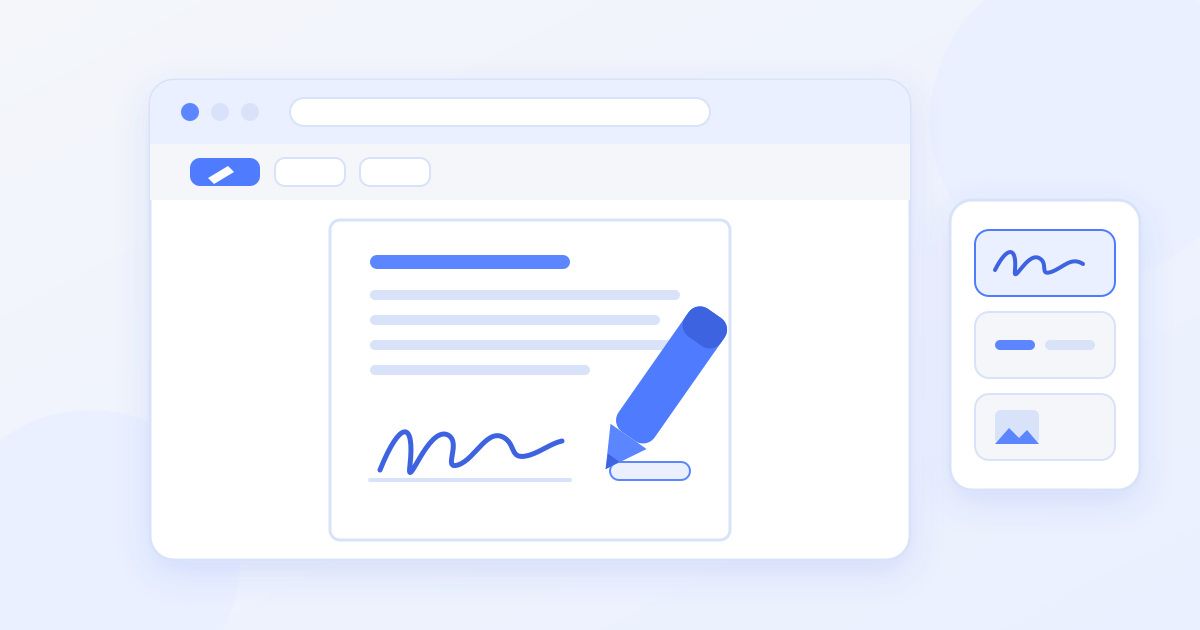
You can sign a PDF in Microsoft Edge without installing anything: open the PDF in Edge, choose Draw from the toolbar, write your signature with the mouse, touchpad or a pen, then save. It works, but Edge has no dedicated signature tool, so there is no typed or uploaded signature, no reusable signature and no date stamp. If you need any of those, a free browser signer is the quicker route.
This guide walks through both methods step by step on Windows and Mac, explains where Edge's drawing tool falls short, and covers what to check before you send the signed file back.
Method 1: sign with Edge's built-in Draw tool
Edge is the default PDF viewer on most Windows PCs, so for many people this is the fastest option.
- Open the PDF in Edge. Double-click it if Edge is your default PDF viewer. If not, right-click the file, choose Open with and pick Microsoft Edge. You can also drag the file into an open Edge window.
- Find the signature line. Scroll to where you need to sign and zoom in so the line is large on screen. A bigger view gives you a steadier signature.
- Select Draw. In the toolbar at the top of the PDF, click Draw. Use the small arrow beside it to choose an ink colour and a thickness. Dark blue or black at a thin-to-medium width looks most like a pen.
- Sign. Write your signature on the line. On a touchscreen laptop or tablet, a stylus or your finger gives a far more natural result than a mouse.
- Fix mistakes. Choose Erase and click the stroke you want to remove, then draw again.
- Add the date if needed. Use Add text, click next to the signature and type the date.
- Save. Click the save icon, or use Save as to keep the unsigned original and create a signed copy.
If you can't see the Draw button
A missing toolbar is usually one of three things. First, check that the PDF actually opened in Edge and not in another app: the address bar should show the file path. Second, make sure Edge is up to date from Settings and About Microsoft Edge, since the PDF tools change between versions. Third, some PDFs are password-protected with restrictions that block changes; if so, ask the sender for an unrestricted copy rather than trying to get around the protection. On a work computer, your IT team may also have set a different default PDF reader.
Where Edge's Draw tool falls short
Drawing works for an occasional form, but it was built for annotation, not signing. A few limits come up again and again:
- Mouse signatures look shaky. Without a touchscreen or pen, most people end up with a signature that does not look like theirs.
- Nothing to move or resize. A drawn stroke stays where you drew it. If it lands slightly above the line, you erase it and start over.
- No reuse. Each document means drawing your signature again, and initials on every page mean drawing them on every page.
- No typed or uploaded signature. You cannot pick a cursive font or use a scan of your real signature.
- PDF only. Edge cannot open a Word document to sign it, so a DOCX contract has to be converted first.
Method 2: sign in Edge with Docsigns
If you want a cleaner result, you can stay in Edge and use Docsigns, a free signer that runs in the browser with no account and no watermark.
- Open docsigns.online in Edge and upload your PDF, DOC or DOCX file.
- Create your signature one of three ways: draw it, type your name and pick from six cursive fonts, or upload a photo or scan of your handwritten signature.
- Choose a pen colour: black, blue, red, green, orange or purple.
- Place it. Drag the signature onto the line, then resize and move it until it sits exactly where it should. Place it on as many pages as you need.
- Add a date in the format the document asks for.
- Download the signed PDF.
The how it works page shows the same three steps with screenshots if you want to see them before you start.
Edge Draw vs Docsigns at a glance
| What you need | Edge Draw tool | Docsigns in Edge |
|---|---|---|
| Draw a signature | Yes | Yes |
| Type a signature in a cursive font | No | Yes, 6 fonts |
| Upload an image of your signature | No | Yes |
| Move and resize after placing | No, erase and redraw | Yes |
| Date | Typed with Add text | Date field in several formats |
| Word files (DOC/DOCX) | No | Yes, converted to PDF |
| Cost and account | Free, built in | Free, no account |
What happens to your file
With Edge's Draw tool, the PDF stays on your computer the whole time. With Docsigns, it depends on the file type, and the difference is worth knowing:
- PDFs are signed in your browser. The PDF itself is not uploaded.
- Word files are converted on a server first. A DOC or DOCX is sent to a conversion service to turn it into a PDF, and the signing then happens in the browser.
If a document is sensitive and you would rather nothing leaves your machine, export it to PDF in Word first (File, then Save as or Export, then PDF) and sign the PDF. The privacy policy has the full details.
Getting a signature that looks like yours
Whichever method you choose, these small habits make a big difference:
- Zoom in before drawing. Writing large and then scaling down hides the wobble of a mouse or touchpad.
- Use a stylus if you have one. Surface Pen and similar styluses produce a natural line in both Edge and Docsigns.
- Upload your real signature for repeated use. Sign a white sheet with a dark pen, photograph it in good light, and upload the image. It looks the same on every document.
- Match the ink to the request. Some forms ask for blue ink to make originals easy to spot. Pick blue in either tool.
Before you send it back
- Open the saved file again and check every page that needed a signature, initials or a date.
- Name it clearly, for example with the document name and "signed", so the other party can tell it apart from the blank version.
- Send it the way it was requested. If you received it by email, reply with the signed PDF attached.
Keep in mind that a signature added in Edge or Docsigns is an electronic signature, not a certificate-based qualified digital signature. Electronic signatures are accepted for most everyday agreements, such as offer letters, leases, invoices and consent forms, under laws like ESIGN and UETA in the US and eIDAS in the EU. Some documents, such as property transfers, wills and certain financial instruments, may need a qualified signature, witnesses or a notary. If you are unsure, ask the person who sent you the document what they accept. This is general information, not legal advice.
Which should you use?
For a one-off PDF on a touchscreen device, Edge's Draw tool is perfectly fine and already installed. If you are on a mouse, need to sign a Word file, want to type or upload a signature, or have several pages to initial, open Docsigns in the same browser and you will be done faster with a neater result.
Frequently asked questions
Can you sign a PDF in Microsoft Edge?
Yes. Open the PDF in Edge, select Draw from the toolbar and write your signature with a mouse, touchpad or pen, then save the file. Edge has no dedicated signature tool, so you cannot type or upload a signature there.
How do I add a date next to my signature in Edge?
Choose Add text in the PDF toolbar, click beside your signature and type the date. Docsigns also has a date option with several formats you can drag into place.
Why can't I move my signature after drawing it in Edge?
Edge's Draw tool creates ink strokes rather than a movable signature box. To reposition it, erase the stroke and draw it again, or use a signer that lets you drag and resize the signature.
Can I sign a Word document in Edge?
Edge cannot open DOC or DOCX files for signing. Save the document as a PDF from Word first, or upload the Word file to Docsigns, which converts it to PDF on a server before you sign.
Does Edge save my signature for next time?
No, you draw it again on each document. For a consistent signature every time, upload an image of your handwritten signature to a signer such as Docsigns.
Is a PDF signed in Edge legally valid?
It is an electronic signature, which is accepted for most everyday agreements under laws such as ESIGN, UETA and eIDAS. Some documents need a qualified signature, witnesses or a notary, so check with the requester if you are unsure.