How to Sign a Scanned Document Online (Free, No Printing)
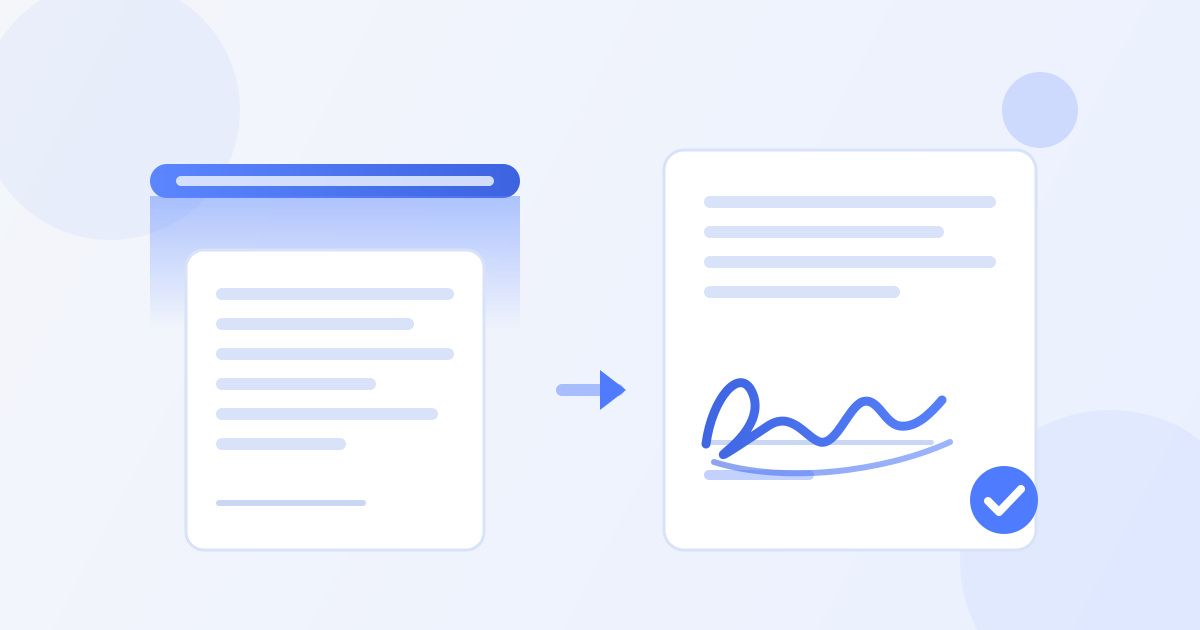
To sign a scanned document, save the scan as a PDF, open it in Docsigns, draw or type your signature, drag it onto the signature line and download the signed PDF. A scan is just an image of a page, so the signature sits on top of it exactly the way ink would sit on paper — no printing, no re-scanning.
This is the situation almost everyone hits at some point: a form arrives on paper, or a colleague scans a contract and emails it over, and now you need your name on it. The old answer was print, sign, scan, send. The scan is already digital, so that whole loop is unnecessary.
First, make sure the scan is a PDF
Docsigns opens PDF, DOC and DOCX files. Most scanners and phone scanning apps already produce PDFs, but a photo you took of a document is a JPG or a PNG, and that will not open.
Two ways round it. If you used your phone's camera, rescan the page with the scanning feature built into your notes or files app, which saves a PDF and straightens the page while it is at it. If you only have the photo, run it through any image-to-PDF converter first, then come back and sign the PDF. It takes a few seconds and it also gives you a tidier document to send on.
Signing the scan, step by step
- Open the signer and add your scanned PDF.
- Create your signature: draw it with a mouse, trackpad or finger, type it and pick one of six cursive fonts, or upload an image of a signature you already have.
- Choose a pen colour. Black looks closest to the rest of a printed page; blue is the traditional way to show a signature is original rather than a photocopy.
- Drag the signature onto the signature line and resize it with the handles until it sits naturally.
- Add the date next to it if the document asks for one, and pick the date format the document uses.
- Download the signed PDF.
The how it works page walks through the same three stages if you would rather see them laid out. There is no account to create and nothing is added to the finished file — no watermark, no advert, no footer.
Drawn, typed or uploaded: which suits a scan?
| Method | Looks like | Best for |
|---|---|---|
| Draw | Your actual handwriting, as steady as your hand and device allow | Phones and tablets, where a finger gives decent control |
| Type | A clean cursive rendering of your name | Desktops with only a mouse, and documents that just need a clear mark |
| Upload | Exactly your signature, because it is a picture of it | When you want every document to carry the identical mark |
On a scanned page there is one extra consideration: the scan itself usually has a slightly grey or speckled background, while an uploaded signature image often has a white one. A white rectangle sitting on a grey scan is obvious. If you upload, use an image with a transparent background, or draw the signature instead — a drawn signature has no background at all.
Placing the signature on a scanned page
Scanned pages are less forgiving than digital ones, because the layout is baked into an image. A few things worth doing:
- Zoom in before you drop the signature. On a scan of a dense form, the signature line can be a few millimetres tall. Placing it at a low zoom is how signatures end up straddling two fields.
- Sit on the line, not above it. Ink usually crosses a signature line slightly. A mark floating a centimetre above it looks pasted on.
- Match the scale of the printed text. An enormous signature across half a page reads as a mistake rather than a flourish.
- Check every page. Many paper forms want initials on each page and a full signature only at the end. Scroll through the whole document before you download.
If the scan is crooked or upside down
Fix the page before you sign it, not after. Docsigns places and sizes signatures, but it does not rotate or deskew pages, so a sideways scan stays sideways in the signed file.
The quickest fix is usually to scan the page again with a phone scanning app, which detects the edges and straightens the result automatically. If rescanning is not possible, rotate the pages in whatever PDF viewer you have and save the corrected copy, then sign that. Signing a crooked page is not wrong, it just makes the document look careless — and if it is going to a landlord, an employer or a bank, that impression matters.
A faint scan is worth redoing
Scan quality decides how the finished document reads, and a signature cannot rescue a page nobody can make out. If the text is grey and washed out, or the shadow of your hand fell across the page, redo the scan before signing rather than after — once you download the signed PDF, any change to the underlying page means starting again.
Phone scans improve enormously with two habits: put the page on a plain surface with light coming from the side you are not leaning over, and let the app find the page edges instead of cropping by hand. On a flatbed scanner, a mid-range setting is plenty for a text document; very high settings mostly produce a heavier file without making the words any clearer. Aim for a page where the smallest printed text is comfortably readable at 100% zoom, because that is the size the recipient will open it at.
Does a signature on a scan count?
For most everyday agreements, yes. Electronic signatures are recognised across the EU under eIDAS and in the United States under the ESIGN Act and UETA, with equivalents elsewhere, and a signature applied to a scanned PDF is no weaker than one applied to a digitally created PDF — in both cases what matters is that you intended to sign and that the parties agreed to sign electronically.
Two honest limits. First, Docsigns produces an electronic signature, not a qualified digital signature backed by a certificate from a trust service provider. That distinction matters for a small set of documents — property transfers, wills, some financial instruments and certain court filings — which may require a qualified signature, notarisation or wet ink. Second, this is general information rather than legal advice; if a document is high-value or you are unsure what it requires, ask the other party or a professional what form of signature they will accept.
What happens to your file
If your scan is a PDF, the signing happens in your browser and the PDF is not uploaded anywhere. If you are working from a DOC or DOCX instead, that file is converted to PDF on a server first, then signed in the browser — worth knowing if the contents are sensitive. You can read more on the about page.
After you sign
Save the signed PDF with a name that tells you what it is later: tenancy-agreement-signed-2026-09.pdf beats scan_0042(1).pdf when you need it in a year.
Reply to whoever sent it and attach the signed file, keeping the original scan in the same folder so you can show what changed. If several people need to sign, each person signs the file in turn and passes it on — there is no request-for-signature flow here, no audit trail and no cloud storage, so the email thread is your record. For a document you will need to prove later, keep the covering emails too: they show who sent what, and when.
More guides on signing specific document types are on the blog.
Frequently asked questions
Can I sign a scanned document without printing it?
Yes. Open the scanned PDF in Docsigns, add a drawn, typed or uploaded signature, place it on the signature line and download the signed file. No printer or scanner is involved after the original scan.
Can I sign a scanned document if it is a JPG photo?
Not directly — Docsigns opens PDF, DOC and DOCX files. Convert the photo to a PDF first, or rescan the page with a phone scanning app, which saves a PDF and straightens the page at the same time.
Will my signature look right on a grey scan?
A drawn signature has no background, so it blends in. An uploaded signature image with a white background can show as a pale rectangle on a grey scan, so use a transparent PNG or draw the signature instead.
Is a signature added to a scanned PDF legally valid?
For most everyday agreements, yes — electronic signatures are recognised under eIDAS in the EU and ESIGN and UETA in the US. Some documents, such as property transfers and wills, can require a qualified signature or wet ink. This is general information, not legal advice.
Can I rotate or straighten a crooked scan in Docsigns?
No. Docsigns places, resizes and positions signatures, but it does not rotate or deskew pages. Straighten the scan in a PDF viewer or rescan it, then sign the corrected file.
Is the scanned document uploaded to a server?
A PDF is signed in your browser and is not uploaded. A DOC or DOCX is converted to PDF on a server first, then signed in the browser, so keep that in mind for sensitive Word files.