How to Sign a PDF Signature Field (With or Without a Digital ID)
If a PDF has a signature field that won't let you sign, or asks for a "Digital ID" when you click it, you have two options. If the sender only needs your visible signature, place a drawn, typed or uploaded signature over the box with an online signer and send back the PDF. If the sender specifically requires a certificate-based digital signature, you need a Digital ID and a program that can apply it, such as Adobe Acrobat Reader. The trick is knowing which one they actually want.
This guide explains why signature fields behave the way they do, how to tell which kind of signature is being asked for, and how to sign in each case without printing anything.
Why the signature field won't just let you sign
PDFs can contain two very different things that both look like "a place to sign":
- A visual signature line or box. This is just a drawn line, a rectangle or the words "Signature" printed on the page. It has no special behaviour. Anything you place there, whether a drawn signature or an image of your handwriting, fills it.
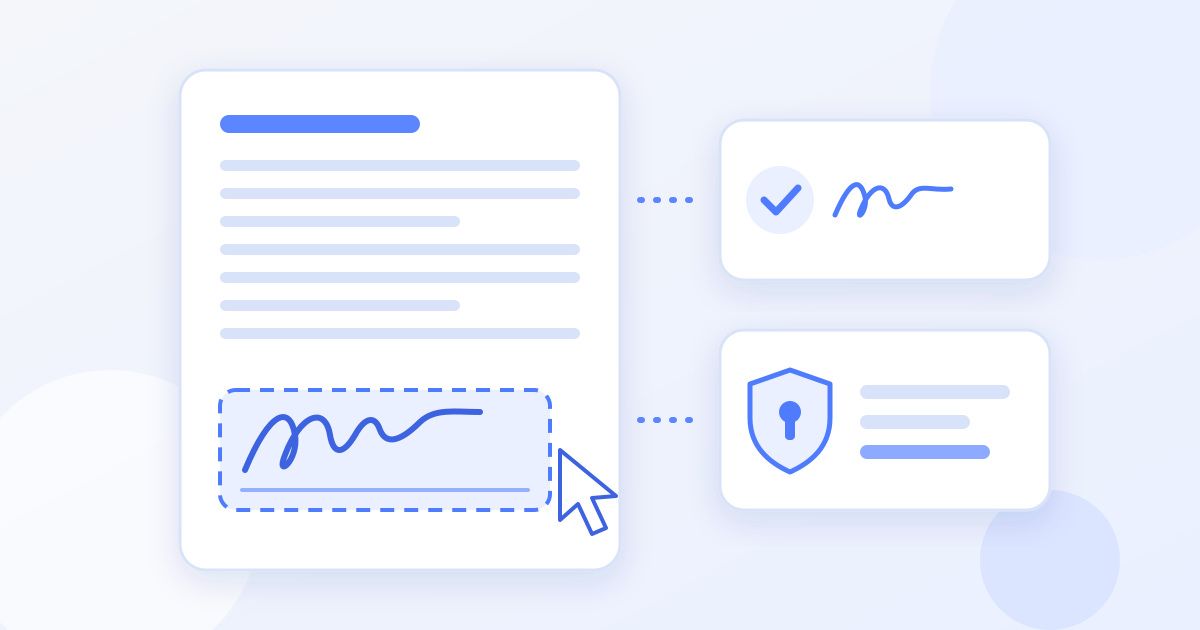
- A digital signature form field. This is an interactive field, often shown with a red outline, a small flag or a pen icon in Adobe Acrobat. Clicking it in Acrobat starts the "Sign with a Digital ID" process, which applies a cryptographic certificate to the file rather than just an image of your name.
The confusion starts when you click a digital signature field and Acrobat asks you to configure a Digital ID, when all you wanted was to write your name. Other PDF viewers may ignore the field entirely, or show it as a box you can't type in. None of this means the document is broken. It means the form was built with a certificate signature in mind.
Which kind of signature does the sender actually need?
Before choosing a method, check what the person or organisation asking for the signature expects. A quick way to decide:
| Clue | What it usually means | What to do |
|---|---|---|
| The instructions say "sign and return" or "sign, scan and email" | A visible signature is enough | Place your signature over the box with an online signer |
| The sender says "print, sign and send a photo" as an option | A visible signature is enough | Sign electronically instead of printing |
| The instructions mention a "Digital ID", "certificate" or "digitally sign" | They want a certificate-based signature | Use Acrobat Reader or your organisation's signing system |
| A university, employer or government portal will validate the signature | Possibly a certificate signature | Ask the sender or check their help page before signing |
| No instructions at all, just a box labelled "Signature" | Usually a visible signature is fine | Sign visually; ask if the recipient comes back with a problem |
When in doubt, a one-line email asking "Is a typed or drawn electronic signature OK, or do you need a Digital ID signature?" saves a round trip.
Option 1: Place a visible signature over the field
This is what most people need: an invoice, a permission form, a rental application or an HR form where the recipient just wants to see your signature in the right place. Docsigns handles this for free, with no account and no watermark on the result.
- Fill in everything else first. If the PDF has fillable text fields for your name, address or date, complete them in your usual PDF viewer and save the file. Signing is best done as the last step.
- Open Docsigns and upload the PDF. It accepts PDF, DOC and DOCX files.
- Create your signature. Draw it with a mouse, trackpad or finger, type your name in one of six cursive fonts, or upload a photo of your handwritten signature. You can pick an ink colour, including black and blue.
- Drag it onto the signature box and resize it so it sits inside the field. If there is a date line next to it, add a date in the format the form uses.
- Download the signed PDF and open it to check that the signature sits where it should on every page that needs one.
The how it works page walks through the same steps with more detail on each signature style.
What this is and isn't: Docsigns places an electronic signature on the page. It does not fill the underlying digital signature field with a certificate, so if someone opens the file in Acrobat, that field may still show as unsigned even though your signature is clearly visible on top of it. For most everyday paperwork that doesn't matter, because a person is checking that you signed, not software. If an automated system checks the field, use Option 2.
A note on privacy
When you sign a PDF with Docsigns, the signing happens in your browser and the PDF itself is not uploaded. Word documents work differently: a DOC or DOCX is sent to a server to be converted to PDF before you sign it. If your document is sensitive and in Word format, you may prefer to export it to PDF yourself first. The privacy policy has the details.
Option 2: Sign with a Digital ID when it's required
Some institutions build forms that must be signed with a certificate, because their system checks that the signature field was signed and that the file hasn't changed since. In that case a visual signature won't pass, however neat it looks.
The usual route is the free Adobe Acrobat Reader:
- Open the PDF in Acrobat Reader and click the signature field.
- When asked, choose to configure a Digital ID. If your organisation has issued you one (for example on a smart card or as a certificate file), use that. Otherwise Acrobat can create a self-signed Digital ID on your computer.
- Choose the ID, enter its password, and save the signed file when prompted.
Be aware that a self-signed Digital ID proves the file hasn't changed since you signed it, but it doesn't prove to anyone else who you are. Organisations that need that level of assurance normally issue IDs themselves or tell you which provider to use. If you are unsure, ask them before you sign, because a signed file generally can't be edited afterwards without breaking the signature.
Common problems and quick fixes
- "This document is locked" or the field won't respond. The form may have been secured against changes. Ask the sender for an unlocked copy, or check whether a visible signature is acceptable.
- The signature looks huge or tiny. Resize it to roughly match the height of the signature line. A signature that overflows onto other text looks careless on a formal document.
- There are several signature boxes. Place a signature in each one. If the form also asks for initials on each page, see our guide to signing and initialling PDFs on the blog.
- The recipient says the field is still empty. Their software is looking at the digital signature field, not the page. That's your cue to use a Digital ID as described in Option 2.
- You filled the form after signing. Re-sign the final version. Signing should always be the last change you make.
Is a visible electronic signature valid?
For most everyday agreements, yes. Laws such as the ESIGN Act and UETA in the US and eIDAS in the EU recognise electronic signatures, and a drawn or typed signature on a PDF is a common, accepted way to sign things like invoices, consent forms and offer letters. Some documents, such as property transfers, wills and certain financial or official filings, need more: a wet signature, a witness, a notary or a qualified electronic signature. This is general information, not legal advice. If a document has real legal or financial weight, check its requirements with the sender or a professional.
The short version
- A signature box on the page can be filled with any visible signature.
- A digital signature field wants a certificate, which is what the "Digital ID" prompt is about.
- If the sender just needs to see your signature, sign over the box with an online signer and send the PDF back.
- If they need a certificate signature, use Acrobat Reader or the ID they issue you, and ask first if unsure.
Frequently asked questions
Why does my PDF ask for a Digital ID when I click the signature field?
The form contains a digital signature field, which Adobe Acrobat fills using a certificate called a Digital ID. It is asking you to create or choose one. If the sender only needs your visible signature, you can place a drawn or typed signature over the box instead.
Can I sign a PDF signature field without a Digital ID?
Yes, visually. An online signer like Docsigns lets you draw, type or upload your signature and place it over the box. The certificate field underneath stays unsigned, so this works when a person, not software, checks the signature.
How do I know if I need a digital signature or an electronic signature?
Check the instructions. Words like Digital ID, certificate or digitally sign mean a certificate signature is expected. Instructions like sign and return or print and sign mean a visible electronic signature is usually enough.
Is a self-signed Digital ID enough?
It shows the file hasn't been changed since signing, but it doesn't independently verify who you are. Organisations that require identity assurance usually issue their own IDs or name an approved provider, so ask them if you are unsure.
Why does the recipient say my signature field is still empty?
Their software is checking the digital signature field rather than looking at the page. Your visible signature is on top of the field, not inside it. If they need the field itself signed, use a Digital ID in Adobe Acrobat Reader.
Can I fill in the rest of the form after signing?
It's better not to. Complete every other field first, save the PDF, then sign as the last step. If you change the document after signing, sign the final version again.