How to Sign a Timesheet Electronically (Free, No Printing)

To sign a timesheet electronically, fill in your hours first, save the timesheet as a PDF (or keep it as a Word file), then open it in a free online signer, add your signature and the date on the signature line, and download the signed PDF to send back. The whole thing takes a couple of minutes and you never have to print, sign and scan a page again.
Timesheets are the most repetitive document many people sign: every week or every fortnight, for an agency, a contractor client, a school placement or a care job. This guide covers the fastest routine for signing them, what to do when the timesheet arrives as an Excel file, how to handle a manager's signature as well as your own, and what to check with your employer before you switch to e-signing.
Before you sign: check that e-signed timesheets are accepted
Most employers and agencies happily accept an electronically signed PDF timesheet, and electronic signatures are recognised for most everyday agreements under laws such as ESIGN and UETA in the US and eIDAS in the EU. But a timesheet is ultimately your employer's form, and they decide how it has to be submitted.
- Some organisations require timesheets to be signed inside their own payroll or scheduling system, which records who approved what and when.
- Some funded programmes, public bodies and care schemes have their own rules about how hours are verified.
- Some managers simply want a signed PDF by email. That is the case this guide is for.
If you are unsure, ask once: "Can I send my timesheet as a signed PDF?" The answer saves you from redoing a month of timesheets later. This is general information, not legal or payroll advice.
Step 1: Fill in your hours first
A signature says "these hours are correct", so complete the timesheet before you sign it. How you do that depends on the format you were given:
| Timesheet arrives as | How to fill it in | Then |
|---|---|---|
| Fillable PDF form | Type into the fields in your browser or PDF reader and save | Sign the saved PDF |
| Flat PDF (no fields) | Ask for a Word or Excel version, or print the hours clearly on a copy | Sign the completed PDF |
| Word document (DOC/DOCX) | Type your hours in Word or Google Docs and save | Upload the Word file and sign it |
| Excel spreadsheet | Fill in the cells in Excel or Google Sheets | Export to PDF, then sign the PDF |
Docsigns places signatures and dates on a document; it is not a form filler, so the hours need to be in the file before you open it for signing.
Turning an Excel timesheet into a PDF
Excel files cannot be signed directly, so convert them first:
- Excel on Windows or Mac: File → Save As (or Export) → choose PDF. Check the page preview so the whole week fits on one page.
- Google Sheets: File → Download → PDF. Set the scale to "Fit to width" so columns are not cut off.
- Numbers on a Mac: File → Export To → PDF.
Open the PDF before signing and make sure the totals and dates are all visible. A timesheet with its last column chopped off will just come back to you.
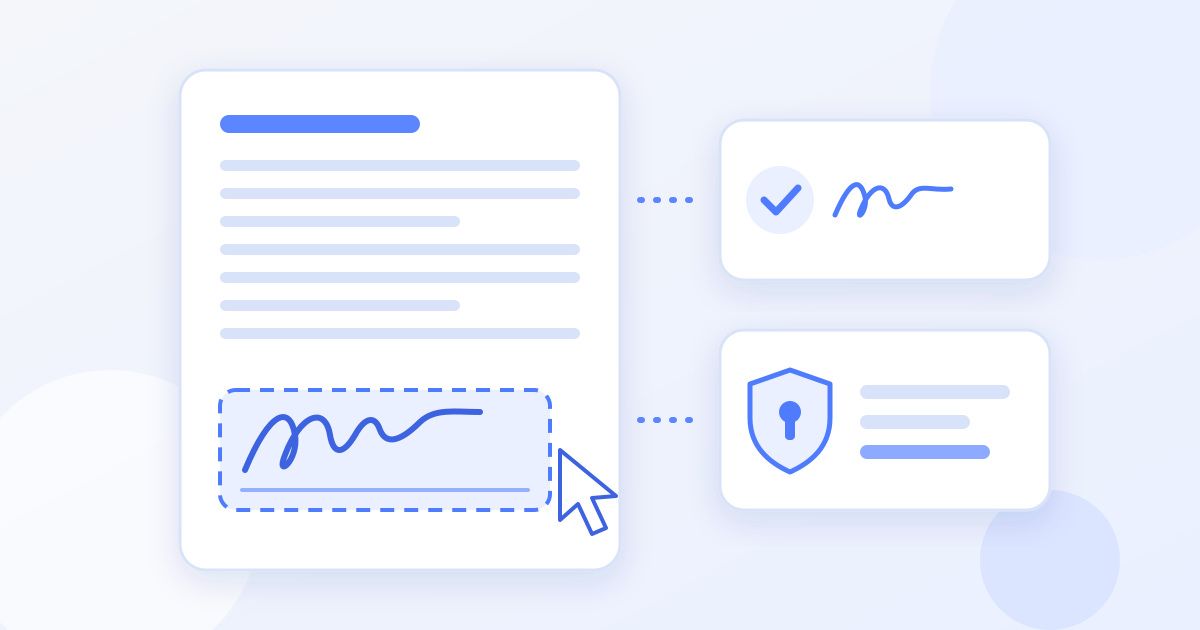
Step 2: Sign and date the timesheet
- Go to the Docsigns signer and upload your timesheet (PDF, DOC or DOCX).
- Create your signature: draw it with a mouse or finger, type your name and pick one of six cursive fonts, or upload an image of your handwritten signature.
- Drag the signature onto the employee signature line and resize it so it sits neatly inside the box.
- Add the date next to it, choosing the date format your timesheet uses.
- Download the signed document as a PDF.
If you want to see the steps laid out before you start, the how it works page walks through the same three stages.
Step 3: Send it back
Give the file a name your manager or payroll team can find later, for example Surname-Timesheet-2026-09-28.pdf, with the week-ending date. Attach it to an email, upload it to the agency portal, or share it however your employer asks. Keep a copy yourself: if a payment is ever short, your own signed copy of each week's timesheet is the quickest way to check what was submitted.
When a manager or client also has to sign
Many timesheets have two lines: one for the worker and one for the supervisor who approves the hours. There are two common ways to handle this.
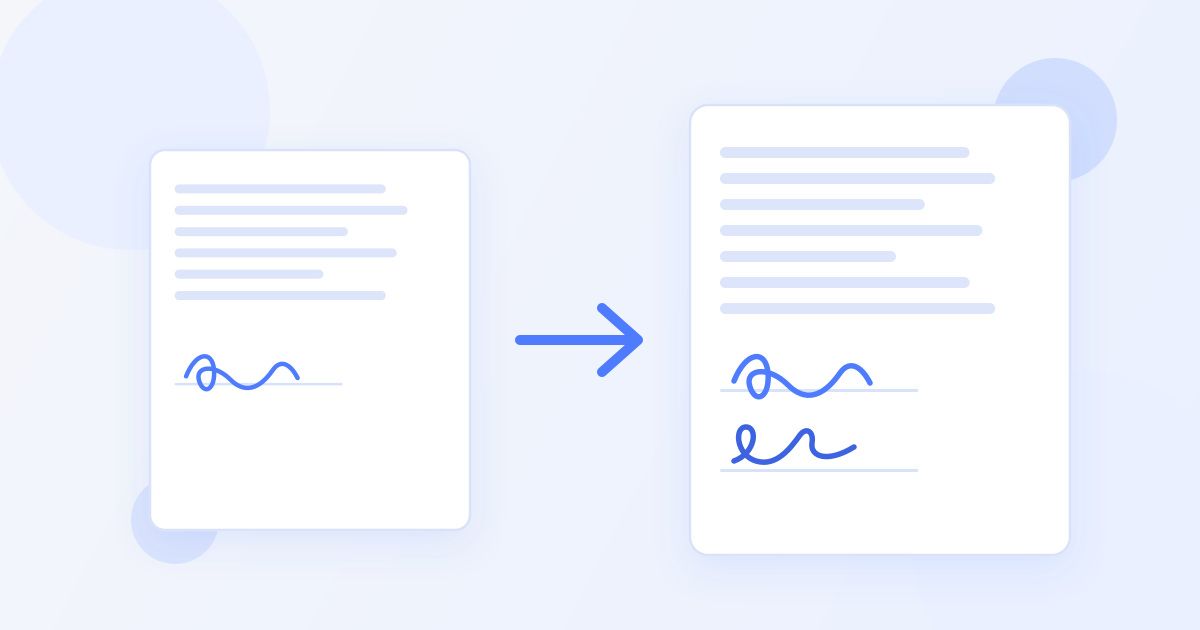
- Pass it along: you sign and date your line, send the PDF to your manager, and they open the same file in the signer and add their signature to the approval line. The final PDF carries both signatures.
- Sign together: if you are in the same place, the manager can sign on your phone or laptop straight after you do. You can place more than one signature on the same document before downloading.
Docsigns does not send signing requests or track who has signed; it is a tool for placing signatures on a document you have in front of you. If your employer needs an approval workflow with reminders and a record of who approved each timesheet, that is what payroll and timesheet systems are built for.
Make the weekly routine faster
- Use the same signature every time. Sign on white paper once, photograph it and upload that image each week. Your timesheets then look consistent, which is exactly what a payroll team expects.
- Keep a blank template. Save an unfilled copy of the timesheet so you are always starting from a clean version, not last week's.
- Match the ink colour if asked. Some forms ask for blue or black ink. The signer lets you pick black, blue, red, green, orange or purple.
- Sign on your phone. The signer works in a mobile browser, so you can finish Friday's timesheet from the car park without a laptop.
Common timesheet mistakes that get forms sent back
- Signing before the hours are final. If you change hours after signing, sign the corrected version again rather than editing a signed copy.
- Wrong week or missing date. Date your signature and check the week-ending date matches.
- Signature on the wrong line. Supervisor and employee boxes often sit side by side; zoom in before you drop the signature.
- Cut-off pages. Especially from Excel exports. Always open the PDF before sending.
Keep your own record
Docsigns has no account and keeps no history of what you signed, so your signed timesheets live wherever you save them. A simple folder per year, with one PDF per week named by the week-ending date, is enough. If a pay query ever comes up, you can open the exact version you sent in seconds, and it is also handy at tax time or when an agency contract ends and you need to confirm the hours you worked.
A note on privacy
Timesheets contain your name, hours and sometimes rates of pay, so it is worth knowing where the file goes. When you sign a PDF on Docsigns, the signing happens in your browser. A Word file (DOC/DOCX) is different: it is sent to a server to be converted to PDF before you can sign it. If you would rather your timesheet was not uploaded anywhere, save it as a PDF first and sign that. The privacy policy has the full detail.
Docsigns produces a standard electronic signature, the kind accepted on everyday forms like timesheets. It is not a certificate-based qualified digital signature, and it is free, with no account and no watermark on the signed PDF.
Frequently asked questions
Can I sign my timesheet electronically?
In most cases yes. Electronic signatures are recognised for most everyday agreements, and many employers accept a signed PDF timesheet by email. Your employer decides how timesheets must be submitted, so check once before switching.
How do I sign an Excel timesheet?
Excel files cannot be signed directly. Fill in your hours, export the sheet to PDF (File, Save As or Export, then PDF), check nothing is cut off, and sign the PDF.
How does my supervisor sign the same timesheet?
Sign and date your own line, then send the PDF to your supervisor. They open the same file in the signer and add their signature to the approval line, so the final PDF carries both signatures.
Can I fill in my hours in Docsigns?
No. Docsigns places signatures and dates on a document; it does not fill in form fields. Enter your hours in the PDF form, Word or Excel first, then sign the finished file.
Can I sign a timesheet on my phone?
Yes. The signer works in a mobile browser, so you can upload the timesheet, draw or place your signature with your finger, add the date and download the signed PDF without a computer.
Is my timesheet uploaded when I sign it?
When you sign a PDF, the signing happens in your browser. A Word file (DOC or DOCX) is sent to a server to be converted to PDF first, so save the timesheet as a PDF if you prefer it not to be uploaded.